
Venice AI Style Images and Video, Your Own Way
Create images and short clips in the King AI workspace and keep your own prompt library. Free options are limited; standard models need an account or credits.
Local generation history
A Personal Creative Routine
Keep Your Venice AI Ideas, Prompts, and Assets in Order
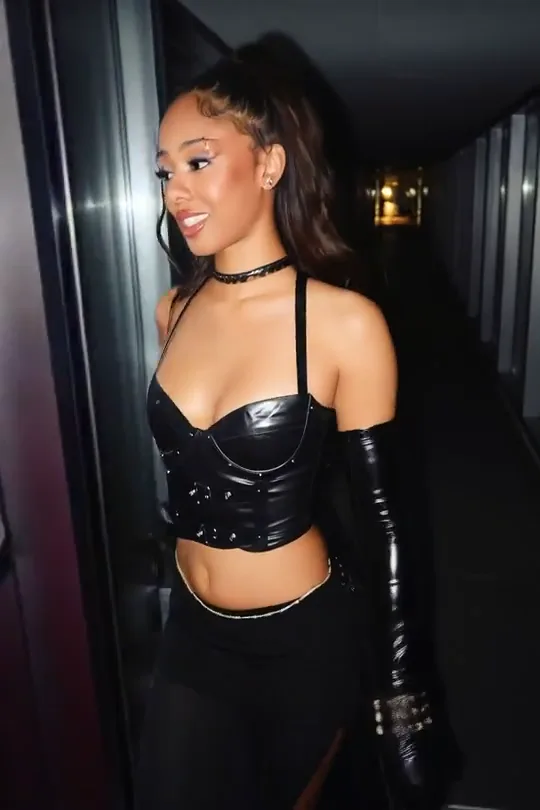
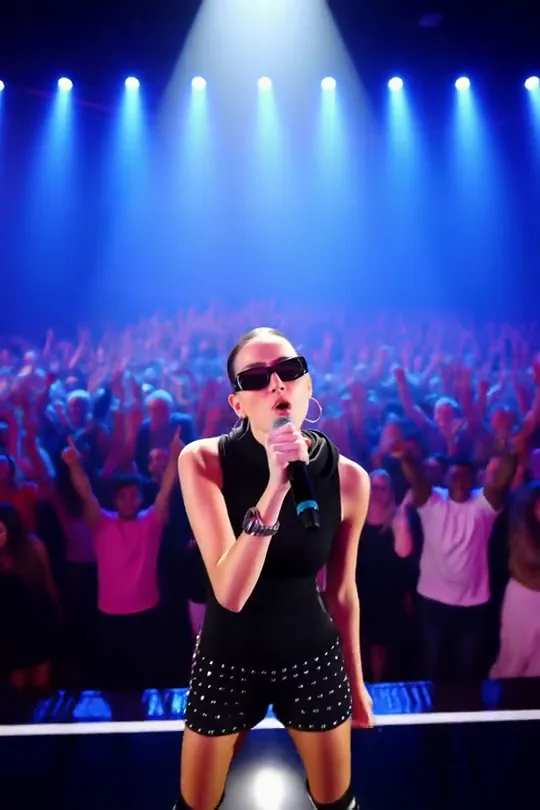
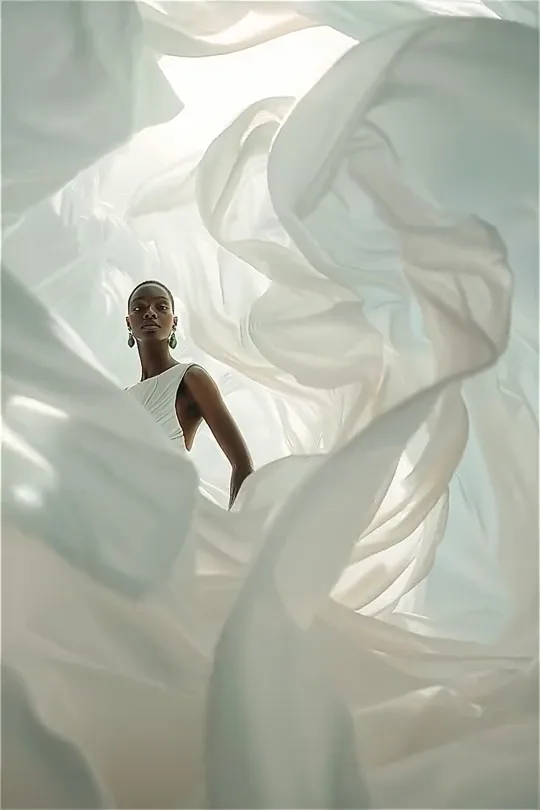
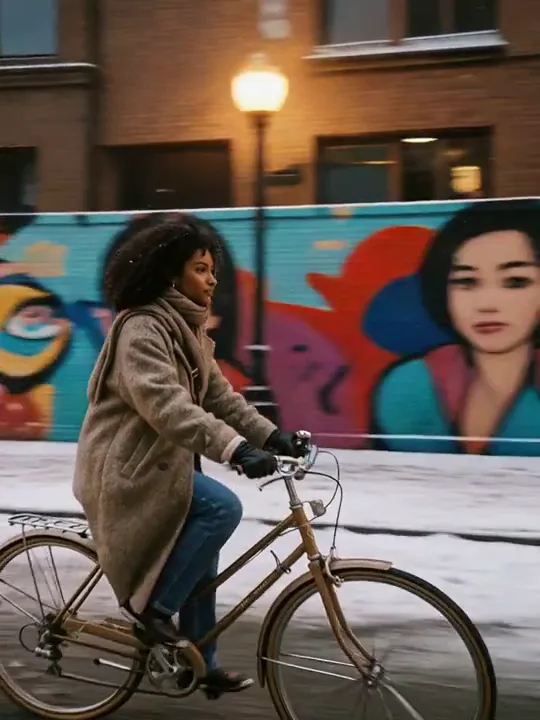
Three habits for a calmer, more personal workflow in the King AI workspace. The photos are illustrative examples, not generator output.
Write a Brief Only You Need to Understand
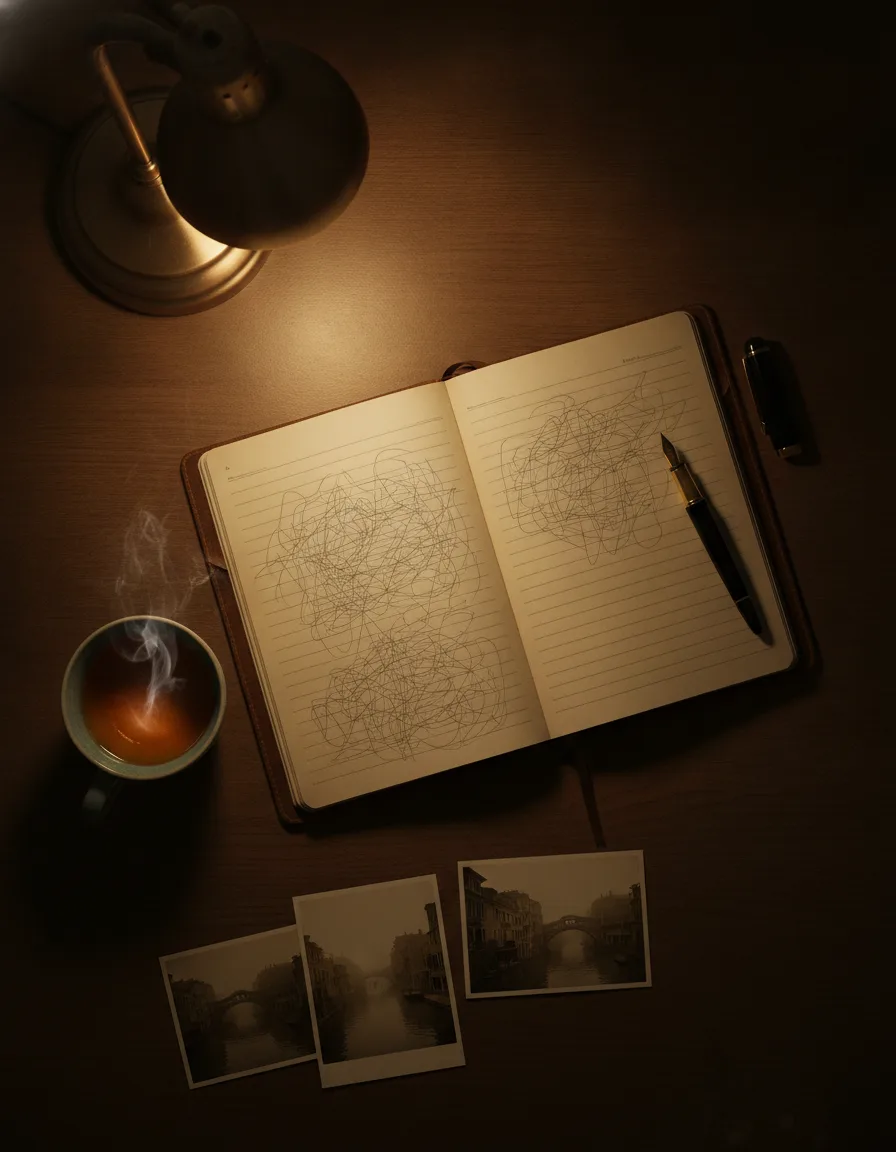
A Venice AI style routine starts with a short personal brief: what the picture is for, the feeling you want, and one detail you refuse to lose. It can be rough, like a note to yourself, and only your Venice AI sessions need to read it. Writing it before you open the generator keeps every Venice AI attempt tied to your own intent instead of drifting toward whatever looks impressive.
- Purpose in one line
- Mood in three words
- One non-negotiable detail
Gather Source Images You Have the Right to Use
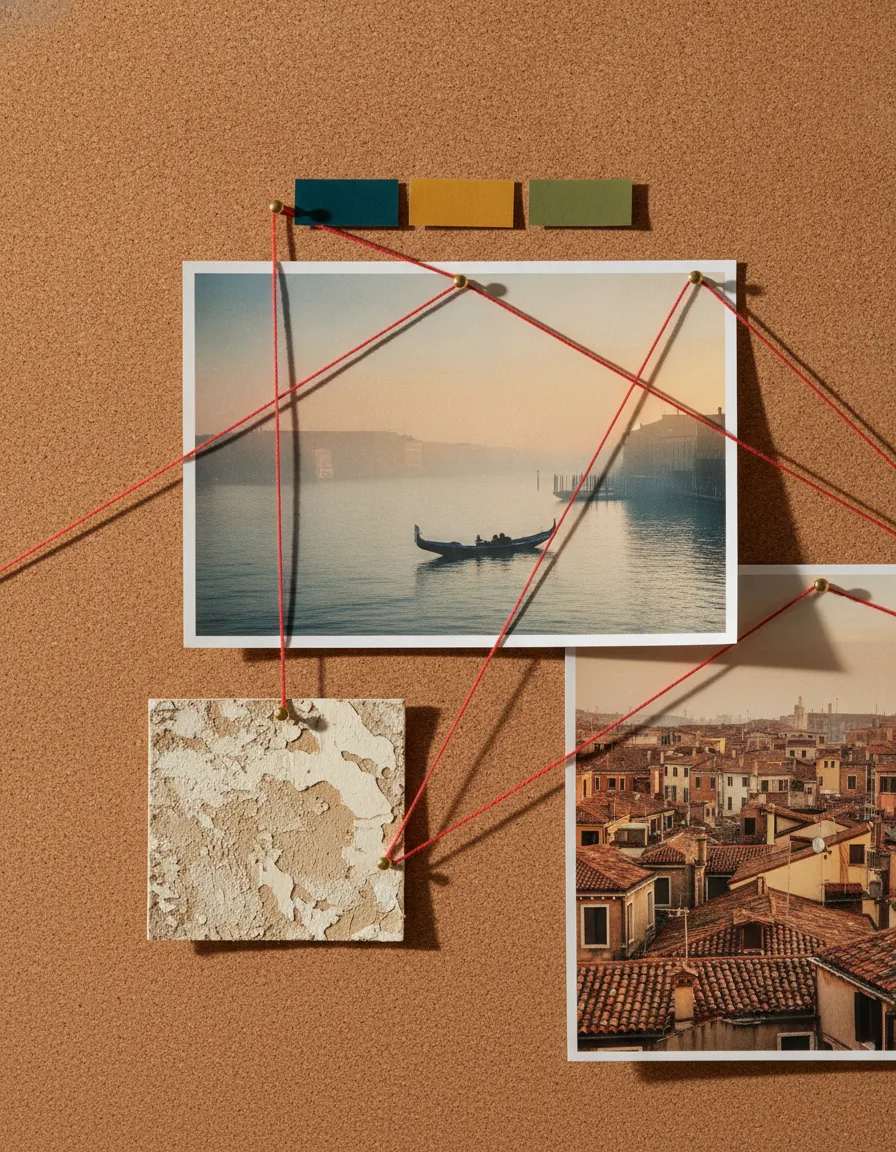
Image to video and image-based setups work best with references you trust. Keep a small Venice AI folder of your own photos, sketches, and approved stills, named by subject. When a Venice AI idea needs a starting frame, you pick from material you already understand rather than searching for something new each time.
- Use your own or licensed images
- Name files by subject
- Keep originals untouched
Save Prompts Like Recipes You Will Cook Again
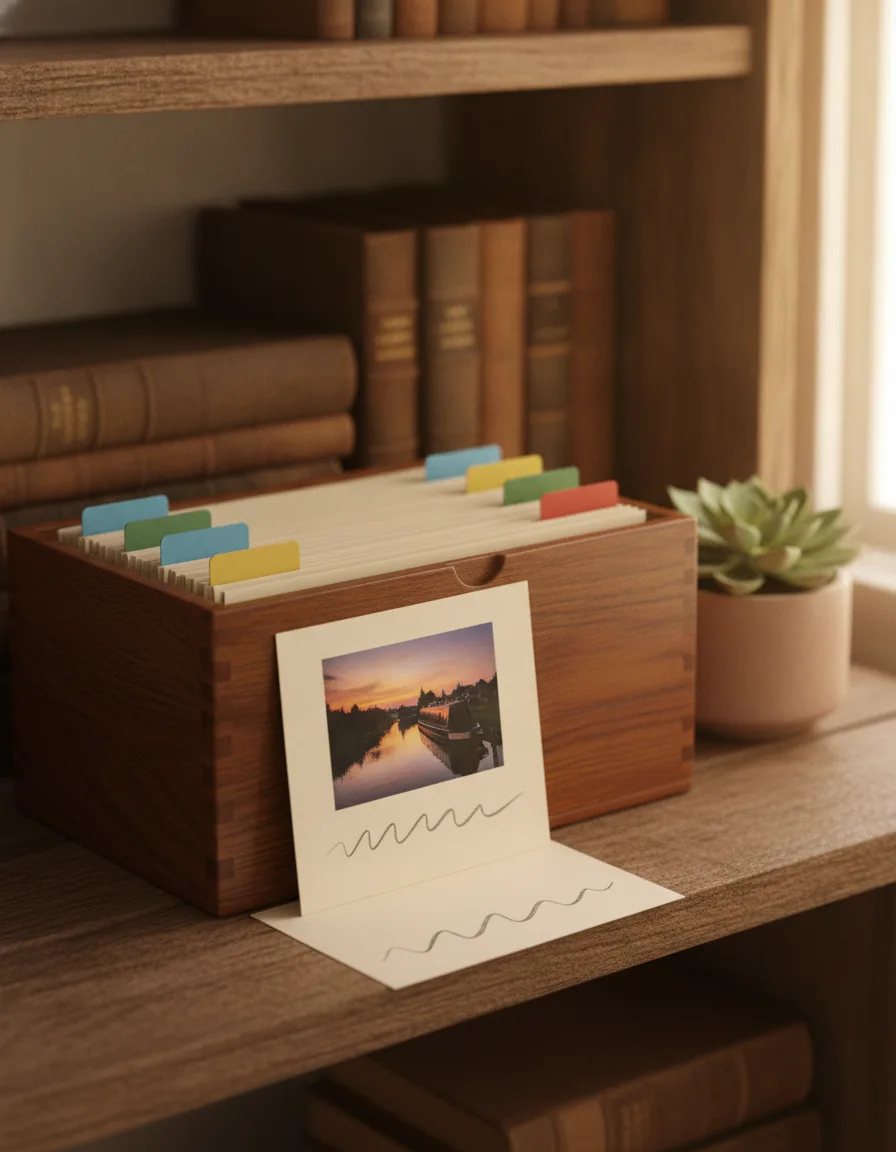
Every Venice AI prompt that produces a result you keep is worth saving with its settings and output. Over time those Venice AI notes become a personal library of looks, lighting setups, and motion lines. Starting a new Venice AI project from a proven recipe is faster than starting from an empty box.
- Store prompt with result
- Record mode and ratio
- Tag what worked
What a Venice AI Style Routine Looks Like Here
Use the image and video controls King AI already offers, and keep the organizing habits on your side.
Stills First, Motion Second
A Venice AI image generator session in image mode settles the look: subject, palette, framing, and ratio. Once you approve a still, video mode can use it for image to video, or pair it with an ending frame. Separating those two Venice AI steps makes it clear whether a problem comes from the picture or the motion.
Repeatable Recipes, Not Lucky Shots
A Venice AI result you cannot repeat is hard to build on. Keep each Venice AI prompt together with the mode, model, ratio, and source image you used. When you want a matching image or a second Venice AI video in the same style, you change one ingredient instead of guessing at all of them again.
Responsible by Default
King AI reviews generations against its content rules, and some requests will be declined. A Venice AI style routine here is about personal organization and steady quality, not about avoiding those rules. Use references you are allowed to use and review every output before you publish it anywhere.
How to Run a Venice AI Style Project From Brief to Clip
From Notes to Finished Files
Three steps that keep your inputs, decisions, and outputs easy to find later.
- 1
Write the Brief and First Prompt
Turn your personal brief into a clear Venice AI prompt: subject, setting, light, and ratio. Open image mode in King AI and generate a first Venice AI still. Save the prompt in your own notes the moment you send it.
- 2
Refine With Your Own References
If the look needs anchoring, upload a reference you have permission to use. Compare each Venice AI version with the brief and change one variable at a time. Download the still you approve and file it next to its prompt.
- 3
Animate and Archive
Switch to video mode and animate the approved Venice AI still with one clear action. Check the allowance shown first; free access is limited. Download the Venice AI clip and store it with its prompt, settings, and source frame.
What is a Venice AI style workflow on King AI?
It is a personal way of working: write your own brief, keep a library of prompts and source images, make a still, then animate it. King AI provides the image and video generation. The Venice AI habit is the organizing layer you keep on your side, so each project builds on the last one instead of starting over.
Can I try a Venice AI image generator approach for free?
The King AI workspace has limited free options for testing a few Venice AI style prompts. Check the allowance and model shown before you submit. Standard models, longer clips, and higher quality settings can require an account or credits. A tidy prompt library does not change those limits, but it does reduce wasted attempts.
Does a Venice AI style routine mean there is no content review?
No. King AI applies content review to generations, and requests that break its rules will be declined. Organizing your own Venice AI prompts and references is about consistency and control over your process. It does not switch off moderation, and rewording a blocked request to get around review is not a supported use.
How should I save my Venice AI prompts?
Use whatever you already trust: a notes app, a spreadsheet, or a text file in each project folder. For every Venice AI prompt you keep, record the mode, model, aspect ratio, any source image, and a link or filename for the result. Add a one-line comment about what worked so future you does not have to guess.
How do I keep my Venice AI assets organized?
Create one folder per Venice AI project with three parts: references, approved stills, and finished clips. Name files by subject and version, such as lake-dusk-v3. Keep original references untouched and save edits as copies. With that structure, any Venice AI image or video can be traced back to the prompt and source that made it.
How do I turn a Venice AI image into a video?
Choose video mode, select image to video, and use the still you approved as the starting frame. Describe one simple action, such as mist moving through trees or a slow push toward the subject. Starting the Venice AI video from a finished image keeps the palette and composition you already chose.
When should I use first and last frames for Venice AI clips?
Use first and last frame mode when you know exactly where a short clip should begin and end, such as a scene moving from morning light to evening light. Keep both Venice AI frames similar in framing so the model has a small, believable change to fill in rather than an entirely new shot.
Can I reuse a Venice AI prompt to make a matching series?
Yes, and that is where a saved Venice AI library pays off. Keep the style and lighting words fixed and swap only the subject. Generate each Venice AI image at the same ratio, then compare them side by side. Small differences between results are normal, so pick the ones that sit together best as a set.
Which images can I upload as Venice AI references?
Upload only images you created or have clear permission to use. Avoid photos of real people who have not agreed, and avoid logos or characters you do not own. Clean, well-lit references with a clear subject give the best Venice AI starting frames, and they keep your library safe to reuse later.
Will every Venice AI feature be available in this workspace?
Not necessarily. This page describes a way of working with the tools King AI already has. Available models, durations, ratios, and inputs come from the King AI workspace and can differ between image and video modes. Check those controls directly rather than expecting a particular Venice AI setting to appear here.
What if a Venice AI style generation fails or is declined?
Read the workspace message first. A busy service or a used allowance needs a retry later, while a content review notice means the request itself needs to change. Keep your Venice AI prompt and references saved on your side, use the recovery controls shown, and avoid resubmitting the same request repeatedly.
How do I export and archive a finished Venice AI project?
Download each Venice AI result you keep with the controls shown on it. Place the file in your project folder next to the prompt, settings, and source frame. When the Venice AI project is done, add a short note on what you would change next time, so the archive becomes a starting point for the next idea.