



Free Kling 3.0 AI Video Generator — No Login
Start free with no login. Sign in and use account credits when you choose a dedicated Kling model.
Kling 3.0 creative workflows
Plan a Clear Kling 3.0 Video From the First Frame
A useful Kling project begins with a focused visual decision. The King AI workspace keeps prompt planning, references, format choices, progress, and review together, while the free anonymous mode lets you explore the interface before selecting an account-based Kling model.
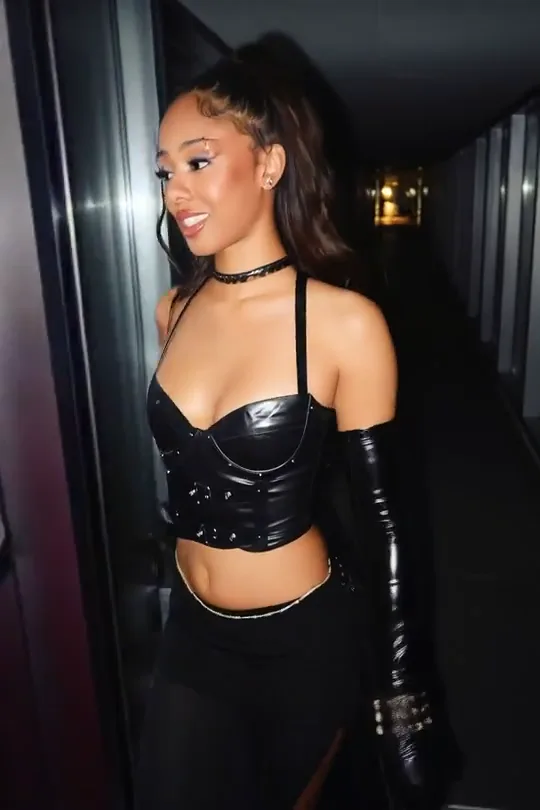
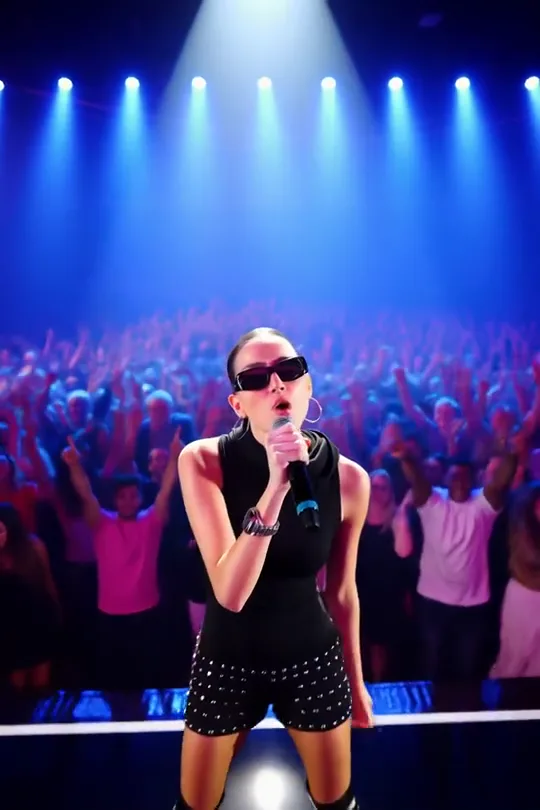
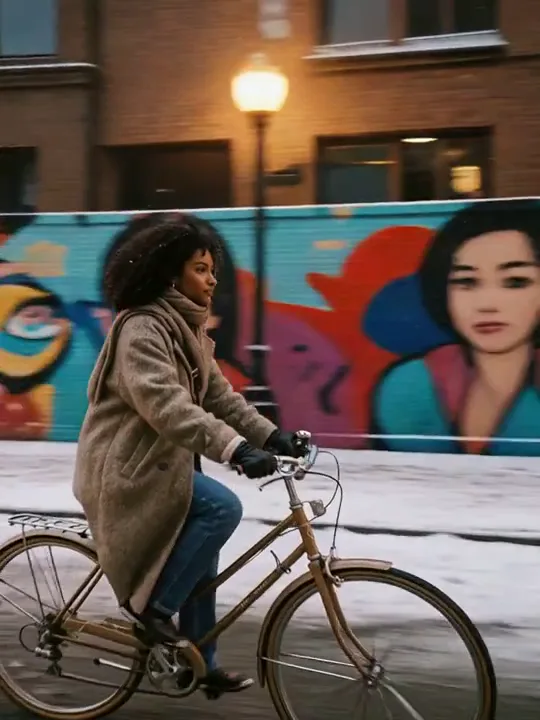
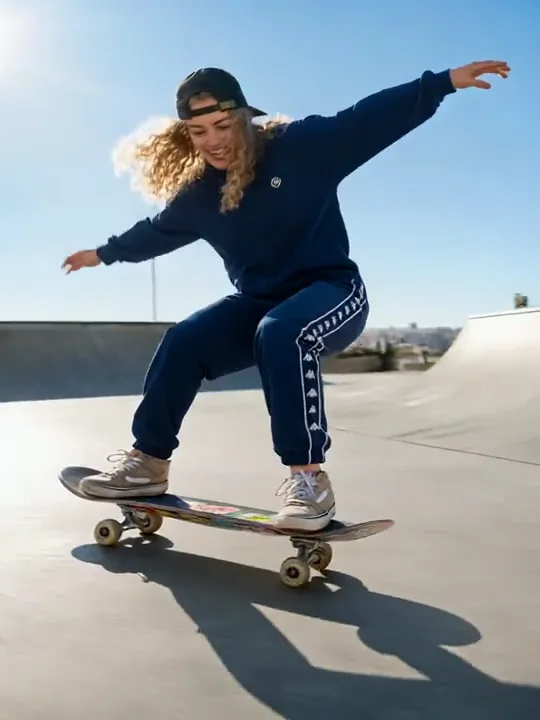
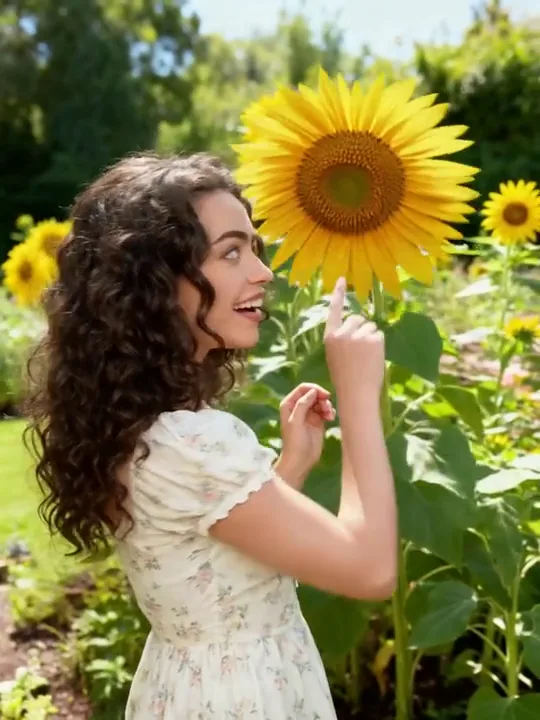
Anchor the Person Before Directing Motion
For a character-led Kling 3.0 scene, begin with details that should remain stable: appearance, clothing, environment, and emotional tone. Then describe one readable action and one camera move. This structure gives the Kling workflow a strong visual anchor instead of forcing it to resolve several competing ideas at once. A reference image can establish composition, while the prompt explains what should change over time. Use the free no-login workspace to organize the concept, then select the dedicated Kling model after signing in when you are ready to render with account credits.
- Define the subject, wardrobe, and setting in a stable order
- Give Kling one clear subject action to interpret
- Separate camera direction from character movement
- Use a reference frame when identity and framing matter
- Review continuity before adding secondary effects
Build a Product Reveal Around One Visual Priority
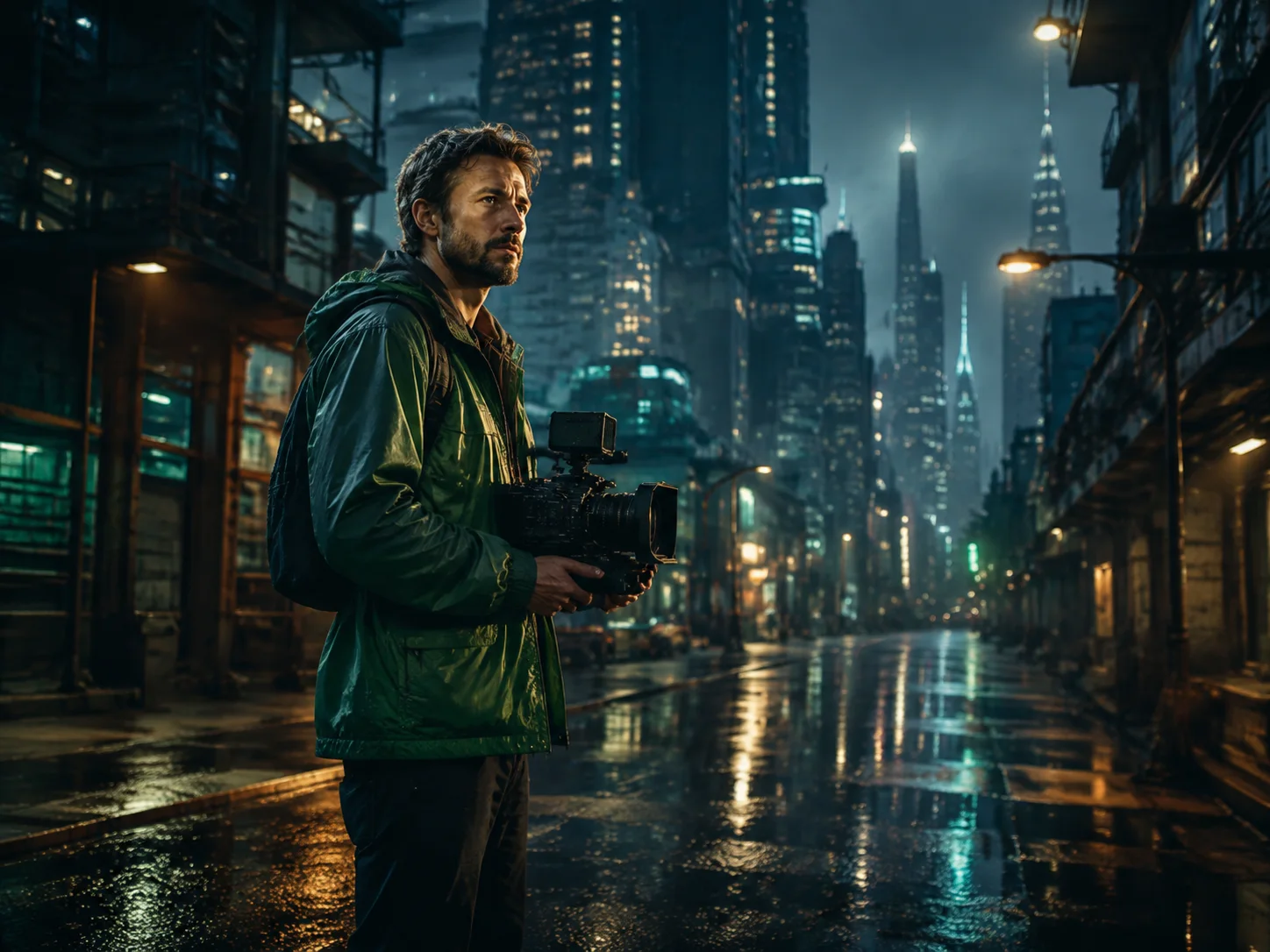
A product-focused Kling 3.0 prompt works best when the object remains the undisputed subject. Describe its material, the studio surface, the light direction, and the first detail the viewer should notice. Add a controlled orbit, push-in, or reveal rather than stacking several camera moves. The Kling workspace makes these decisions easy to compare because the prompt, input, format, and result remain in one place. Plan the shot in free anonymous mode with no login; dedicated Kling generation remains an account-credit feature selected from the existing model menu.
- Specify materials and reflections before decorative effects
- Choose one Kling camera path for a readable reveal
- Keep logos and exact typography for later editing
- Match the aspect ratio to the final placement
- Change one instruction between comparison drafts

Turn Several References Into One Coherent Direction
Complex Kling projects still need a simple creative hierarchy. Decide which reference controls the subject, which controls the environment, and which contributes movement or rhythm. Name those roles clearly in the prompt rather than asking every source to influence everything. Kling 3.0 and related Kling options expose different capabilities, so the workspace changes the available controls when you choose a model. The no-login mode is a free starting point for understanding the flow; signing in is required before selecting and submitting a paid Kling model task.
- Assign a single purpose to each visual reference
- Describe the beginning, transition, and final emphasis
- Check the selected Kling model capabilities in the UI
- Keep the prompt readable even when the idea is layered
- Evaluate pacing and continuity before polishing details

A Familiar Workspace for Deliberate Kling Decisions
The existing King AI generator keeps the practical steps visible without creating a second tool or a parallel task system. Start free with no login, then use the same interface to choose a Kling model after authentication when its capabilities fit the project.
Text, Image, and Reference-Led Planning
Begin with a written brief or add visual material when the composition must stay recognizable. The available inputs depend on the selected Kling model, and the interface presents only the relevant controls. This makes a Kling 3.0 concept easier to prepare because the creative direction and technical choices remain connected. Free anonymous access is useful for learning the workspace, while an account is required to submit a dedicated Kling task.
Model-Aware Motion Controls
Kling options can differ in supported modes, resolution, audio, end frames, references, or specialized motion tools. The shared generator reads those capabilities and adjusts the controls rather than displaying combinations that cannot be submitted. A creator can therefore choose the Kling route that matches the scene, keep the prompt focused, and see the current credit requirement before starting an account-based generation.
Progress, Review, and Download in One Flow
After an authenticated Kling task is submitted, the established task flow handles progress checks, results, errors, and the available download action. Keeping those stages together makes it easier to compare a finished Kling 3.0 clip with the original brief. If the result needs revision, return to the same workspace and change one variable, preserving a clear reason for every new attempt.
How to Prepare a Kling 3.0 Video in King AI
From plan to rendered draft
Use the free no-login mode to understand the creation flow, then sign in only when you want to choose a dedicated Kling model and spend account credits on a render.
- 1
Write a Focused Visual Brief
Describe the subject, setting, action, camera behavior, lighting, and mood in that order. For Kling 3.0, a short prompt with one main event is easier to judge than a paragraph full of unrelated transitions. If a reference image carries important information, let the prompt concentrate on motion and change instead of repeating every visible detail.
- 2
Choose the Appropriate Kling Option
Open the model menu after signing in and choose the Kling option whose visible controls match the task. Check whether the current selection supports the input type, duration, resolution, audio, end frame, or reference behavior you need. The interface calculates the relevant account-credit cost and prevents unsupported combinations before a generation request is submitted.
- 3
Generate, Review, and Refine
Submit the Kling task and keep the page available while the existing progress flow checks its status. When the result appears, compare subject fidelity, camera motion, pacing, framing, and unwanted artifacts with the brief. Download the available clip or revise one instruction. Controlled Kling 3.0 iterations provide more useful comparisons than changing every part of the prompt at once.
Can I open the Kling 3.0 page for free with no login?
Yes. The page opens the existing free anonymous King AI workspace without requiring an account, so you can inspect the flow, prepare a prompt, and explore supported starter options. Dedicated Kling model rendering is different: choosing Kling and submitting that task requires you to sign in and use account credits. The page explains this distinction instead of presenting paid Kling 3.0 generation as anonymous.
Does no login mean Kling generation is always free?
No. No login describes the anonymous starter mode already available in King AI. It does not remove the account or credit requirement from the dedicated Kling model family. You can begin planning for free, but the interface asks you to sign in when you choose an account-based Kling option. Current credit costs are displayed by the generator before submission.
What should a Kling 3.0 prompt include?
A practical prompt names the subject, setting, action, camera behavior, light, and mood in a readable sequence. Give Kling one dominant action and avoid camera directions that contradict one another. If you use a reference frame, describe what should move or change rather than restating the whole image. This creates a clearer basis for reviewing the resulting Kling 3.0 clip.
Can Kling 3.0 start from an image?
The full Kling 3 option in the current workspace supports image-led creation, and the available controls indicate when a start image or an optional end frame can be used. Add a clean reference with a readable subject and composition. Then explain the intended motion, camera path, and atmosphere. Input rules can vary across Kling models, so follow the controls shown for the selection.
Which Kling model should I choose?
Choose according to the task rather than the longest feature list. The Kling menu includes options designed for different combinations of text, images, references, transformation, motion control, avatar work, resolution, and audio. Select a model, review the controls that appear, and confirm they fit the source material. A simple Kling 3.0 image-led scene does not need every specialized option.
How can I improve character consistency in a Kling video?
Use a clear reference, repeat only the identity details that must remain stable, and avoid changing clothing, age, location, framing, and action all at once. Direct one subject movement and one camera movement. After Kling returns a result, evaluate the face, silhouette, wardrobe, and scale before adding effects. Controlled revisions make it easier to identify what improved the Kling 3.0 sequence.
How do first and last frames affect Kling 3.0?
When the selected Kling option exposes a first-and-last-frame mode, the opening image establishes the initial composition and the ending image provides a destination. The prompt should describe the transition between them without demanding unrelated scene changes. Use frames with compatible subjects and visual geometry. The interface hides this control when a Kling model does not support it.
Can Kling add audio or use multiple references?
Some Kling options expose audio, multiple elements, or broader reference modes, while others intentionally provide a smaller set of inputs. The King AI workspace reads the chosen model capabilities and adjusts the controls. Check what is visible after selection instead of assuming every Kling 3.0 tier behaves identically. Unsupported combinations are validated before the paid task is created.
How many credits does a Kling generation use?
The required account credits depend on the selected Kling model, resolution, duration, audio choice, and specialized generation type. The existing generator calculates the current amount from those choices and shows it before submission. Because the cost can change when an option changes, rely on the displayed total rather than a fixed number in marketing copy. Anonymous free access does not override Kling billing.
How long does Kling 3.0 video generation take?
Completion time varies with queue conditions, model choice, input complexity, and the provider response. The page does not promise a fixed duration. After a Kling request is accepted, the established status flow checks progress and presents the result or an actionable error. Keep the task available during processing, and avoid creating duplicate attempts simply because one Kling 3.0 render takes longer than expected.
Can I download the completed Kling video?
When an authenticated Kling generation finishes successfully, the existing result panel shows the available output and download action. Review the clip before moving it into a larger edit, especially subject continuity, framing, motion, and unexpected artifacts. Provider output links can be temporary, so save a completed Kling 3.0 result when it is ready and follow the availability guidance shown in the workspace.
Why should I change only one Kling instruction at a time?
A controlled change reveals which direction affected the output. If subject, setting, camera, lighting, duration, and references all change together, the comparison teaches very little. Keep the strongest parts of the Kling result, revise one weak variable, and run the next intentional test. This approach makes account credits more informative and helps a Kling 3.0 concept converge on a usable visual direction.