EzMaker AI Image Generator Free — No Signup
Draft a prompt or add a reference, choose the frame, and create an original image free with no signup.
A visual brief, not a blank canvas
Turn a Practical Brief Into an EzMaker AI Draft
EzMaker AI works best when an image has a job to do. Decide where the visual will appear, what must attract attention, and which details may remain flexible. The King AI workspace keeps that brief beside the generation controls, so an EzMaker AI idea can move from a written requirement to a downloadable draft without scattering decisions across separate tools.
Direct a Portrait Through Wardrobe, Light, and Framing
Prepare an EzMaker AI portrait as if you were handing a compact assignment to a photographer. Identify the subject, wardrobe, expression, light source, lens distance, and background character. Add a reference only when identity, styling, or composition needs a visual anchor. EzMaker AI then gives you a draft to judge against those choices, making it easier to revise one decision instead of replacing the whole concept.
- Name the subject and intended mood
- Specify wardrobe without brand marks
- Place the key light deliberately
- Choose a crop for the destination
- Review expression and background together

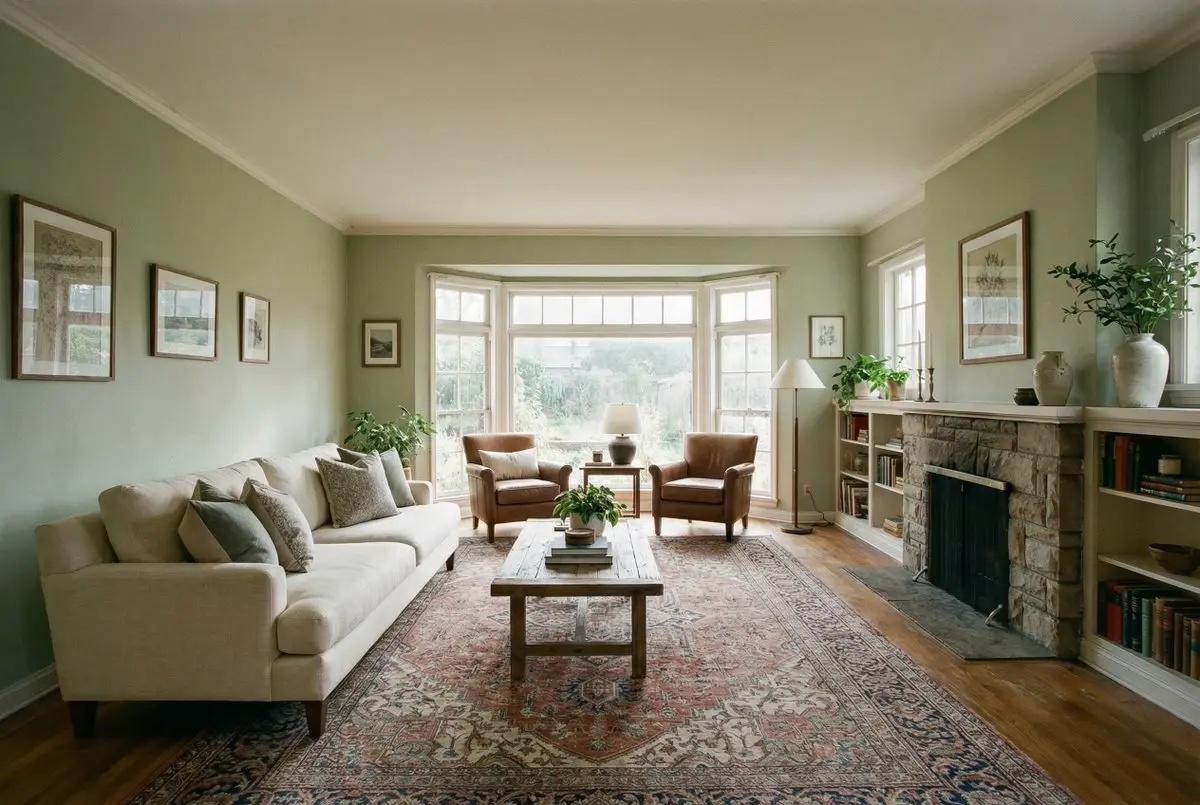
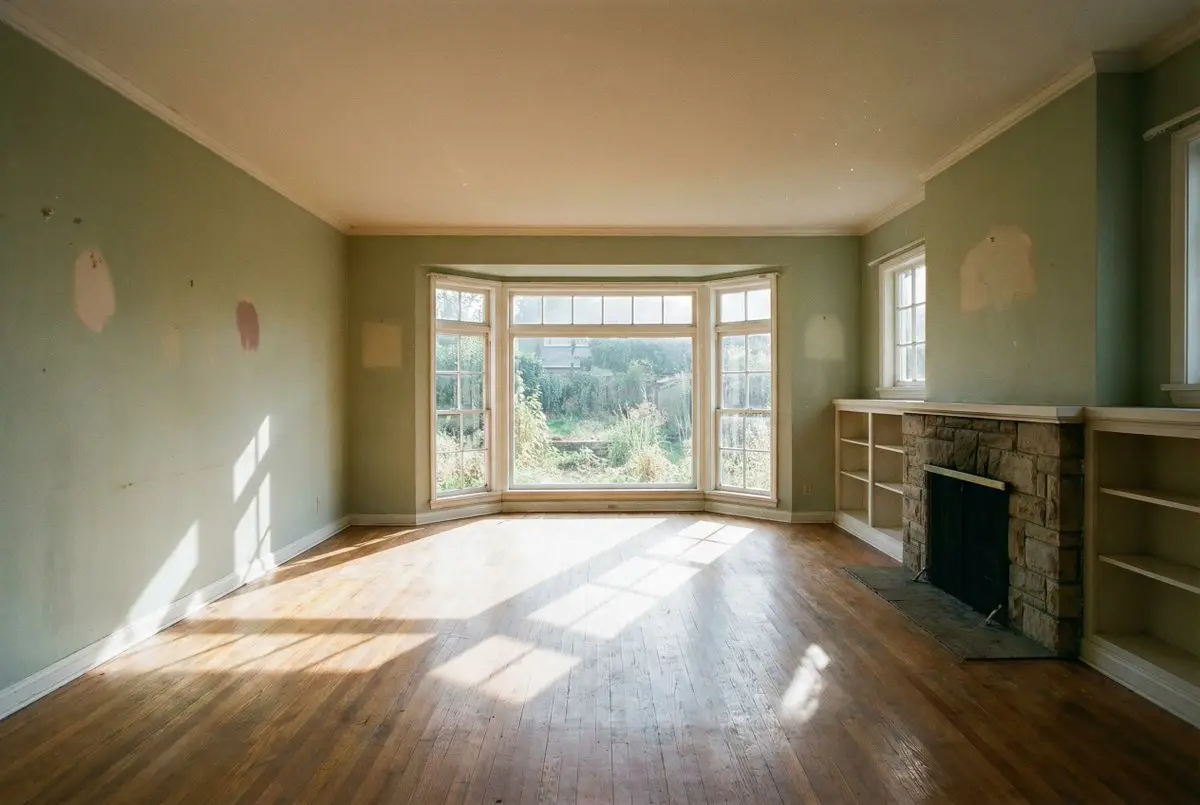
Test a Room Direction While Preserving Its Structure
Use a clean room photograph when walls, windows, floor lines, and camera position should remain recognizable. Tell EzMaker AI what kind of furniture, materials, color temperature, and circulation the proposal needs. A comparison between the source and the EzMaker AI result reveals whether the new treatment respects the original geometry. This is a planning draft for discussion, not a substitute for measured architectural documentation.
- Start with an uncluttered room view
- Protect fixed openings and floor lines
- Describe material and color families
- Reserve comfortable walking space
- Compare the proposal with the source
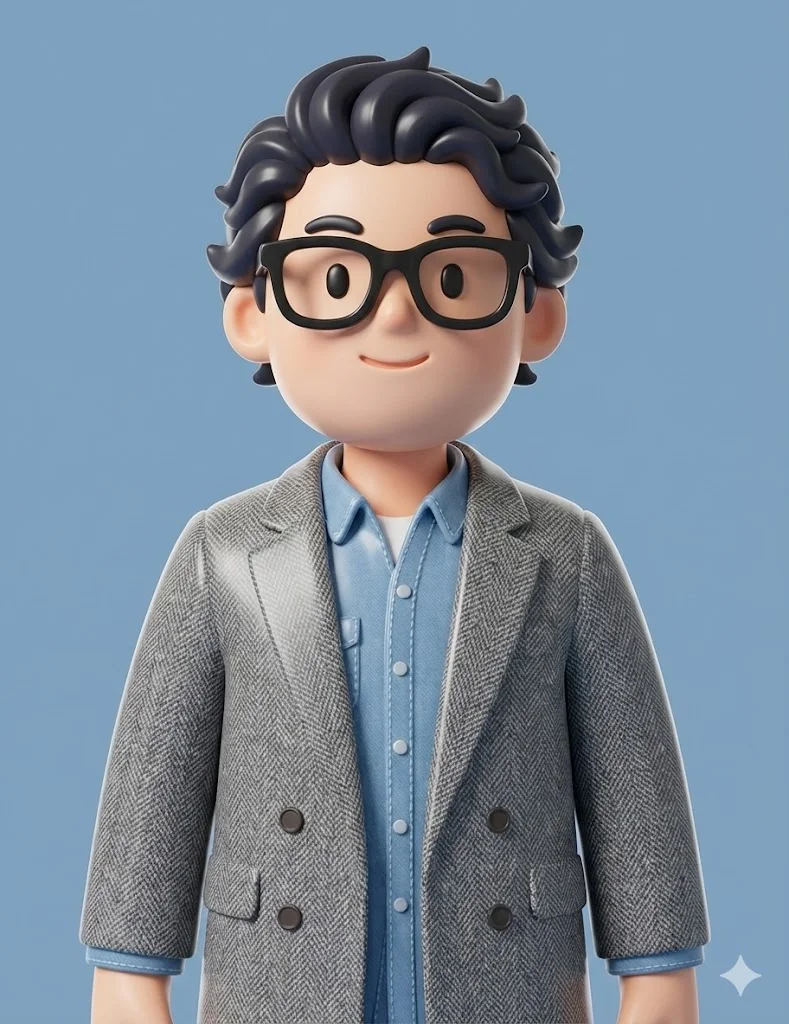
Translate a Character Note Into a Consistent Art Direction
A character request becomes clearer when silhouette, materials, expression, pose, palette, and rendering style are described separately. EzMaker AI can use those details to assemble a first visual interpretation in the selected frame. Keep the background simple when the character is the deliverable. Afterward, inspect the EzMaker AI draft for readable shapes and coherent styling before asking for a new pose or a more elaborate environment.
- Lead with a recognizable silhouette
- Limit the palette to a useful family
- Describe texture and rendering style
- Keep the pose easy to read
- Save environment detail for a later pass
Controls That Keep EzMaker AI Production Deliberate
The generator on this page uses King AI’s existing image workflow. EzMaker AI does not add a separate editor or promise tools that are not present. Instead, it keeps the useful decisions—prompt, authorized reference images, model, aspect ratio, result review, and download—inside one focused workspace.
Brief-Led Prompting
Write the EzMaker AI prompt around a deliverable rather than a cloud of adjectives. State the subject, purpose, setting, composition, light, and finish in a sensible order. The character counter helps keep the instruction bounded. When an EzMaker AI result misses the target, the same structured brief makes it obvious which line should change for the next attempt.
Optional Reference Images
Upload an image you are allowed to use when pose, layout, color, or atmosphere should guide the draft. EzMaker AI accepts the reference alongside the written direction, and the workspace lets you remove it before another run. Treat a reference as context, not as permission to copy protected work; EzMaker AI remains most useful for original visual development.
Destination-Aware Ratios
Select Auto, square, portrait, landscape, or another available frame before generating. EzMaker AI can then compose for the actual placement instead of forcing a late crop. A tall EzMaker AI canvas suits phone-first artwork, while a wide canvas gives scenes and banners more horizontal breathing room. Leave safe space wherever later typography may sit.
Fast and Pro Model Choices
Choose an available King AI Fast or King AI Pro option according to the controls shown in the workspace. A quick EzMaker AI pass is useful for testing the direction, while an eligible higher-quality setting can serve a more resolved draft. Because EzMaker AI keeps the prompt visible, model comparisons begin from the same written requirement instead of unrelated inputs.
Results Kept Beside the Input
Completed images appear in the established result area, close to the prompt and generation choices that produced them. This makes an EzMaker AI review concrete: check focal priority, unwanted details, crop safety, light logic, and overall usefulness. If another EzMaker AI version is needed, alter one constraint so the difference can be attributed to a deliberate decision.
Reviewable Downloads
Use the existing result controls to download an available completed image. Before leaving EzMaker AI, inspect the file at its intended size and confirm that important edges are not crowded. The EzMaker AI download becomes a clean handoff for presentation, layout, or further editing; it is not described as an automatic replacement for every downstream production step.
How to Use EzMaker AI Free With No Signup
Three decisions from brief to file
Begin with the free visitor path shown by the workspace. EzMaker AI keeps preparation, generation, and inspection in one sequence, so each output can be traced back to a clear creative decision.
- 1
Define the Assignment
Write one sentence about where the image will be used, then describe its subject, action, environment, composition, lighting, and visual treatment. Add only a reference you have permission to use. A well-scoped EzMaker AI assignment sets boundaries without prescribing every pixel. Read the brief once as a reviewer: if two instructions compete, simplify them before EzMaker AI begins.
- 2
Set the Production Frame
Choose the available model and aspect ratio that fit the destination. Consider whether a square tile, vertical story, portrait card, or wide banner needs room around the subject. EzMaker AI uses that frame during composition, which is more dependable than hoping every important detail survives a later crop. Confirm the prompt and references before starting the EzMaker AI generation.
- 3
Inspect and Hand Off
Wait for the existing progress flow, then review the completed draft at both overview and detail scale. Ask whether the EzMaker AI result fulfills the assignment, not merely whether it looks impressive. Check subject readability, edges, lighting, visual hierarchy, and empty space. Download an acceptable EzMaker AI file, or change one requirement and generate again for a controlled comparison.

Can I use EzMaker AI free with no signup?
Yes. An eligible visitor can start from the free allowance displayed in the King AI workspace without creating an account. Enter a prompt, choose an available setting, and generate through EzMaker AI. Visitor availability can vary with the allowance reported by the interface, so the page does not claim unlimited use or hide a required EzMaker AI credit decision.
What can I create with EzMaker AI?
EzMaker AI can help draft original portraits, characters, product concepts, room directions, editorial illustrations, social graphics, and imagined scenes. The strongest requests describe one deliverable and one focal idea. Use EzMaker AI for visual exploration, then decide whether the downloaded image needs typography, layout work, or other finishing in a separate application.
Does EzMaker AI accept reference images?
Yes. The reused generator includes an upload area for supported image references. Add material you own or are authorized to use, then explain which aspects should guide EzMaker AI, such as composition, pose, palette, or atmosphere. You can remove references before another attempt. A precise note helps EzMaker AI understand why the file is present instead of treating every detail equally.
How should I write an EzMaker AI prompt?
Begin with the subject and intended use, then add setting, composition, lighting, palette, and finish. Use concrete relationships such as foreground, centered, backlit, or viewed from above. EzMaker AI prompts are easier to revise when each phrase has a purpose. If the first EzMaker AI result is off target, replace the weakest instruction rather than stacking contradictory adjectives.
Which aspect ratio should I choose?
Match the ratio to the real destination. Square works well for tiles, portrait frames support covers and phone-first layouts, and landscape frames suit banners or broad environments. EzMaker AI also offers Auto when the source or prompt should guide the shape. Choosing early lets EzMaker AI protect the subject and the useful negative space from an avoidable late crop.
What is the difference between the model choices?
The workspace displays King AI Fast and King AI Pro choices, with controls and credit requirements appropriate to each option. Use the visible interface as the current source of truth. EzMaker AI lets you keep the same brief while selecting an available model, which supports a fairer comparison. The page avoids promising that one EzMaker AI setting is universally best for every style.
How many reference images can I add?
The EzMaker AI upload area supports the limits currently shown by the generator, including its accepted file conditions. Fewer purposeful references are usually easier to interpret than many unrelated examples. Give each file a role in your written direction. If an EzMaker AI attempt feels visually confused, remove the least relevant reference before changing the entire prompt.
How do I compare EzMaker AI results?
Keep the assignment fixed and change only one variable, such as crop, palette, model, or lighting. Review each EzMaker AI image against the same checklist: focal priority, structure, edge quality, empty space, and intended use. A controlled comparison tells you why one EzMaker AI result is stronger; unrelated prompts may look different but reveal little about the decision that helped.
Can I download an image after generation?
Yes, when the EzMaker AI task completes successfully and a result is available, use the download control in the existing workspace. Inspect the image before saving it, especially around faces, hands, text-like marks, product edges, and the frame boundary. The downloaded EzMaker AI file can then enter your normal layout, presentation, publishing, or editing process.
Does EzMaker AI remove objects or upscale files?
This page does not present separate object-removal or upscaling tools. EzMaker AI here reuses the image generation workflow: prompt entry, optional references, model and ratio choices, generation progress, results, and downloads. Describe an original replacement scene if you want a new draft, but do not assume EzMaker AI performs a precise pixel-level cleanup that the current controls do not offer.
Why does a generation use credits?
Image generation consumes compute, so the workspace shows the relevant EzMaker AI credit requirement before a run. Eligible visitors may receive a free path, while other options can require available account credits. Check the live control rather than relying on a fixed claim. EzMaker AI keeps this decision beside the generate button so the cost is visible before submission.
What should I check before publishing a result?
Confirm that the EzMaker AI image is original for your intended use, respects reference permissions, fits the destination ratio, and leaves room for required copy. Inspect small details and verify that no accidental mark resembles a real logo or signature. Treat EzMaker AI as the drafting stage, then apply the same editorial, legal, and accessibility review you would use for any published visual.