
Higgsfield AI Video Generator Free — No Login
Direct cinematic camera moves in the King AI workspace. Free options need no login; limits and model availability apply.
Local generation history
From a Still Frame to a Directed Shot
Plan Higgsfield AI Camera Moves Around One Clear Subject
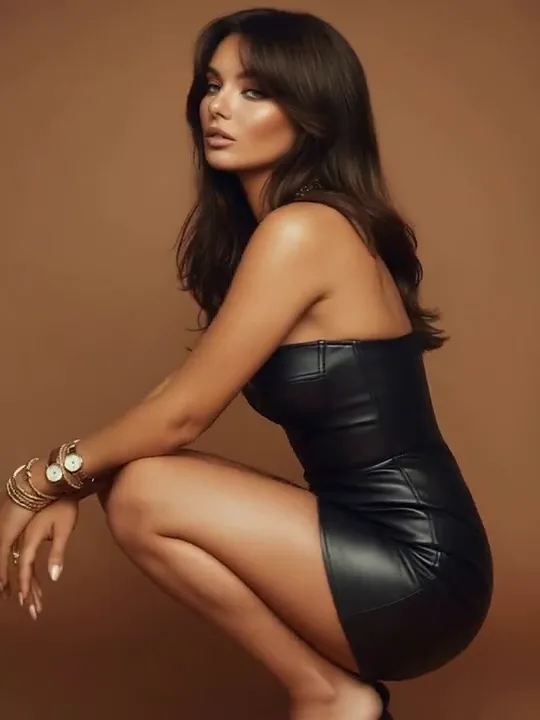
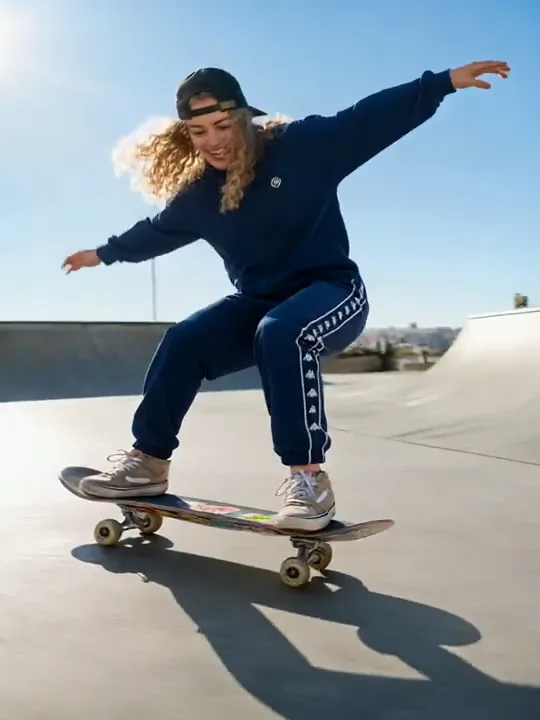
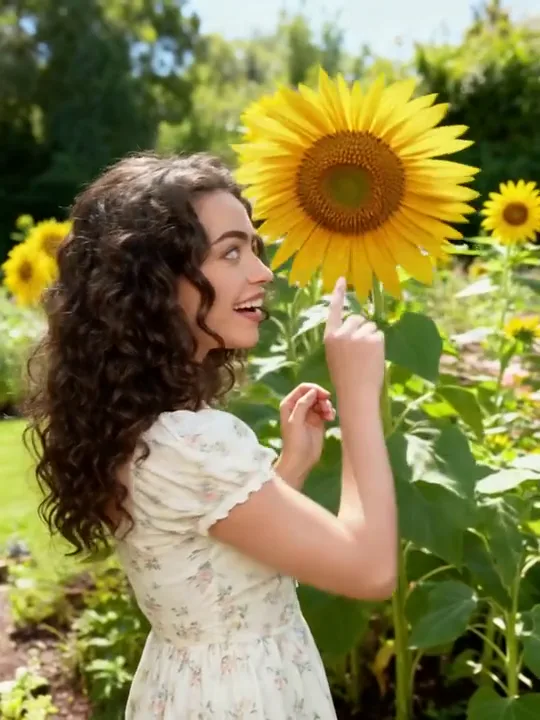
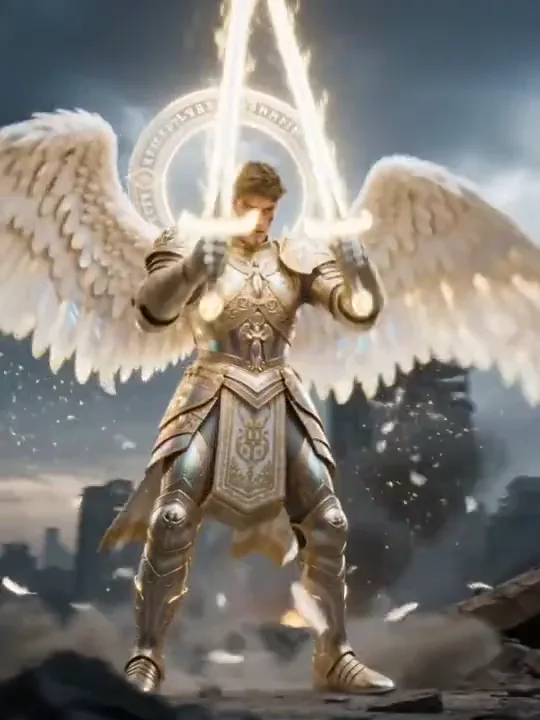
Three starting points for cinematic motion in the King AI workspace. These images are illustrative concepts, not recorded generator results.
Lock the Subject Before the Camera Moves
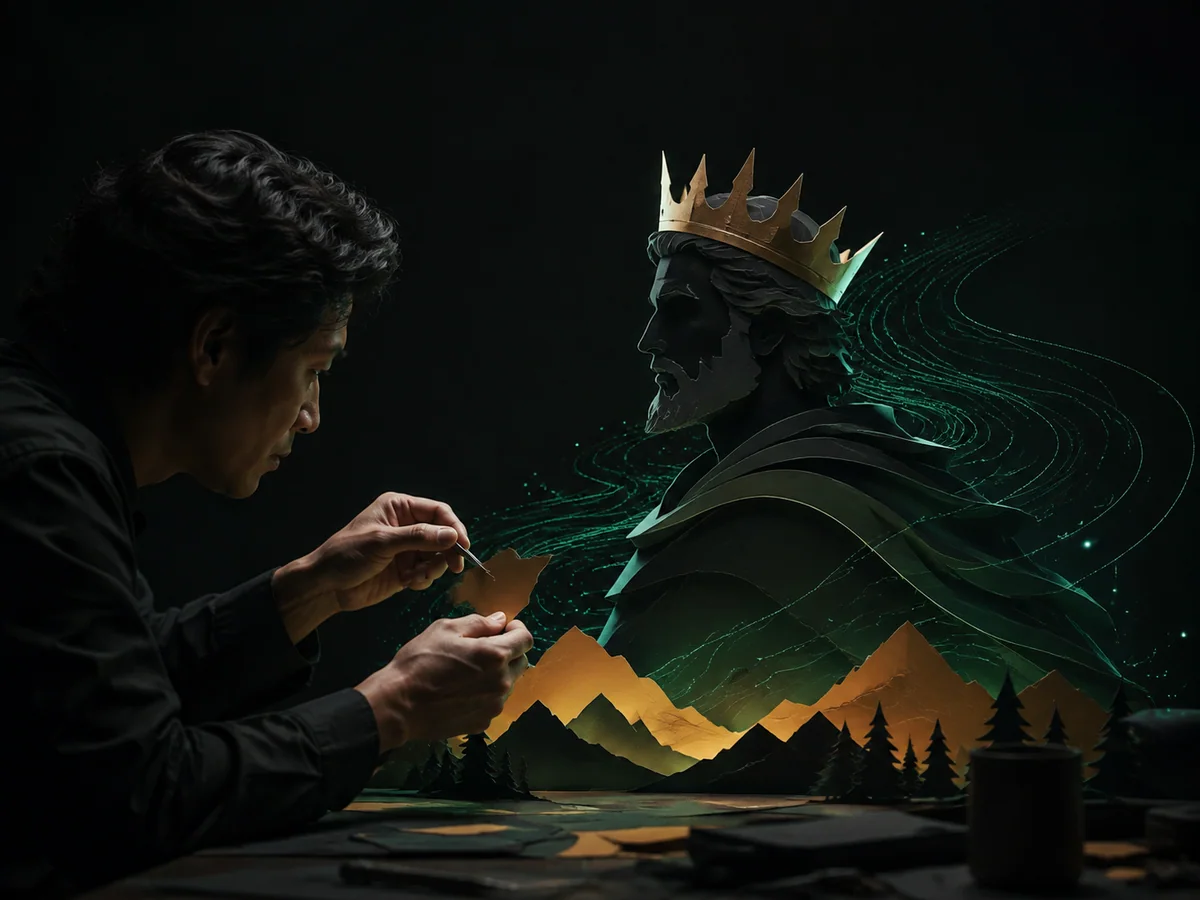
A Higgsfield AI shot works best when the viewer already knows what to watch. Here a paper sculpture of a crowned figure sits against a dark field, lit from one side. Settle that composition in a still before you plan any Higgsfield AI movement, so the camera has something worth approaching.
- One subject, one clear silhouette
- Background that stays quiet
- Light that shapes the form
Choose a Single Move With a Purpose
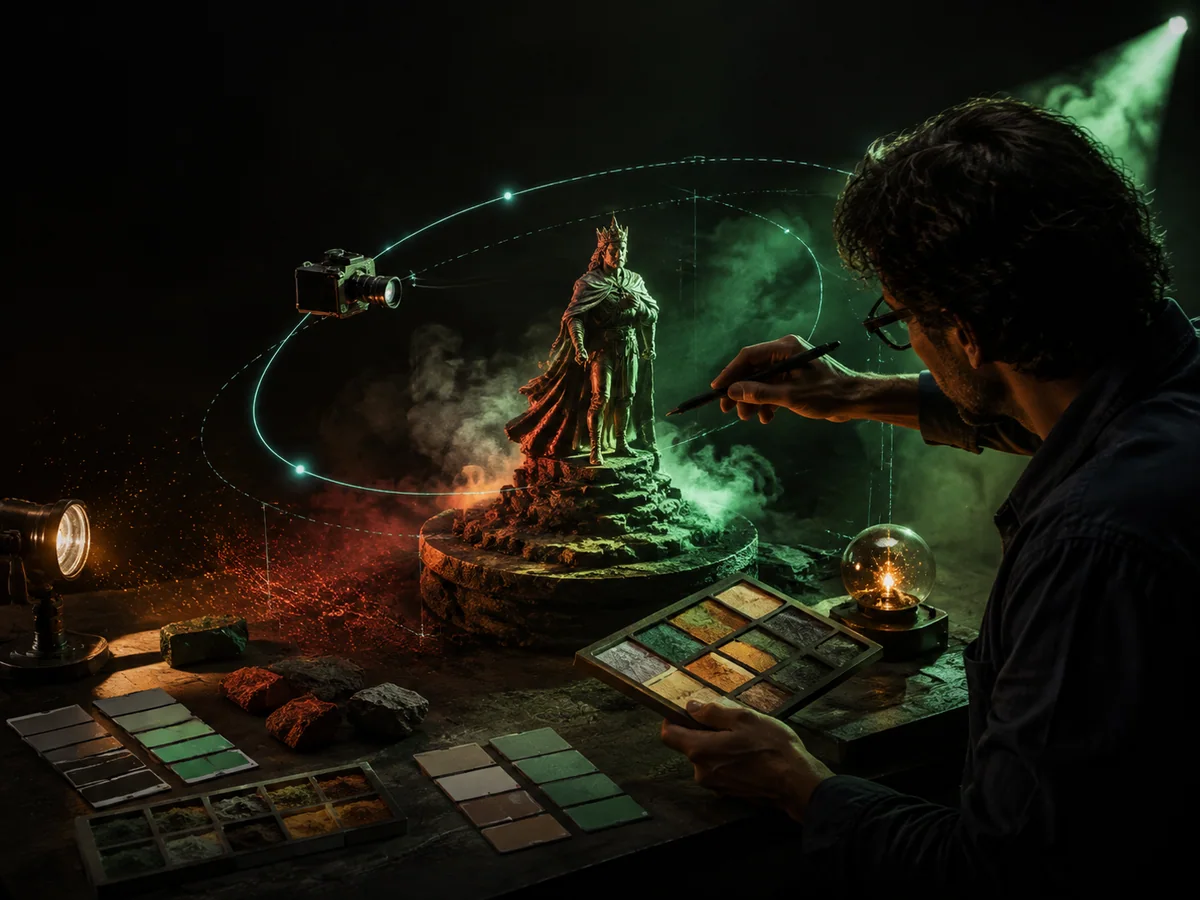
An orbit reveals depth, a push-in builds tension, and a crane lift opens up a setting. Pick one Higgsfield AI style move and write it as plain direction: where the camera starts, where it travels, and how fast. A Higgsfield AI prompt that stacks three moves usually returns a shot that commits to none of them.
- Name the move in simple words
- State a start and end point
- Keep the pace steady
Compare Takes Like an Editor
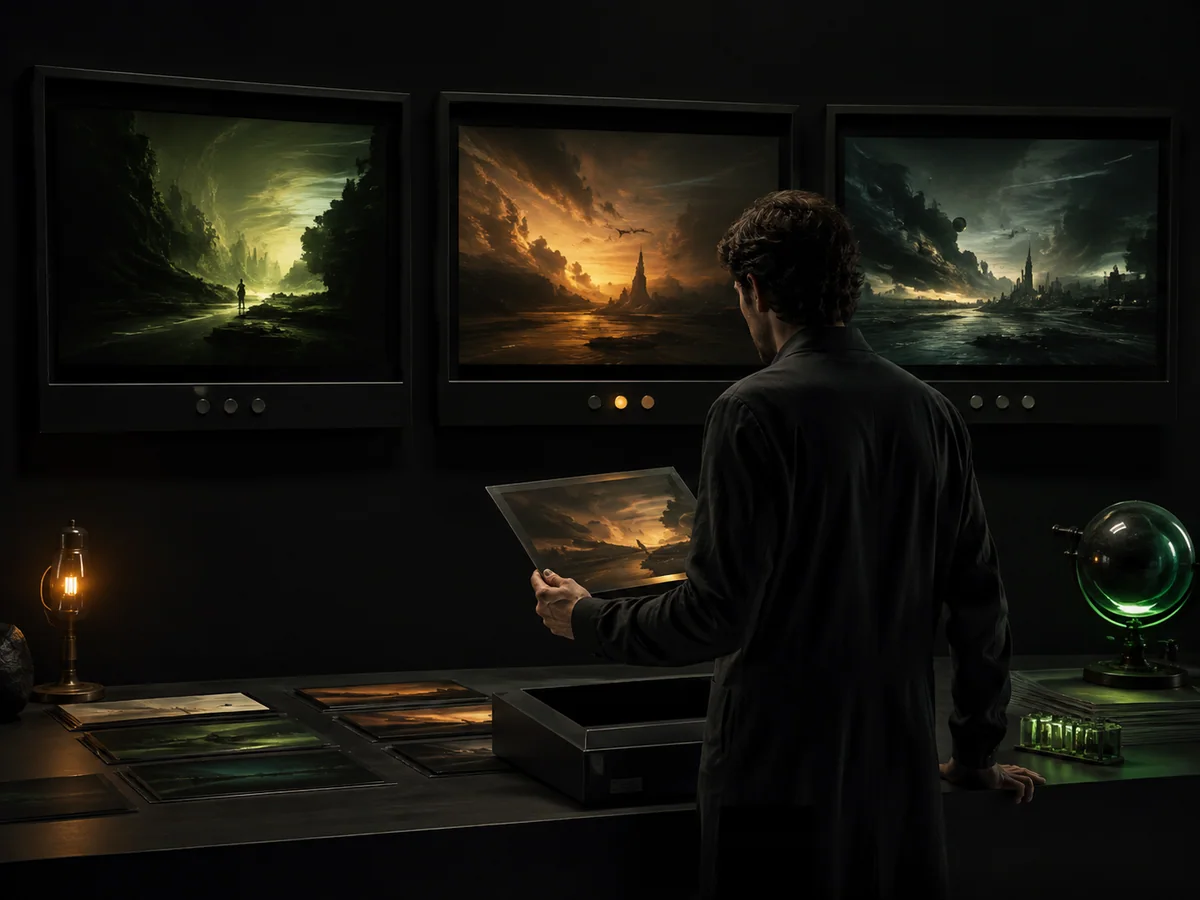
Treat each Higgsfield AI clip as a take, not a finished scene. Line up two or three versions, watch them at the same size, and keep the one where the subject stays stable while the camera travels. Note what failed in the other Higgsfield AI takes so the next brief is sharper.
- Watch every take to the end
- Check edges during motion
- Save the prompt with the clip
A Higgsfield AI Workflow Built Around Camera Language
Use the existing King AI controls to set up a frame, describe the motion, and choose the strongest take.
Write Motion as Film Direction
Cinematic movement has a vocabulary: dolly in, slow orbit, crane up, handheld drift, crash zoom. Use those words in your Higgsfield AI prompt and pair each one with a speed and a destination. Clear Higgsfield AI camera language is easier to judge than a request for something dramatic.
Start From a Frame You Trust
Image to video lets you fix the Higgsfield AI look before motion begins. Build or upload a starting frame with readable lighting and space around the subject, then animate it. A strong opening frame gives the Higgsfield AI shot a reference point the camera can return to.
Judge the Shot, Not the Novelty
A sweeping move can look impressive while the face, hands, or product warps underneath it. Review every Higgsfield AI draft for subject stability, consistent light, and a clean final frame. Keep the Higgsfield AI take that serves the story, even if a wilder one caught your eye.
Take a Higgsfield AI Idea From Frame to Final Take
A Shot-by-Shot Sequence
Separate framing, camera direction, and selection so each attempt tests one decision.
- 1
Set Up the Opening Frame
Describe the Higgsfield AI subject, setting, light, and aspect ratio, or upload a reference you have permission to use. For a Higgsfield AI shot, give the subject room in the direction the camera will travel so the move does not crop it awkwardly.
- 2
Describe One Camera Move
Choose video mode, then add a single motion instruction such as a slow push-in or a half orbit. Check the displayed allowance and settings before you submit; free access has its own limits. Keep the first Higgsfield AI test short and simple.
- 3
Select and Export the Best Take
Watch each result from first frame to last. Compare Higgsfield AI takes on subject stability and how cleanly the move lands. Download the Higgsfield AI clip you choose and keep its prompt beside it for the next revision.
Can I try Higgsfield AI style video free with no login?
Use the free video option in the King AI workspace for a first Higgsfield AI experiment without signing in. Check the current allowance and the settings shown before you submit. Free access is limited, and standard models can require an account or credits. Writing a detailed Higgsfield AI camera brief does not change those limits or unlock paid options.
What makes a Higgsfield AI camera move look cinematic?
Motion feels cinematic when it has a reason. A push-in draws attention to an expression, an orbit shows that a subject has depth, and a crane lift reveals where a character stands. Choose the move that matches the emotional beat, keep its speed consistent, and let the Higgsfield AI shot settle on a clear final frame rather than drifting until the clip ends.
How should I write a Higgsfield AI motion prompt?
Describe the scene first, then the camera. For example: a lighthouse on a rocky coast at dusk; the camera starts low on the rocks and rises slowly to reveal the sea. Separate what moves in the scene from what the camera does. A Higgsfield AI prompt that keeps those two layers apart is easier to revise when one of them goes wrong.
Should I use text to video or image to video for Higgsfield AI shots?
Text to video is useful when you are still exploring a Higgsfield AI look. Image to video is better once the composition is decided, because the opening frame is already fixed and the model only has to add movement. For most Higgsfield AI camera work, settling the still first saves attempts: an unclear subject rarely improves once the camera starts moving.
How do I keep a subject stable during a Higgsfield AI orbit?
Start from a frame where the subject is sharp, centered, and not cut off at the edges. Ask for a slow, partial orbit rather than a full rotation, and avoid adding scene changes at the same time. Then watch the Higgsfield AI result closely around faces, hands, and fine edges, where drift usually appears first as the angle changes.
Can a Higgsfield AI clip combine several camera moves?
It can be requested, but it is harder to control. A Higgsfield AI push-in that turns into an orbit and then a tilt gives the model three chances to lose the subject. Generate each Higgsfield AI move as its own short take and join the strongest ones in your editor. Cutting between clean moves usually reads better than one overloaded shot.
How do I plan a Higgsfield AI shot for a product?
Begin with an accurate still of the product, with room on the side the camera will approach. A slow Higgsfield AI dolly or a gentle quarter orbit shows form without distorting it. Keep product claims out of the prompt and check shape, color, and labels in every frame of the Higgsfield AI draft before it goes into a campaign.
Which aspect ratio suits a Higgsfield AI social video?
Pick the Higgsfield AI ratio for the destination before you generate. Vertical 9:16 suits short-form feeds, while 16:9 fits trailers and landscape edits. Compose the opening frame for that ratio, because a Higgsfield AI camera move planned for widescreen can push the subject out of a vertical crop. Use the ratio options the workspace shows for the selected mode.
How should I compare two Higgsfield AI takes?
Keep the prompt and settings together and change one variable between attempts, such as move speed or starting distance. Watch each Higgsfield AI take at the same size from beginning to end. Ask the same question every time: does the camera reveal the subject more clearly than the last version? A striking first second is not enough if the ending breaks.
Which Higgsfield AI style settings are available on this page?
The King AI workspace sets the available models, input types, durations, aspect ratios, and other controls for the selected mode. Check those controls directly when you prepare a Higgsfield AI experiment; options can differ between image, video, free, and standard workflows. Camera direction is written in your prompt rather than chosen from a separate preset menu.
What if a Higgsfield AI attempt fails or is unavailable?
Read the workspace message before you rewrite your brief. A quota notice, a busy service, or a failed generation does not necessarily mean the prompt is wrong. Keep your Higgsfield AI frame and prompt saved locally, use the recovery controls shown, and avoid resubmitting the same request repeatedly. More prompt detail will not fix an access or capacity issue.
How do I finish and export a Higgsfield AI project?
When a take completes, review it and use its download control to save the file. Check the opening frame, the ending frame, and the motion between them. Keep the prompt and the starting image with the export. Sound, titles, color grading, and the final cut can then happen in your usual editor with every Higgsfield AI source take easy to trace.