

Pippit AI Video Generator for Product Clips
Turn a product photo and one selling point into a short marketing clip in the King AI workspace. Free options are limited; standard models need an account or credits.
Local generation history
From Product Photo to Short Promo
Build Pippit AI Style Marketing Clips From What You Already Sell
Three ways to turn existing product material into short Pippit AI video drafts. These images are illustrative concepts, not recorded generator results.
Let the Product Photo Do the First Job
Most Pippit AI projects begin with an asset you already own: a clean shot of a mug, a bottle, a sneaker, or a seasonal menu card. Here a latte sits on a wooden table among autumn leaves with a limited-offer badge. Animate a still like this with Pippit AI style direction, such as rising steam or drifting leaves, and the product stays recognizable while the Pippit AI scene gains life.
- Product sharp and fully in frame
- One seasonal mood, not five
- Space left for an offer line

Lead Every Pippit AI Clip With the Benefit
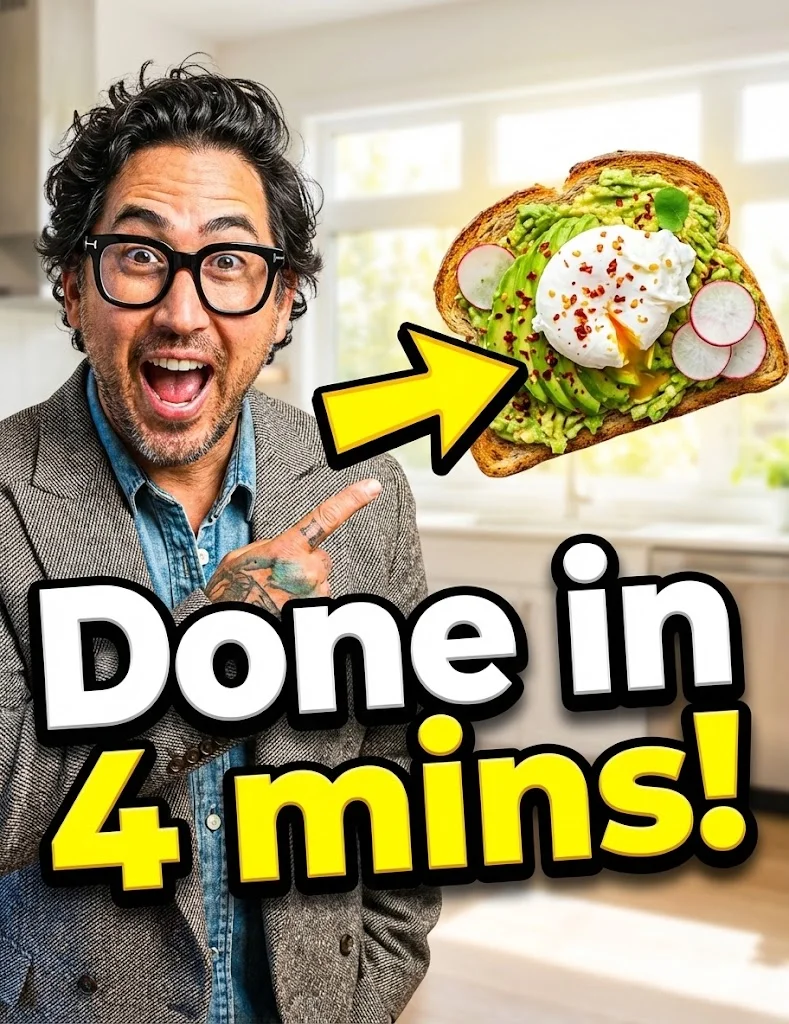
A Pippit AI product video competes with endless scrolling, so the opening frame has to state the payoff. This presenter frame points at a finished breakfast with a bold time claim beside it. Write your Pippit AI prompt around one benefit the viewer can see, then use the Pippit AI clip as the hook that your captions and voiceover build on.
- One benefit the eye can verify
- A clear gesture toward the product
- Text added later in your editor
Show How the Product Works, One Step at a Time
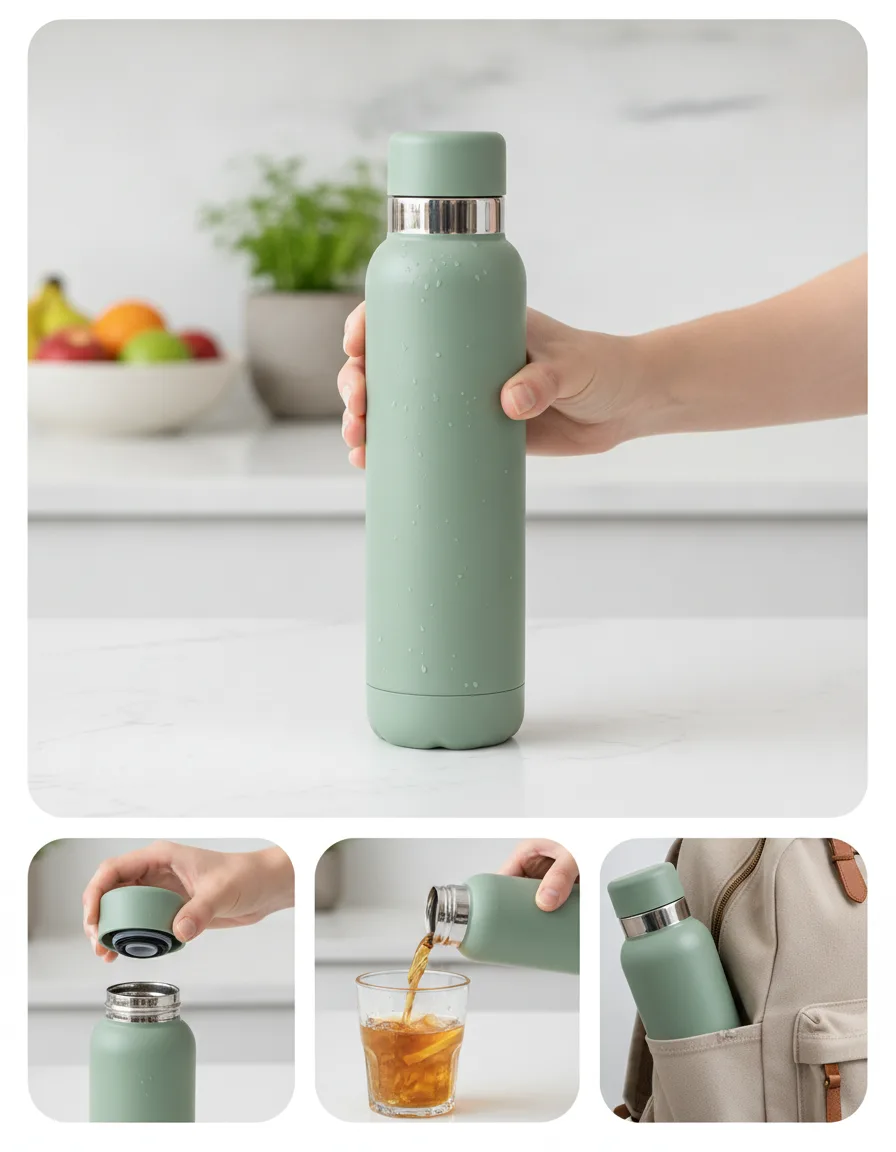
Many products sell through a visible sequence: open, use, carry. This concept follows a water bottle from the lid to the pour to the backpack pocket. For a Pippit AI walkthrough, give each step its own short clip, then cut them together, so every Pippit AI draft explains one feature instead of rushing through three.
- One feature per clip
- Real screens you are allowed to show
- A finished result as the last frame
A Pippit AI Workflow Shaped Around Selling Points
Use the King AI controls you already have to move from a product asset to a short Pippit AI promo draft you can edit.
Start From the Catalog, Not a Blank Page
Image to video keeps your packaging, colors, and proportions as the starting point. Upload a product photo you have the rights to use, then describe gentle Pippit AI motion around it. A Pippit AI clip built this way looks like your real item, which matters more in an ad than an impressive invented scene.
Turn One Selling Point Into One Scene
A feature list is not a video brief. Pick the single selling point that matters most, such as waterproof, quick to set up, or cozy for winter, and translate it into an action the Pippit AI camera can show. Each Pippit AI prompt should carry one message, so the shopper understands it without reading.
Produce Variations for Testing
Marketing teams rarely know which Pippit AI opening will win. Keep the product photo fixed and change one element, such as background, motion, or aspect ratio, to create several Pippit AI variations. Comparing Pippit AI drafts that differ in one way tells you what actually moved attention.
Make a Pippit AI Product Clip in Three Steps
From Listing to Short Ad
Prepare the asset, describe the Pippit AI motion, and review the draft against your product page.
- 1
Prepare the Product Asset
Choose a clean product photo or write a description of the item, its setting, and the platform. For a Pippit AI clip, check that the label, logo, and color match what customers will receive, and leave room around the product for later captions.
- 2
Describe the Selling Moment
Switch to video mode and write the motion in plain language: steam rising, a hand lifting the bottle, a slow turn to show the side pocket. Check the available models, duration, aspect ratio, and allowance before you submit. Keep the first Pippit AI test short and focused.
- 3
Review, Download, and Edit
Watch the full Pippit AI draft and compare the product against your listing photos. Download the version that keeps shape, color, and text accurate, then add price, captions, music, and your call to action in your usual editor.
Is there a Pippit AI free option for product videos?
The King AI workspace offers a limited free video option you can use for a first Pippit AI product test. Check the allowance and the settings displayed before you submit. Free access has its own limits, and standard models can require an account or credits. A longer product brief does not unlock extra generations or paid models.
Can Pippit AI style video start from my product photo?
Yes. Image to video lets you upload a product photo you own or are licensed to use and add motion around it. Use a sharp, well-lit image with the whole product visible. The clearer the source photo, the easier it is for the Pippit AI draft to keep the shape, label, and color consistent while the scene moves.
How do I turn a selling point into a Pippit AI prompt?
Translate the claim into something a camera can see. Instead of writing that a jacket is waterproof, describe rain beading and rolling off the sleeve. Instead of saying a blender is fast, show fruit becoming a smoothie in one smooth motion. A Pippit AI prompt works best when the benefit is visible rather than stated.
What makes a good Pippit AI video generator brief?
Cover four things in order: the product, the setting, the single action, and the camera framing. For example, a ceramic mug on a sunlit kitchen counter, steam rising, close shot that slowly pushes in. Leave out prices, discounts, and slogans; add those to the Pippit AI clip in your editor where you control the wording, spelling, and placement exactly.
Which aspect ratio should I use for a Pippit AI social ad?
Decide where the clip will run before generating. Vertical 9:16 suits short-form feeds and stories, square works for many marketplace and feed placements, and 16:9 fits websites and landscape players. Compose the product photo for the ratio you choose, because a Pippit AI draft framed for widescreen can crop the product in a vertical layout.
How do I keep product details accurate in Pippit AI clips?
Start from an accurate photo, ask for gentle motion, and avoid prompts that change the product itself. Then review every frame of the Pippit AI draft for warped logos, altered colors, extra parts, or unreadable labels. If a detail drifts, shorten the motion or simplify the background rather than adding more instructions to the prompt.
Can I make several Pippit AI versions for A/B testing?
Yes, and it is one of the most useful habits. Keep the product photo and core prompt fixed, then change one variable per attempt, such as background, motion, or opening framing. Label each Pippit AI version clearly. When Pippit AI results come back from your ad platform, you will know which change made the difference.
Should I use text to video or image to video for Pippit AI work?
Use image to video whenever the real product must appear, because it anchors the clip to your actual item. Text to video is helpful for mood shots, lifestyle backgrounds, or concept scenes where no specific product is shown. Many Pippit AI campaigns combine both: an invented atmosphere shot followed by a product clip built from a real photo.
Can Pippit AI style clips add captions, prices, or music?
Plan those in your editor. The King AI workspace generates the visual clip from your prompt or image; on-screen offers, subtitles, logos, voiceover, and music are more reliable when you add them afterward. Keeping text out of the Pippit AI prompt also avoids misspelled words appearing inside the generated frames.
What can the King AI workspace actually do for this?
It supports text to video, image to video, start and end frame video, and an image mode for creating or refining stills. Available models, durations, and aspect ratios depend on the selected mode and your access. Use those tools to build Pippit AI style product clips, and check the live controls rather than assuming a specific template exists.
Can I use a start and end frame for a Pippit AI reveal?
Yes. Upload a frame with the closed box or covered product as the start and the unboxed, fully visible product as the end, then describe the transition. This gives a Pippit AI reveal a defined destination, so the motion has one clear job. Keep the two frames similar in lighting and angle so the change reads as one continuous movement.
What should I check before publishing a Pippit AI ad?
Confirm that the product in the Pippit AI draft matches the listing, that any claim in your captions is true, and that you have rights to every image, logo, and face shown. Watch the Pippit AI clip on a phone at the size customers will see it. Then keep the Pippit AI prompt and source photo with the export so the next version is easy to reproduce.