
Opus Clip AI Style Vertical Shorts Generator
Create new 9:16 clips and scroll-stopping openers from text or a still image. A limited free allowance is available to test.
Local generation history
Built for the First Three Seconds
Generate Opus Clip AI Style Shorts From Scratch
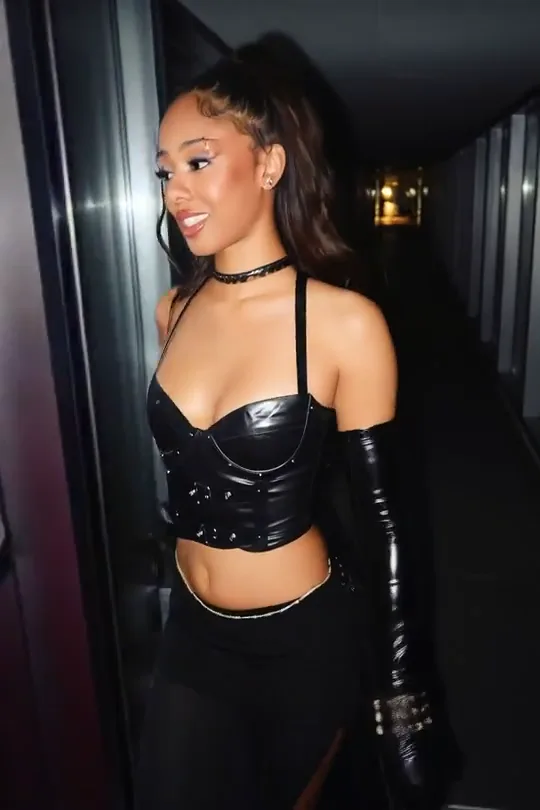
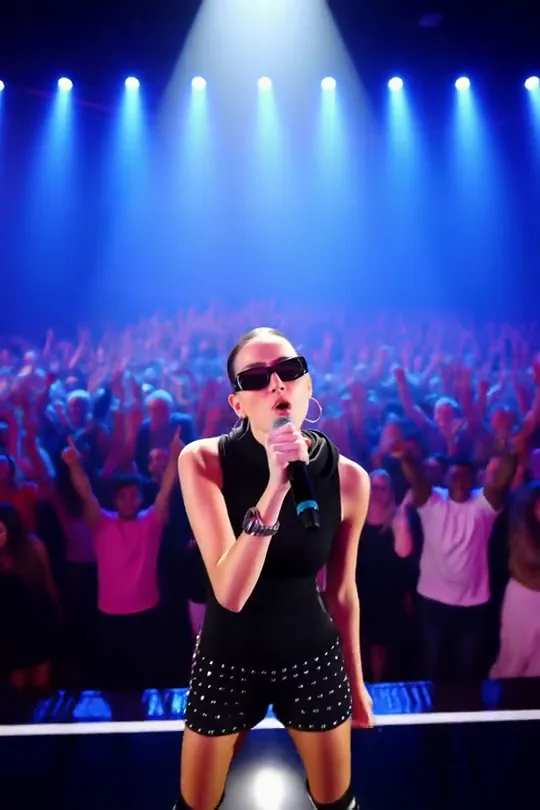
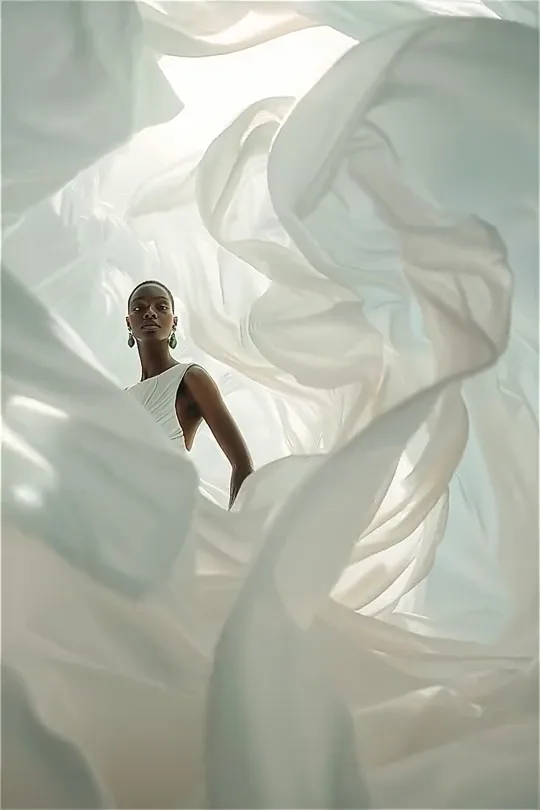
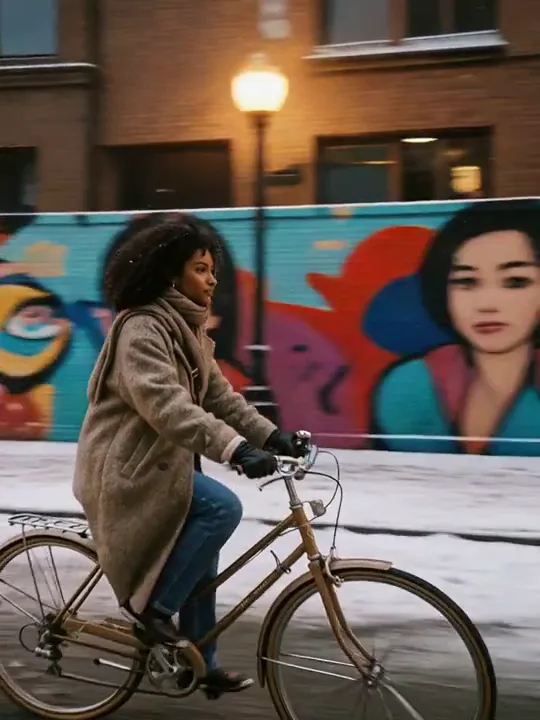
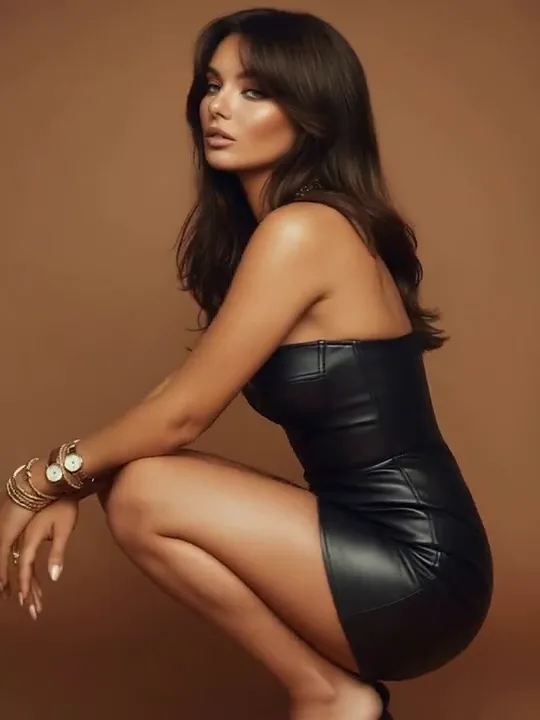
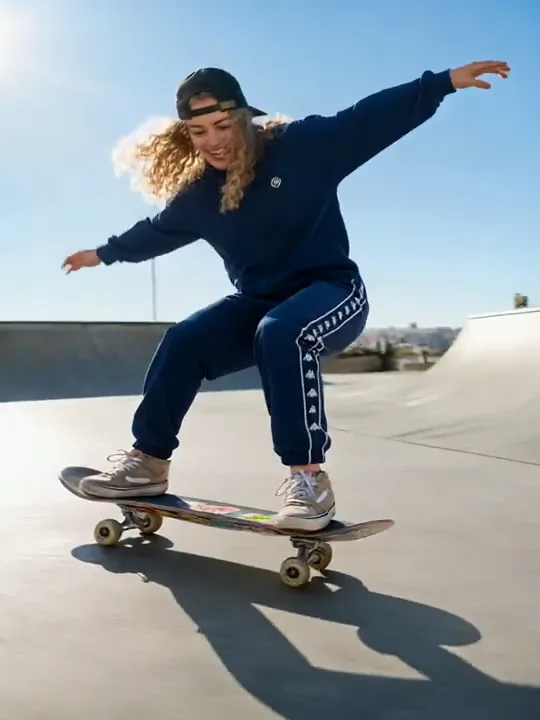
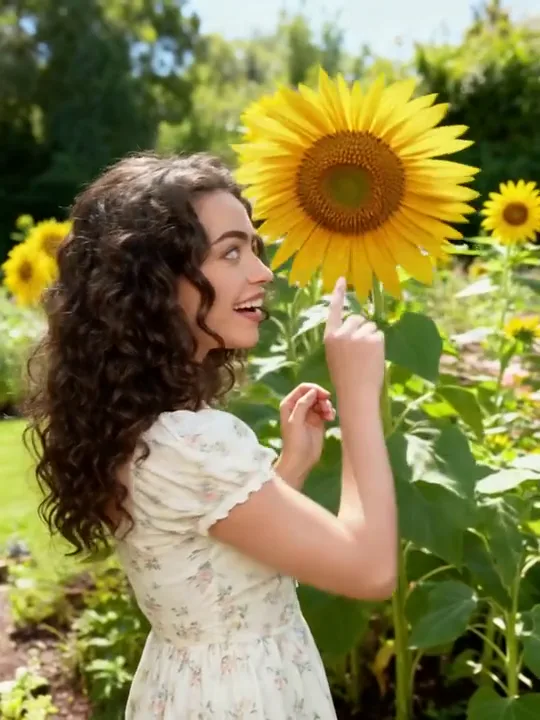
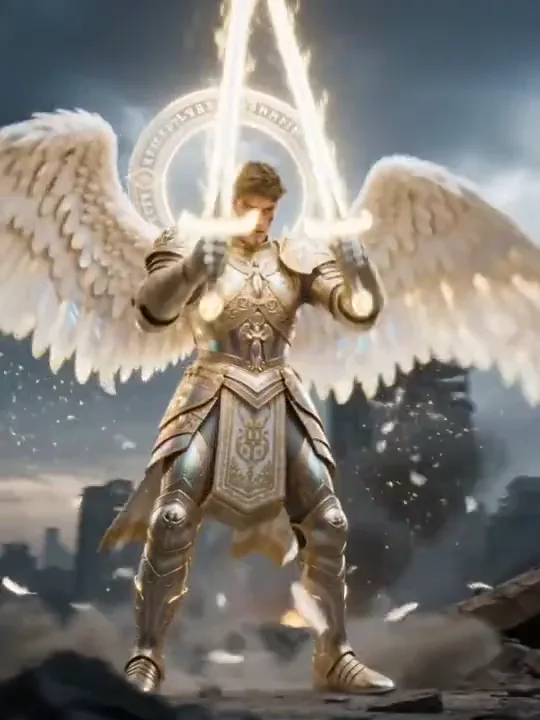
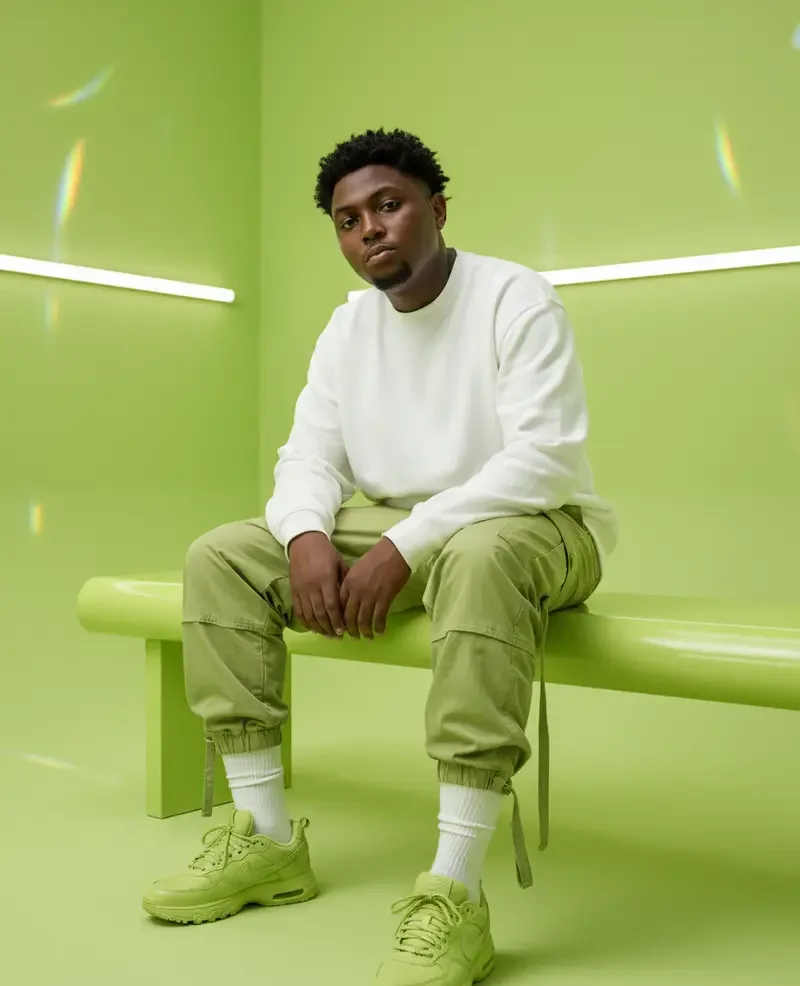
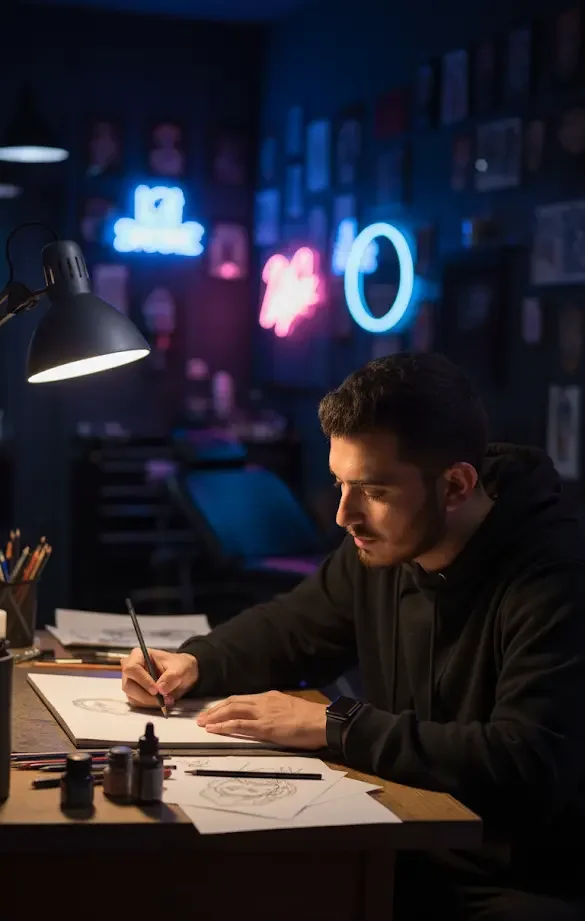
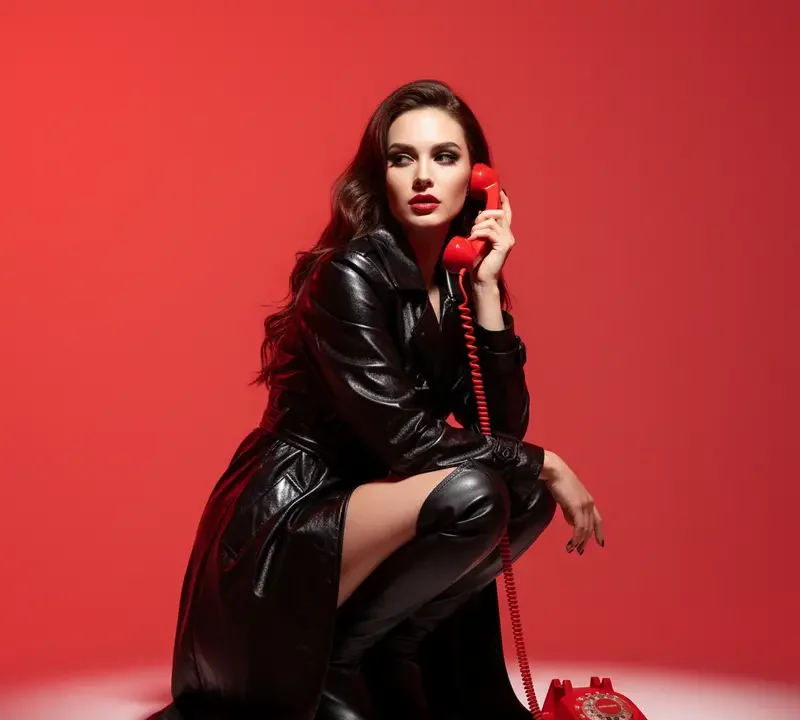
Three ways to create fresh Opus Clip AI style vertical footage for short-form feeds. These images are illustrative stills, not recorded generator output.
Lead With a Shot That Earns the Swipe
Short-form viewers decide almost instantly whether to stay. An Opus Clip AI style hook here is a brand-new clip, generated to open your post: a person looking straight into the lens, a bold color field, one deliberate movement. Write the Opus Clip AI hook prompt around a single visual surprise and keep the framing tall from the start.
- Subject centered in a 9:16 frame
- One clear action in the first second
- Strong color that reads on a phone
Fill a Talking Video With Fresh Cutaways
Creators planning Opus Clip AI style posts often need a few seconds of mood footage to place between their own spoken segments. Describe the scene, such as an artist sketching under neon at night, and generate an Opus Clip AI style vertical cutaway. Those Opus Clip AI clips are new footage you can drop into your editor beside the video you recorded.
- Atmosphere that matches your topic
- Short duration for quick cuts
- Vertical framing, no reframing later
Keep a Look Consistent Across a Weekly Series
An Opus Clip AI series feels intentional when every episode opens the same way. Generate a styled still in image mode, then animate it with image to video for each Opus Clip AI style opener. Reusing one reference keeps the color, wardrobe, and backdrop steady, so followers recognize the Opus Clip AI intro before the caption loads.
- One reference image per series
- Same backdrop and palette each time
- Small motion changes per episode
Tools for Opus Clip AI Style Vertical Content
King AI generates new footage rather than editing existing recordings. Text to video, image to video, first and last frame, and image mode cover the shorts workflow.
Text to Video for Fast Ideas
Type the Opus Clip AI scene, the subject, and the action, choose a vertical ratio, and get a short clip without any source material. It is the quickest way to test several Opus Clip AI hook ideas side by side and keep the one that grabs attention.
Image to Video for Brand Control
Start an Opus Clip AI clip from a product shot, a portrait, or a still you designed, then add movement. Because the first frame is fixed, the Opus Clip AI clip keeps your colors and composition, which matters when shorts need to match a channel or campaign.
First and Last Frame for Loops and Reveals
Give a start image and an end image to control where Opus Clip AI motion lands. This suits reveals, before-and-after beats, and loops where the ending returns to the opening pose, a useful trick for an Opus Clip AI short that replays smoothly in a feed.
Create an Opus Clip AI Style Short in Three Steps
From Idea to Vertical Clip
Decide the Opus Clip AI hook, generate the clip in 9:16, and review it on a phone-sized screen.
- 1
Write the Hook in One Line
Before opening the workspace, finish the sentence: in the first second, the viewer sees... That line becomes the core of your Opus Clip AI prompt. Add setting, lighting, and pace, but keep one main action so the Opus Clip AI clip stays readable.
- 2
Generate in a Vertical Ratio
Choose text to video or upload a still for Opus Clip AI image to video, then select 9:16 if the model offers it. Check the allowance and duration shown before you submit. Free Opus Clip AI style attempts are limited, and standard models may need an account or credits.
- 3
Review on a Phone and Export
Watch the Opus Clip AI result at phone size, where captions and app buttons will sit. Check that the subject is not hidden by those overlays. Download the Opus Clip AI clip, then add voice, captions, and music in your usual editor.
What does Opus Clip AI style mean on this page?
It refers to the goal people bring to short-form tools: punchy vertical clips that open strongly. Here, King AI reaches that goal by generating new footage from a prompt or an image. The workspace does not import, cut, or repurpose a long recording, so every Opus Clip AI style short you make is an original generated clip.
Is King AI an Opus Clip alternative for long videos?
Not for cutting long videos, which is the core job people associate with Opus Clip AI. If you need highlights pulled from a podcast or webinar, that requires an editing tool. King AI is an option when you need fresh vertical footage instead: hooks, cutaways, intros, and loops. Many creators use an AI shorts generator like this alongside their editor rather than in place of it.
Can I make Opus Clip AI style shorts for free?
There is a limited free allowance for testing a first Opus Clip AI style clip. Read the counter and the selected settings before you submit. Standard models, longer durations, and repeated generations can require an account or credits. Planning the hook carefully before generating is the simplest way to make each attempt count.
How do I write a hook prompt that stops the scroll?
Describe what the viewer sees in the first second of the Opus Clip AI clip, not the whole story. Lead with contrast or motion: a hand slamming a book shut, a face turning to the lens, steam rising from a cup in a dark room. An Opus Clip AI hook prompt with one surprising visual tends to outperform a prompt packed with several ideas.
Which aspect ratio should Opus Clip AI style clips use?
Use 9:16 for vertical feeds whenever the selected model offers it. Composing an Opus Clip AI clip for the tall frame from the start keeps faces and products centered. Generating wide and cropping later often cuts off the subject. If a model lacks a vertical option, choose another model or adjust the composition to keep the action in the middle.
How long should a generated hook or cutaway be?
Short is usually better for Opus Clip AI style footage. A hook only needs to carry the first few seconds before your main content takes over, and cutaways often run just a few seconds between spoken lines. Long generated clips also give the model more time to drift away from the subject. Pick from the durations the workspace shows for the selected model. Several short Opus Clip AI clips are easier to arrange than one long one.
Can I add captions, voice, or music to the clip?
Add them after export in the editor you already use for shorts. The generated Opus Clip AI style clip is the visual layer. Leave space at the top and bottom of the Opus Clip AI frame, because captions and platform buttons cover those areas. Check the final edit on a phone before posting, with the sound both on and off, since many viewers watch muted.
How do I keep a recurring series visually consistent?
Create one Opus Clip AI reference still in image mode with the backdrop, colors, and wardrobe you want. Reuse it with image to video for each episode and change only the motion. Saving the prompt and reference together makes every Opus Clip AI style opener in the series easy to recreate.
Can I turn a product photo into a vertical short?
Yes. Upload an accurate product image and ask the Opus Clip AI prompt for simple motion, such as a slow turn, light sweeping across the surface, or a hand lifting it into frame. Check labels, shape, and color in every frame of the Opus Clip AI result before it appears in an ad or post, since generated motion can alter small details.
When is first and last frame useful for shorts?
Use it when the end of an Opus Clip AI short matters as much as the start. A reveal, a before-and-after beat, or a seamless loop all depend on a controlled final frame. Supply both images and the model fills the motion between them. For loose Opus Clip AI style experiments, plain text to video is faster.
What if my Opus Clip AI style clip fails or looks off?
Read the workspace message first; a limit or busy service is not a prompt issue. If the clip finished but feels weak, simplify the action or strengthen the first-second visual. Change one variable per attempt so you learn what improves the Opus Clip AI hook, and avoid resubmitting the identical request repeatedly.
How do I export and post the finished short?
When the Opus Clip AI clip completes, watch it through, then use the download control to save it. Bring the file into your editor, add captions and sound, and export at the settings your platform recommends. Keep the Opus Clip AI prompt with the file so you can make a matching follow-up later.