

Envato AI Video and Image Ideas, Made to Your Brief
Describe the exact shot you need and generate it in King AI. Free options are limited; standard models need an account or credits.
Local generation history
Describe the Asset Instead of Searching for It
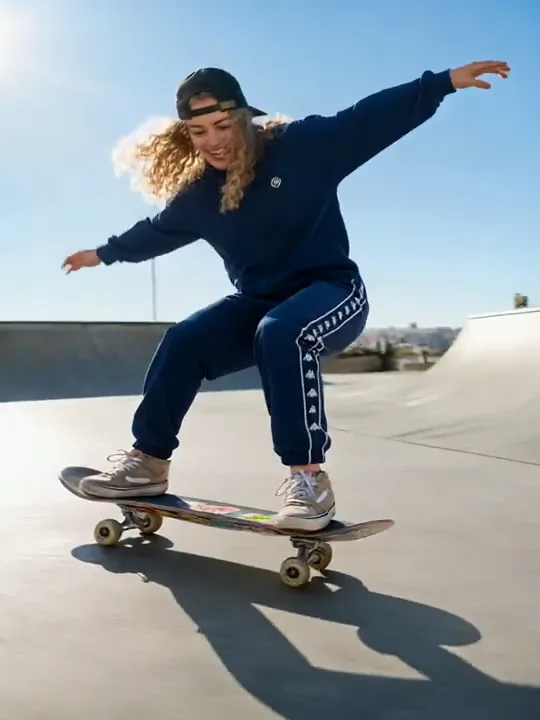
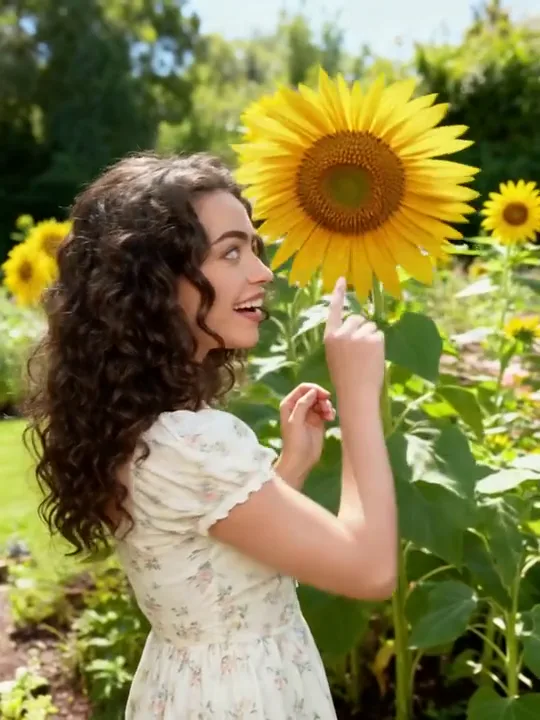
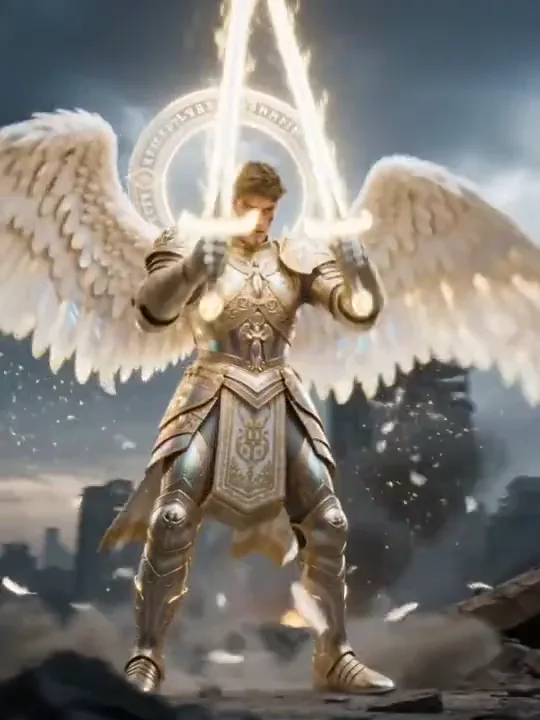
Three Envato AI Style Assets You Can Generate to Spec
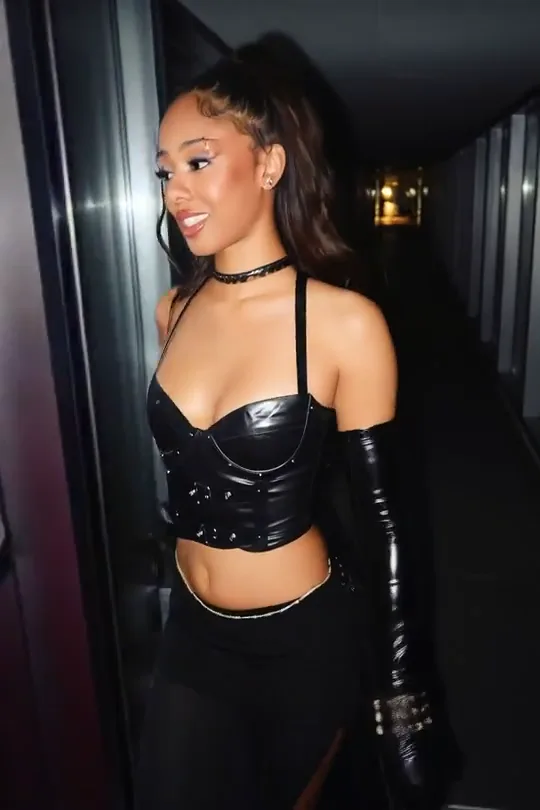
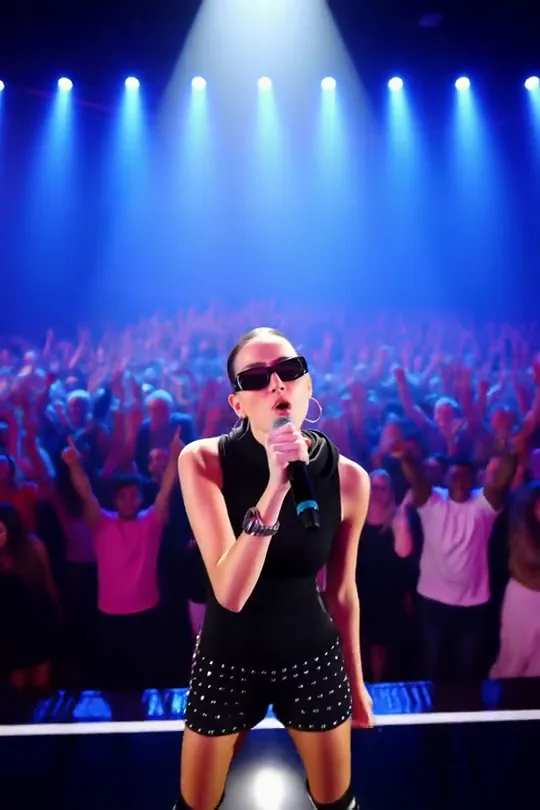
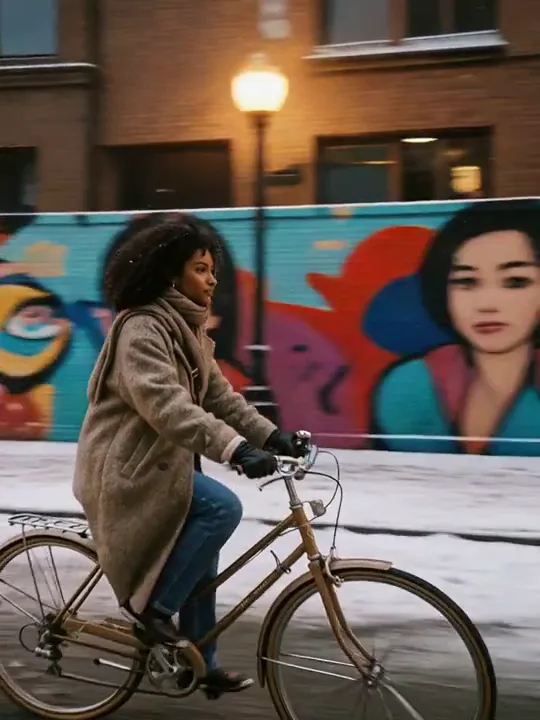
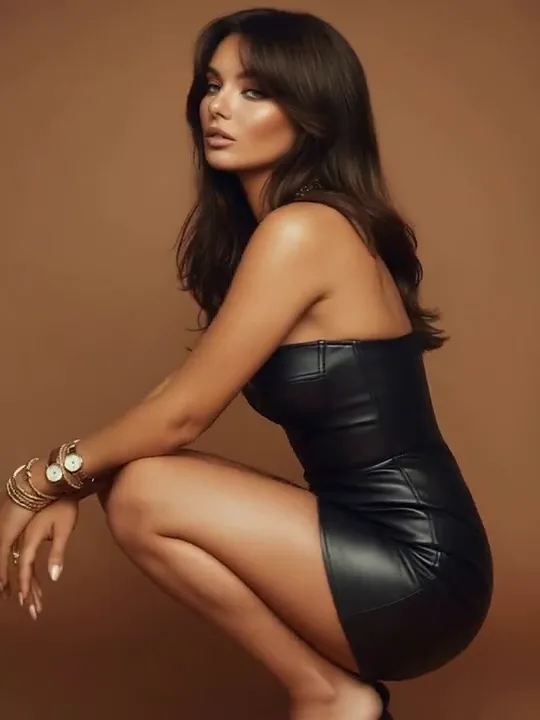
Custom images and clips shaped by your own brief in the King AI workspace. These images are illustrative concepts, not recorded generator results.
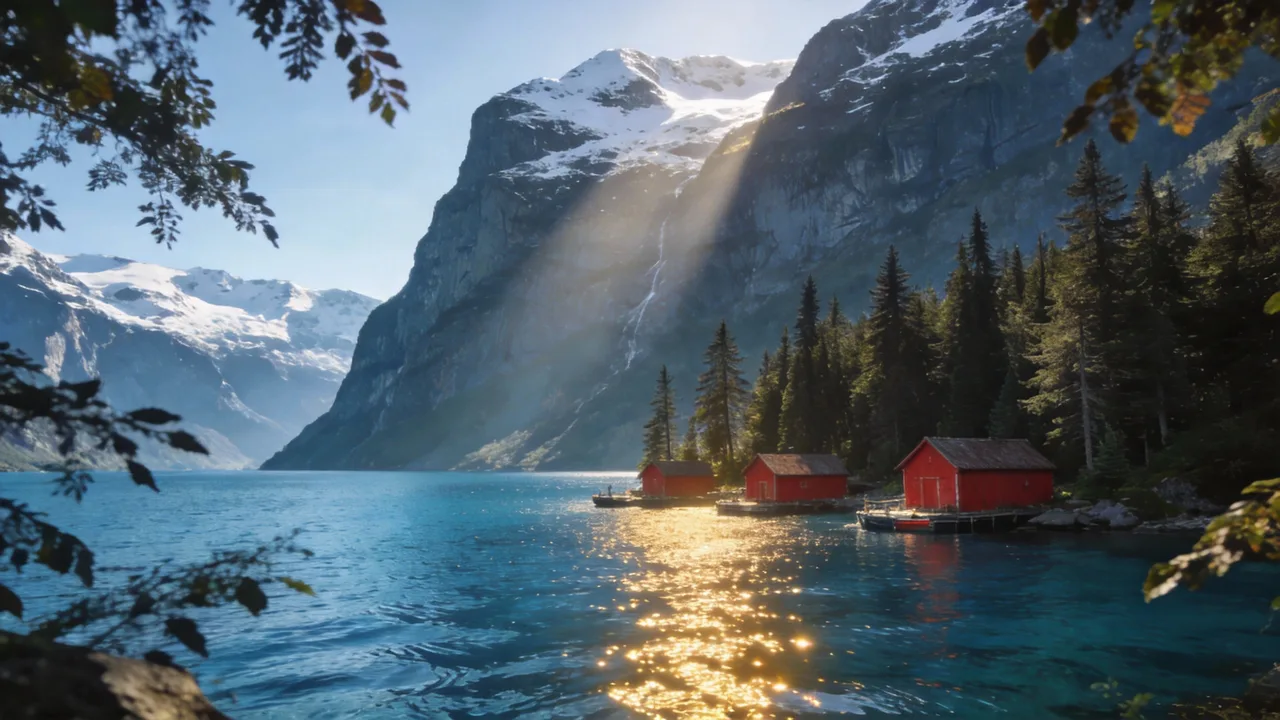
A Setting That Fits Your Exact Story
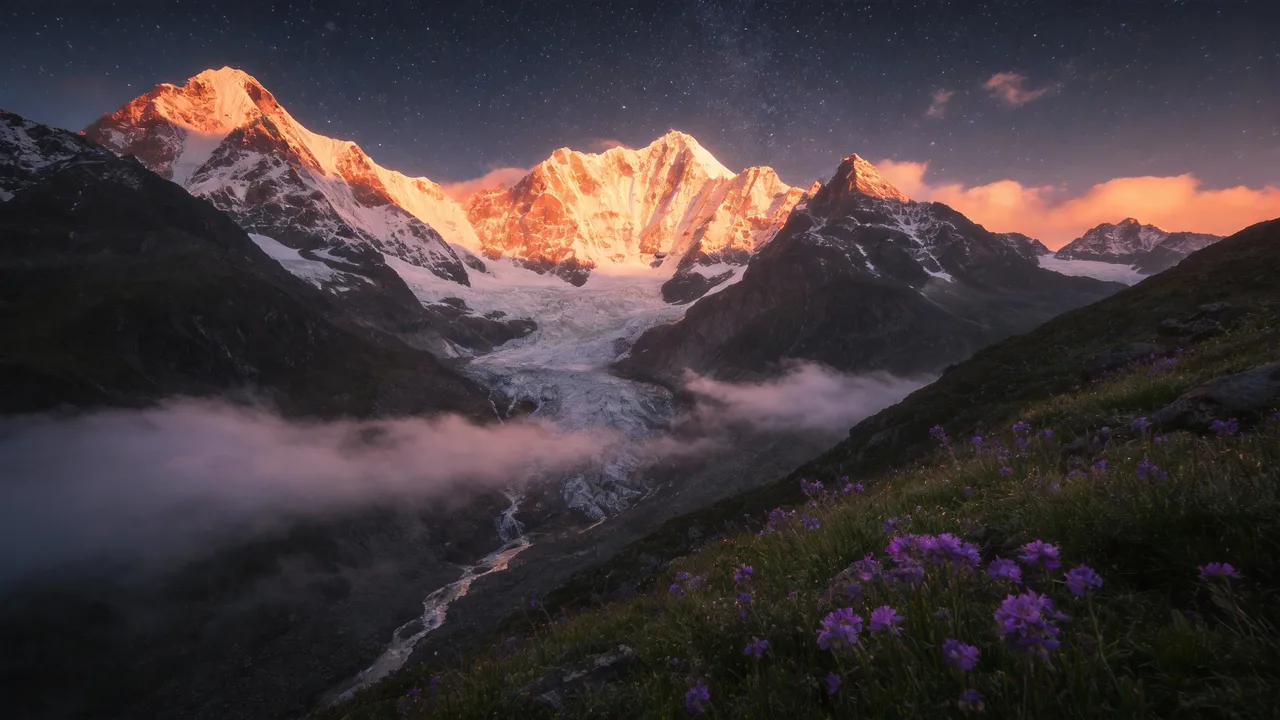
Browsing for a location often ends with a picture that is close but wrong: the season, the angle, or the light does not match. An Envato AI style brief starts from the details instead. Name the landscape, the buildings, the weather, and the time of day, and the Envato AI image is built around that description rather than found by keyword.
- Season and weather you choose
- Landmarks placed where you want
- Ratio set for your layout
Seasonal Visuals Without the Familiar Look
Holiday imagery gets reused everywhere, so popular picks start to feel familiar. Generating your own Envato AI seasonal visual lets you set the palette, the props, and the mood for your brand. Ask for a snowy cabin, warm window light, or a decorated tree, and the Envato AI result is shaped around your campaign instead of a generic holiday look.
- Brand colors in the scene
- Props that match the offer
- Space left for a headline

Short Video B-Roll From a Single Frame
Filler footage is where projects lose the most time. With an Envato AI video approach, you generate or upload a still, then animate it with one gentle motion: drifting light, moving grass, a slow push toward the peaks. Each Envato AI clip is a few seconds long and ready to cut under narration or titles.
- One motion per clip
- Opening frame you approved
- Length that fits a cut
Why an Envato AI Workflow Starts With a Brief
Use the King AI image and video modes to make assets that answer your project, not a search query.
Write the Asset You Wish You Could Find
Searching depends on someone else having made the exact shot. An Envato AI brief flips that around: you describe subject, setting, light, and framing, and the image is generated to match. When the first Envato AI result is close, adjust one detail and run it again instead of opening another page of results.
Images and Clips From the Same Idea
Image mode creates stills for thumbnails, banners, and slides. Video mode turns text or an uploaded image into a short clip, and first and last frame control lets you set where a shot begins and ends. One Envato AI concept can supply both the poster image and the matching motion.
A Repeatable Style Across a Project
Stock picks from different creators rarely share a look. Keep one style line in every Envato AI prompt, such as palette, lens feel, and light, and change only the subject. The Envato AI assets for a whole video or campaign then read as one visual family. A shared Envato AI style line also makes later additions match the first batch.
Turn an Envato AI Idea Into Custom Images and Video
From Brief to Usable Asset
Write the brief, generate the still, and add motion only when the shot needs it.
- 1
Write a Shot List
List every Envato AI asset the project needs: location, mood image, product backdrop, b-roll. For each one, note the ratio, the light, and where text will sit. A clear Envato AI shot list keeps each prompt focused on one job and shows which assets need motion.
- 2
Generate the Still Image
Choose image mode and run the brief. Check the allowance and settings shown before you submit; free options are limited, and standard models need an account or credits. Compare two Envato AI versions and keep the one closest to the plan.
- 3
Add Motion and Download
For clips, switch to video mode and animate the approved still with image to video, or set first and last frames. Watch the Envato AI clip to the end, then download it and store its prompt with the file for the next revision.
Does King AI offer a stock library like Envato?
No. King AI does not host a library of stock files, templates, or licensed downloads. Every image and video is generated from your prompt or from a reference you upload. That is the point of an Envato AI style workflow here: you describe the asset and create it, rather than searching a catalog for something similar. If you need licensed stock footage or templates, those still come from a stock service; the Envato AI approach on this page is about making assets that do not exist yet.
Can I try Envato AI style generation for free?
The King AI workspace has free image and video options for a first Envato AI test. Check the allowance and settings shown before you submit, because free access is limited. Standard models can require an account or credits, and a longer Envato AI prompt does not change those limits.
How do I write an Envato AI image generator prompt?
Write it like a photo request. Name the subject, the setting, the season, the light, and the camera angle, then add the purpose, such as "wide banner with empty space on the right." An Envato AI image generator prompt that states where the asset will be used returns a frame you can place without heavy cropping.
How does Envato AI video work in King AI?
Video mode supports text to video, image to video, and first and last frame control. For Envato AI video b-roll, the most reliable route is to generate or upload a still first, then animate it with one simple motion. Durations, ratios, and models are set by the options shown for the selected mode.
Can I use Envato AI assets for commercial projects?
Check the current King AI pricing page before you publish. It shows which plans include a commercial use license, and some plans include it only with yearly billing. Upload only references you have rights to, and review each Envato AI asset for logos, readable text, or recognizable people before it goes into a client project.
How do I keep a set of Envato AI images consistent?
Create a short style line, for example "soft morning light, muted greens, 35mm look," and paste it into every prompt unchanged. Vary only the subject and setting. Save each Envato AI prompt beside its file so a missing asset can be made later in the same style.
Can I match an Envato AI clip to my existing footage?
Take a frame from your footage as a guide for color and light, then describe those qualities in the prompt or upload a frame you own as the starting image. Keep the Envato AI motion gentle so it cuts in naturally. Final grading in your editor will close any small gap. Test the Envato AI shot between two real clips before you commit to it.
Which aspect ratio suits Envato AI social video?
Choose the ratio for the destination before you generate. Vertical 9:16 suits short-form feeds, 1:1 fits some posts, and 16:9 suits presentations and landscape edits. Compose the opening frame for that ratio, because an Envato AI clip planned for widescreen can lose its subject in a vertical crop.
How long is an Envato AI b-roll clip?
Clips are short, and the available durations depend on the model and mode you select. Plan b-roll as several brief Envato AI shots rather than one long one. Short clips are easier to keep stable and easier to trim to the rhythm of your voiceover or music. Three focused Envato AI clips usually cut together better than one long take that wanders.
What if an Envato AI result is close but not right?
Change one variable at a time: light, angle, or season. Generate again and compare the two versions at the same size. If the composition is right but the details are off, keep that Envato AI image as a reference and refine around it instead of rewriting the whole prompt.
Can I generate product backgrounds with Envato AI prompts?
Yes. Describe the surface, the setting, and the light, and leave clear space where the product will go. Add your own product photo afterward in your design tool. Keep product claims out of the prompt, and check every Envato AI backdrop for stray objects or text before using it in an ad.
What if an Envato AI generation fails?
Read the workspace message before editing your prompt. A quota notice or a busy service is an access issue, not a writing issue. Save your Envato AI brief locally, use the recovery options shown, and avoid resubmitting the same request again and again while the service is busy. Your saved Envato AI prompt is ready to run as soon as capacity returns.