Dola AI Image and Video, One Sentence at a Time
Say what you picture, get an image, then bring it to life as a short video. Free options are limited; standard models need an account or credits.
Local generation history
Sentence → Image → Clip
A Dola AI Workflow That Feels Like Talking It Through
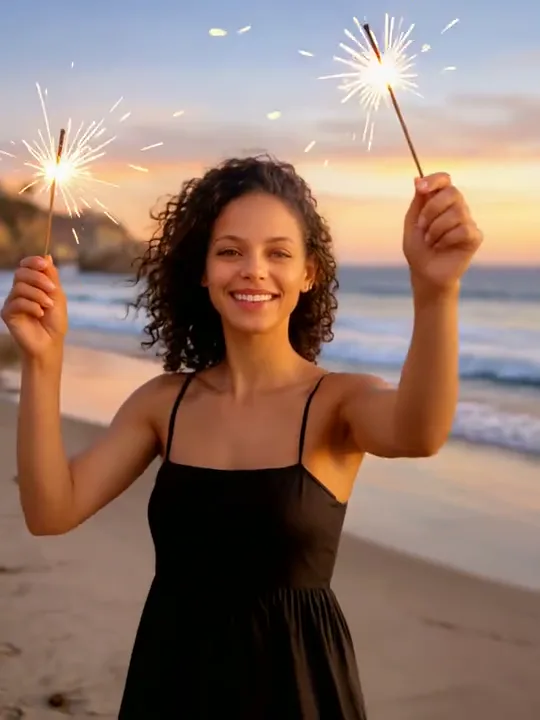
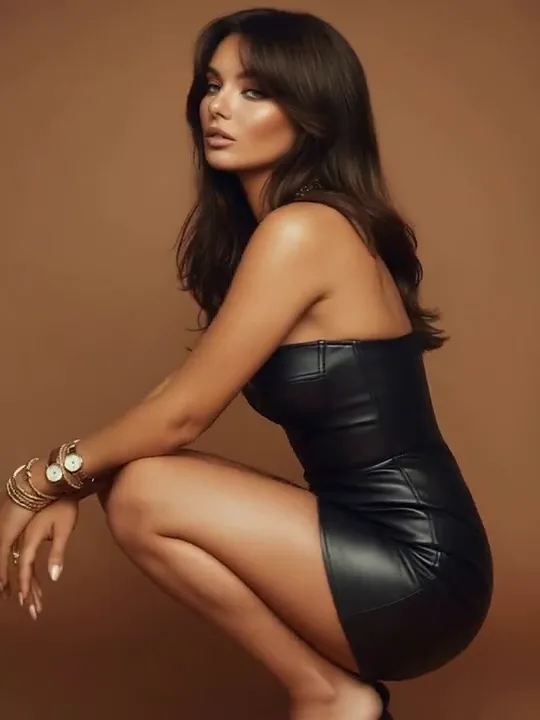
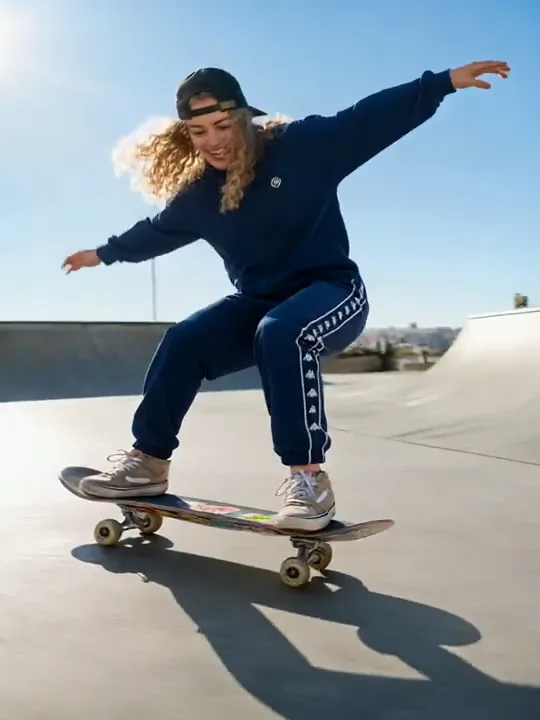
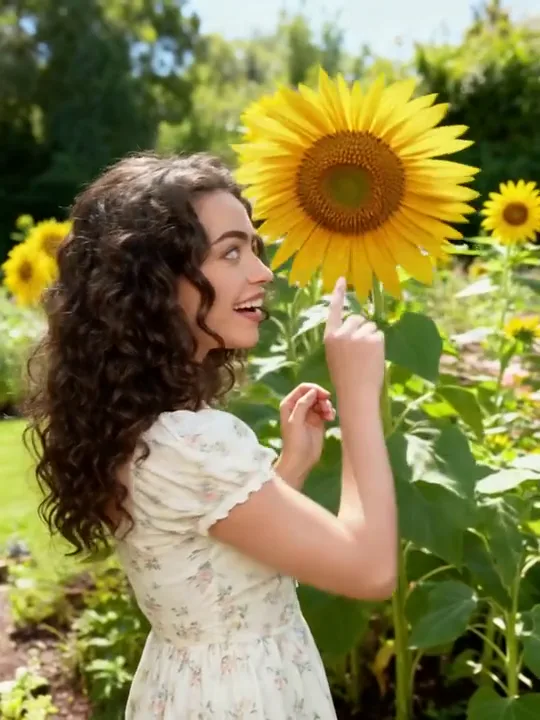
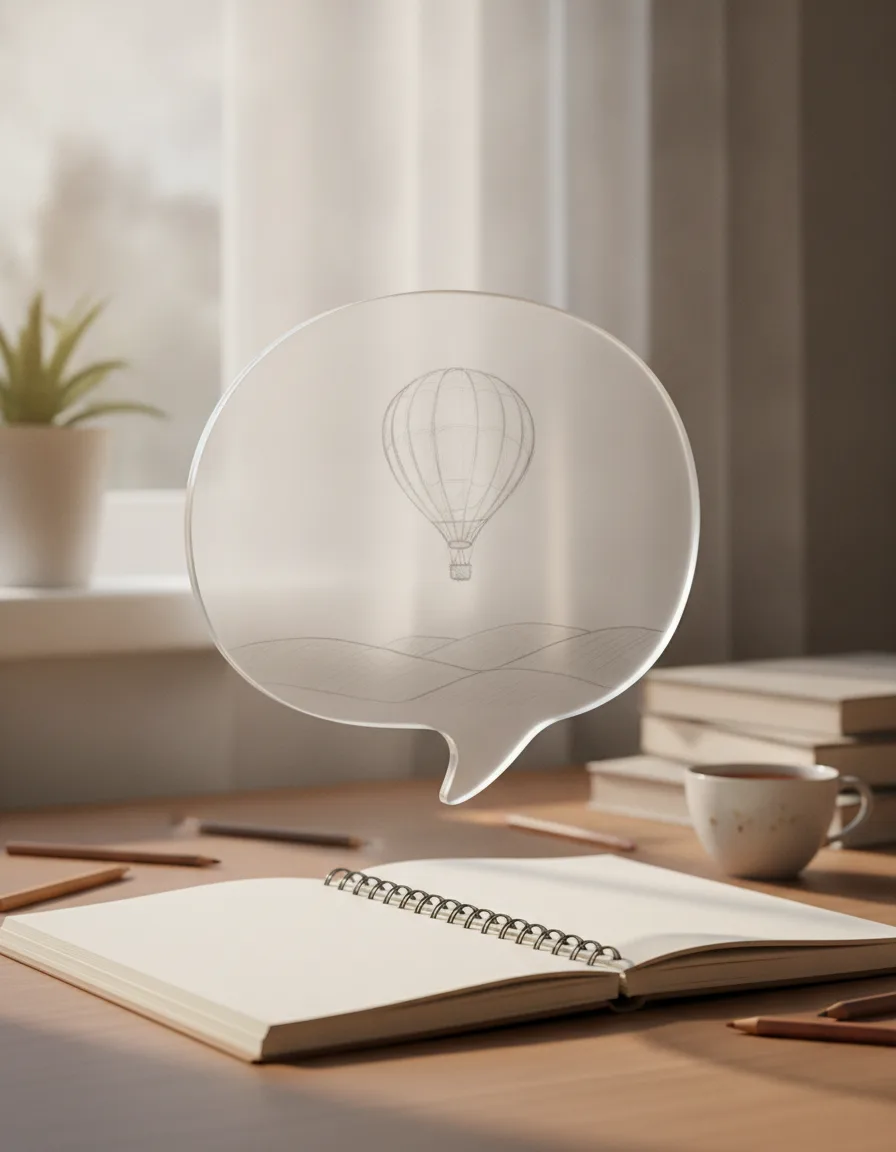
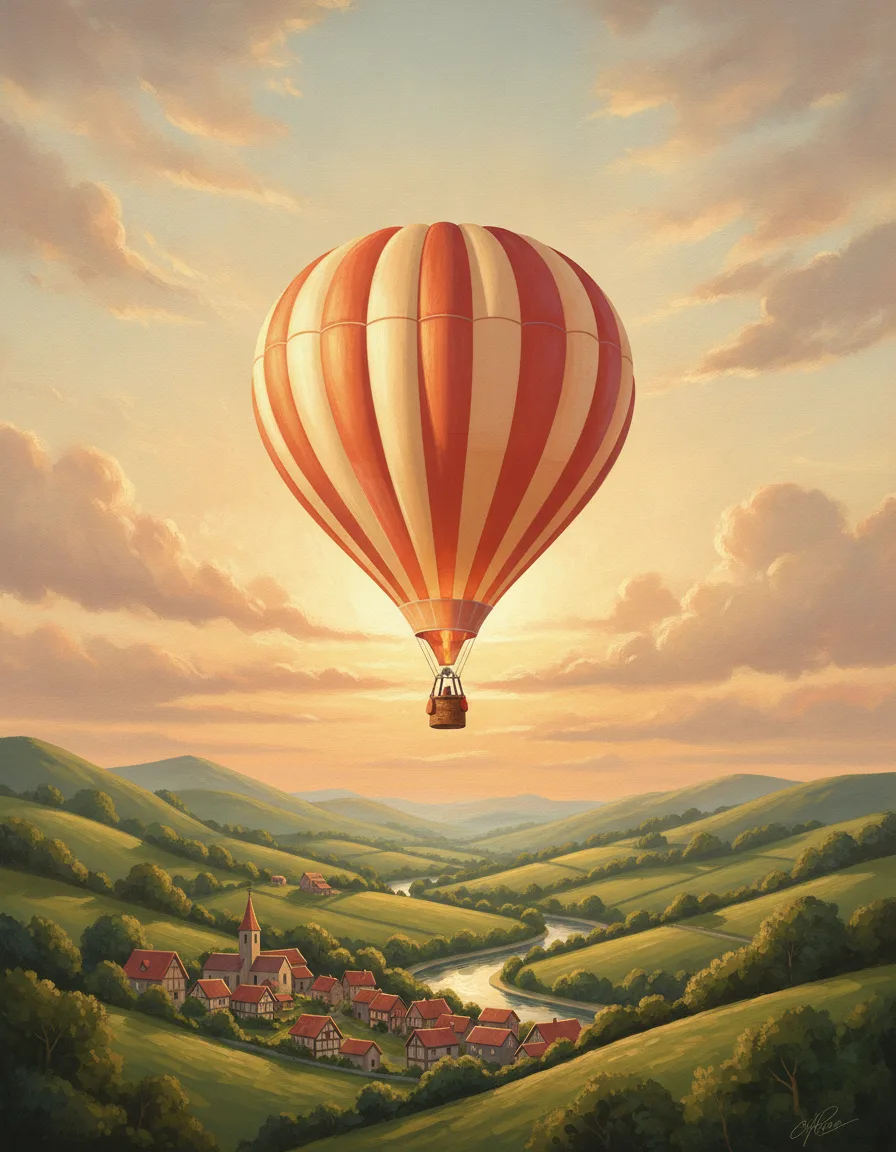
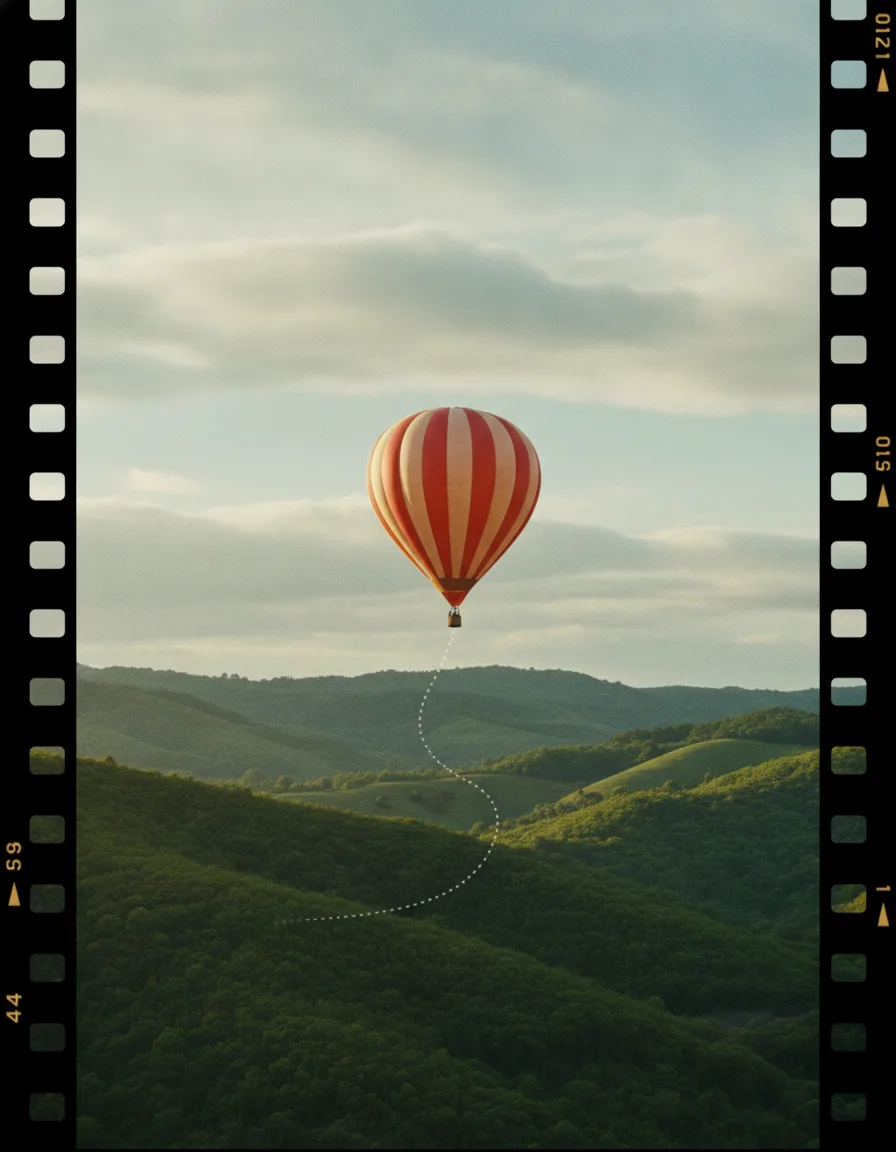
Three moments in a conversational creative loop inside the King AI workspace. The photos are illustrative examples, not generator output.
Start With the Sentence You Would Say Out Loud
Most ideas begin as a casual line: “a striped hot air balloon drifting over green hills.” A Dola AI style request works best when you keep that natural voice instead of translating it into keyword soup. Type the Dola AI sentence the way you would tell a friend, then add one detail at a time as the Dola AI image takes shape.
- Write like you speak
- Name the subject first
- Add mood in a few words
Answer the Image the Way You Would Answer a Person
When the first Dola AI picture arrives, react to it in short follow-ups: warmer light, lower horizon, fewer trees on the left. Each reply becomes a small edit to your Dola AI prompt. This back-and-forth keeps the Dola AI image moving toward what you meant without rewriting the whole idea every round.
- One change per reply
- Keep what already works
- Compare against the last version
Turn the Picture You Agreed On Into a Short Clip
Once a Dola AI still feels right, ask for small motion: the balloon rising slowly, clouds drifting behind it. Starting the Dola AI video from an approved image keeps the look you already chose, so the clip only has to add movement rather than invent a new scene.
- Animate an image you like
- Ask for one gentle action
- Watch to the final frame
Why a Dola AI Style Conversation Works for Visuals
The King AI workspace already handles images and video. A conversational habit helps you use both with fewer wasted attempts.
Plain Language In, Clear Image Out
You do not need a special syntax for a Dola AI image generator prompt. Describe the subject, the place, the light, and the feeling in ordinary sentences. Short, concrete Dola AI requests are easier to adjust than long lists of styles and tags copied from somewhere else.
Images and Video in the Same Place
Image mode creates the still, and video mode supports text to video, image to video, and first and last frame setups. Keeping the Dola AI image and the Dola AI video in one workspace means the picture you approved can become the starting frame of your clip without exporting and re-uploading.
Small Turns, Visible Progress
Treat every Dola AI result as one turn in a dialogue. Change one thing, look again, and decide. That rhythm makes it obvious which edit helped and which one hurt, so a Dola AI session ends with an image or clip you can explain, not just one you landed on by chance.
How to Go From a Dola AI Sentence to a Finished Clip
Three Turns of the Conversation
Keep the image step and the video step separate so each decision is easy to review.
- 1
Say the Idea in One Sentence
Open image mode and type your Dola AI idea as a single natural sentence with a subject, a setting, and a mood. Pick the aspect ratio you will need later, since the same frame may become the first frame of a video.
- 2
Reply Until the Image Is Right
Look at the first Dola AI result and answer it with one follow-up change: brighter, closer, simpler background. Generate again and compare. Stop when the picture says what your first sentence meant, then download it or keep it ready for video.
- 3
Bring the Still to Life
Switch to video mode, use image to video with your chosen still, and describe one small action. Check the allowance shown before you submit; free access is limited. Review the Dola AI clip from start to end and save the one that moves cleanly.
What does a Dola AI style workflow mean on King AI?
It means treating image and video creation like a conversation. You start with a sentence, look at the result, and reply with a change. On King AI that happens through the prompt box and the regenerate step rather than a chat window. The Dola AI habit is about how you phrase and revise ideas, not about a separate tool or integration.
Can I use a Dola AI image generator approach for free?
The King AI workspace offers limited free options, so you can test a few Dola AI style prompts without paying. Check the allowance and model shown before you submit. Standard models and longer or higher quality outputs can require an account or credits. A well-written sentence will not change those limits, but it will help you waste fewer attempts.
How long should a Dola AI prompt be?
Start short. One Dola AI sentence with a clear subject, a setting, and a mood is usually enough for a first Dola AI image. Add detail only after you see what the model did with the basics. Long prompts written before any result make it hard to know which words mattered, and harder to fix the one thing that went wrong.
How do I revise a Dola AI image without losing what I liked?
Keep your previous Dola AI prompt and change one phrase at a time. If the color is right but the framing is not, leave the color words alone and only edit the framing words. Writing down each Dola AI revision next to its result makes it easy to step back when a change makes the picture worse instead of better.
How do I turn a Dola AI image into a video?
Choose video mode and use image to video, then provide the still you approved as the starting frame. Describe one gentle action, such as leaves moving in the wind or a slow push toward the subject. Starting the Dola AI video from a finished image keeps colors and composition steady, because the model only has to add motion.
Should I use text to video for Dola AI clips instead?
Text to video is handy when you just want to see whether an idea has energy. Image to video is the better choice once you care about a specific look. For most Dola AI projects, settling the picture first and animating it second takes fewer tries than asking text to video to get both the look and the movement right in one pass.
What are first and last frames useful for in Dola AI videos?
First and last frame mode lets you set where a clip begins and where it should end, and the model fills in the motion between them. It suits simple transformations, such as a scene shifting from day to dusk. Keep both Dola AI frames close in composition, since a big jump between them gives the model too much to invent.
Which kinds of Dola AI video ideas work best?
Short, single-action Dola AI ideas work best: steam rising from a cup, a drop falling from a leaf, clouds sliding over a hill. Ask for one subject and one movement per clip. If your Dola AI idea is a whole story, split it into several short clips and join them in an editor instead of packing everything into one generation.
Which aspect ratio should I choose for Dola AI content?
Decide where the Dola AI result will live before you start. Vertical 9:16 suits short-form feeds, square fits many profile grids, and 16:9 works for landscape video. Pick the ratio in image mode so the Dola AI still already fits the clip you plan to make. Use the ratio options the workspace shows for the selected model.
Will every Dola AI feature appear in this workspace?
No. This page describes a conversational way of working with the image and video tools King AI already provides. Model names, durations, ratios, and other settings come from the King AI workspace itself and can differ by mode. Check those controls directly instead of expecting a specific Dola AI feature to appear in the same form.
What if a Dola AI style generation fails?
Read the message in the workspace first. A busy service, a used-up allowance, or a content review notice is not solved by rewriting the prompt. Keep your Dola AI sentence and any approved still saved on your side, use the retry controls shown, and avoid sending the same request again and again. Prompts that break content rules will be declined.
How do I save and reuse my Dola AI results?
Download the Dola AI images and clips you want to keep with the controls on each result. Store the final prompt beside every file so you can repeat or adjust it later. A simple folder with the sentence, the approved still, and the finished Dola AI clip makes your next project start from a proven point instead of a blank box.