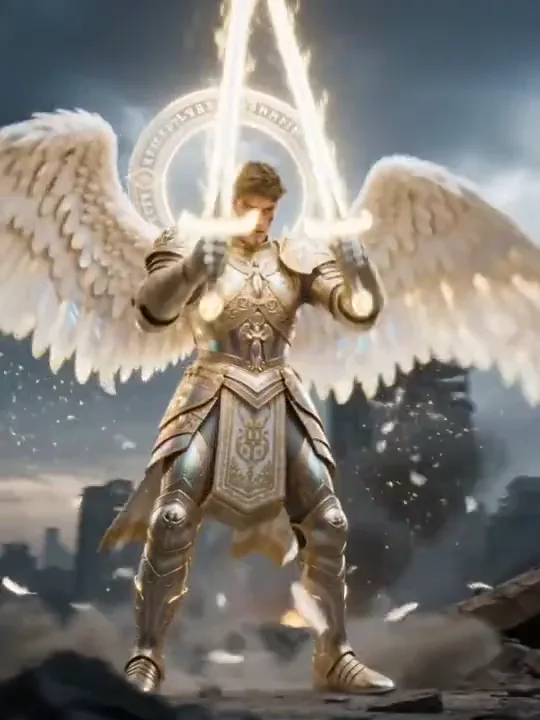
Digen AI Photo to Video Generator
Bring a still portrait or pet photo to life in the King AI workspace. A limited free allowance lets you test a first clip.
Local generation history
One Photo, a Few Seconds of Life
Animate People and Pets With Digen AI Style Motion
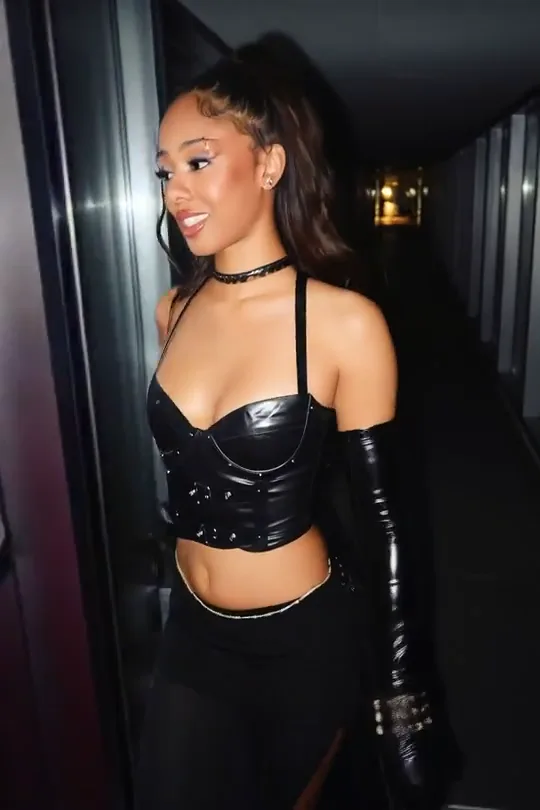
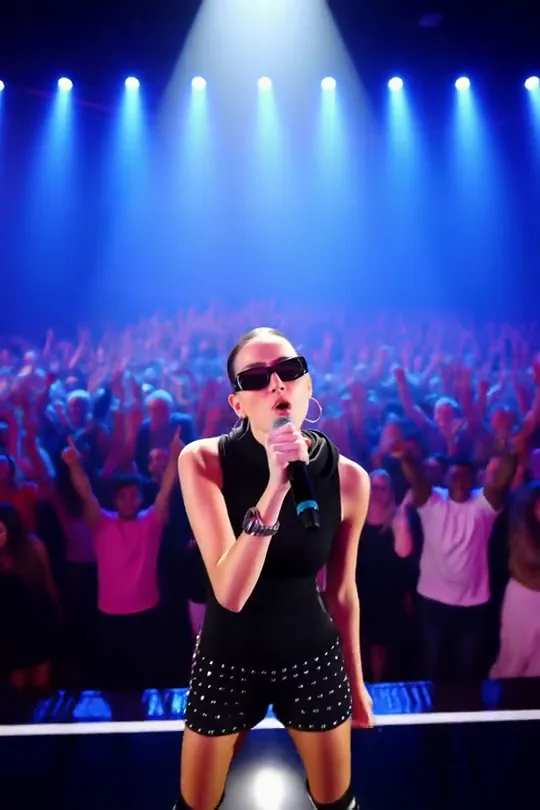
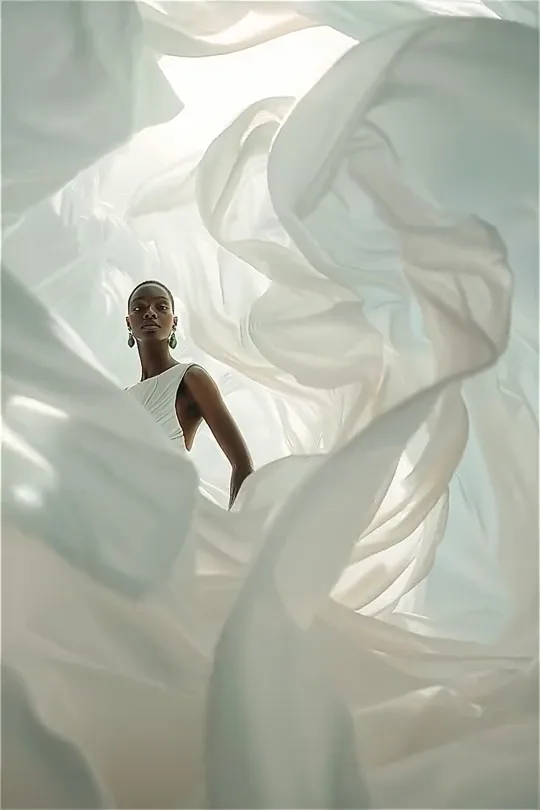
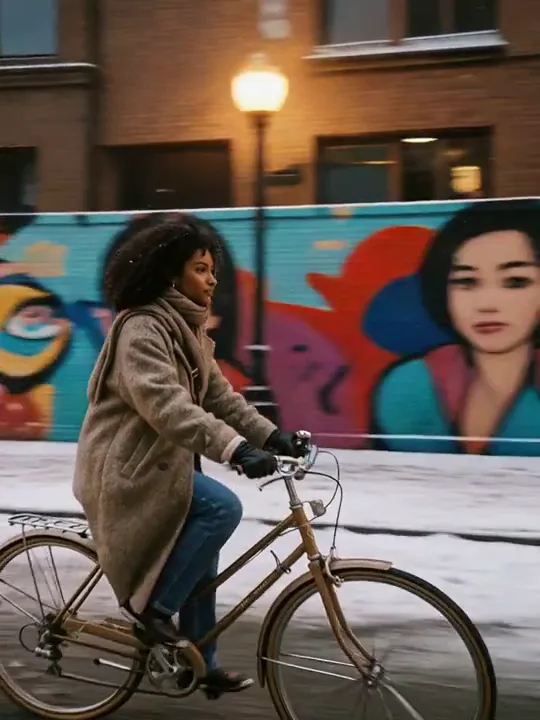
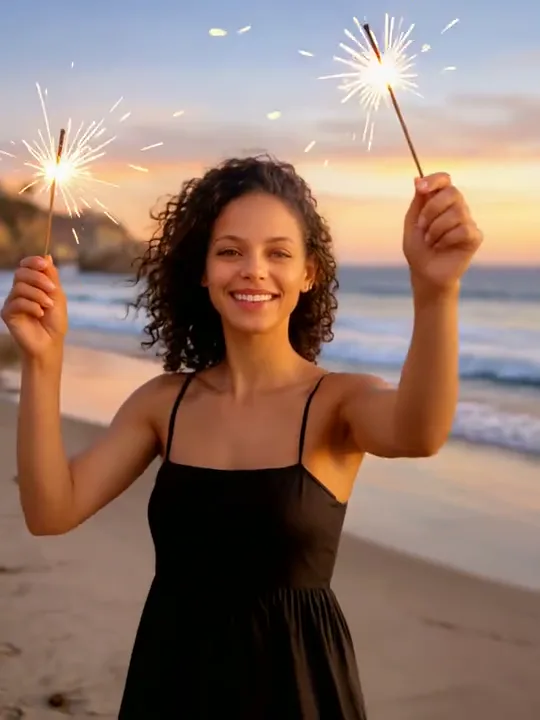
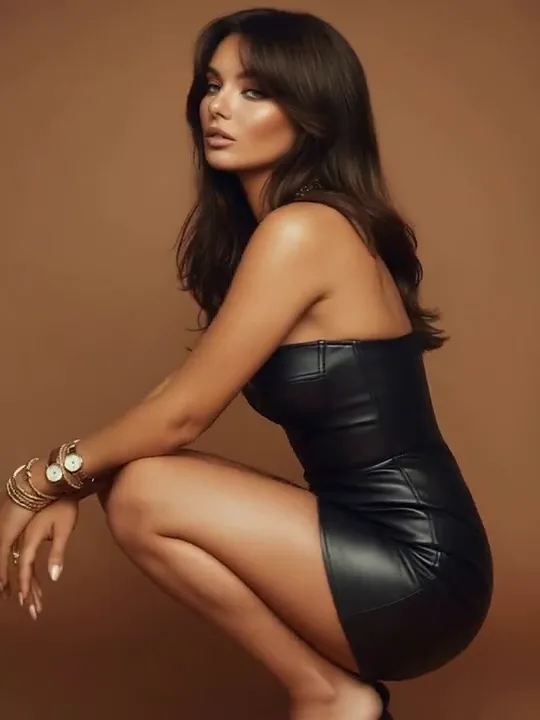
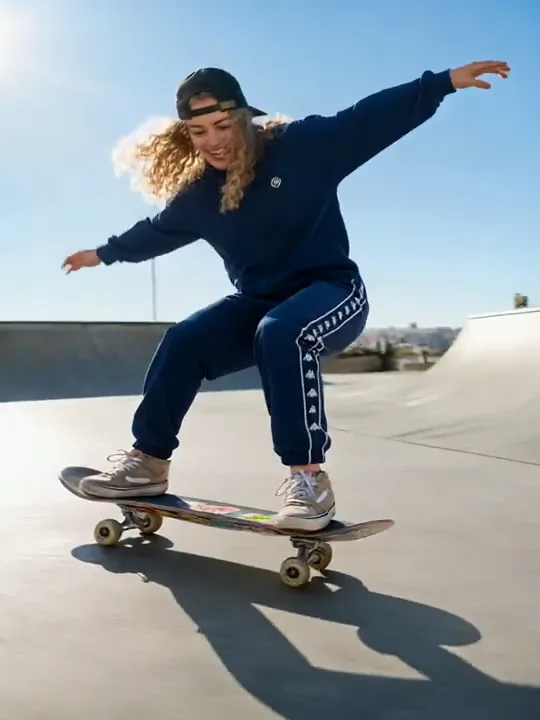
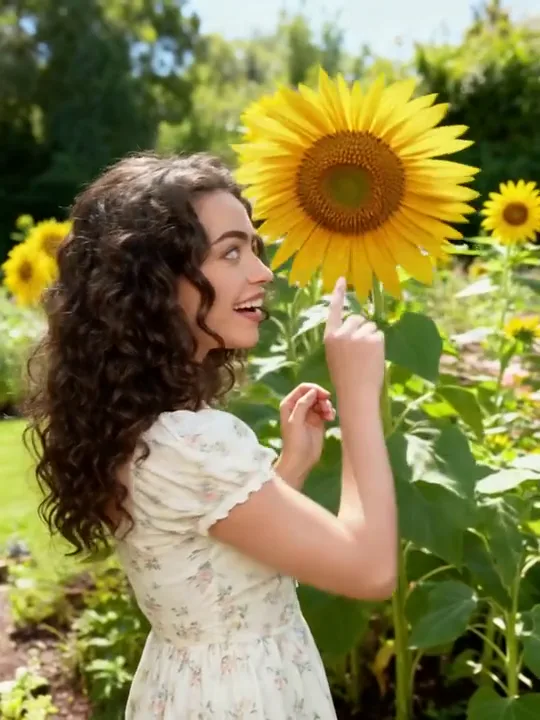
Three kinds of photos that respond well to gentle Digen AI animation. These images are illustrative stills, not recorded generator output.
Give a Casual Photo a Small, Believable Gesture
Phone pictures are the most common starting point for Digen AI clips. A mirror selfie already has a pose, a room, and soft light. Ask for one small action, such as lowering the phone or a slight head turn, and the Digen AI result keeps the person recognizable instead of reinventing them.
- Full face visible and in focus
- One gesture, not a dance routine
- Background left almost still

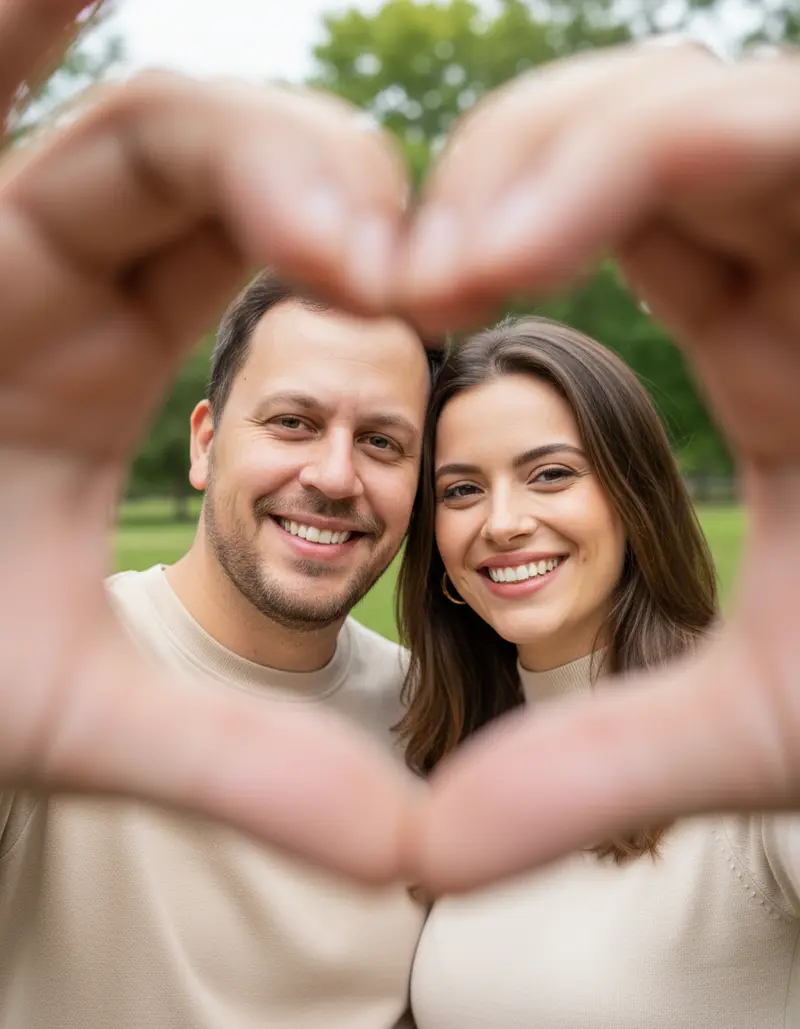
Turn a Two-Person Photo Into a Living Memory
Couple and family pictures make strong Digen AI material, because they carry emotion that a few seconds of motion can lift. With Digen AI style prompts, describe a soft laugh, a lean toward each other, or a breeze in the trees behind them. Keep both faces fully in frame, because Digen AI motion is hardest to control where two people overlap.
- Both faces unobstructed
- Warm, natural expression cues
- Short clip for messages and posts
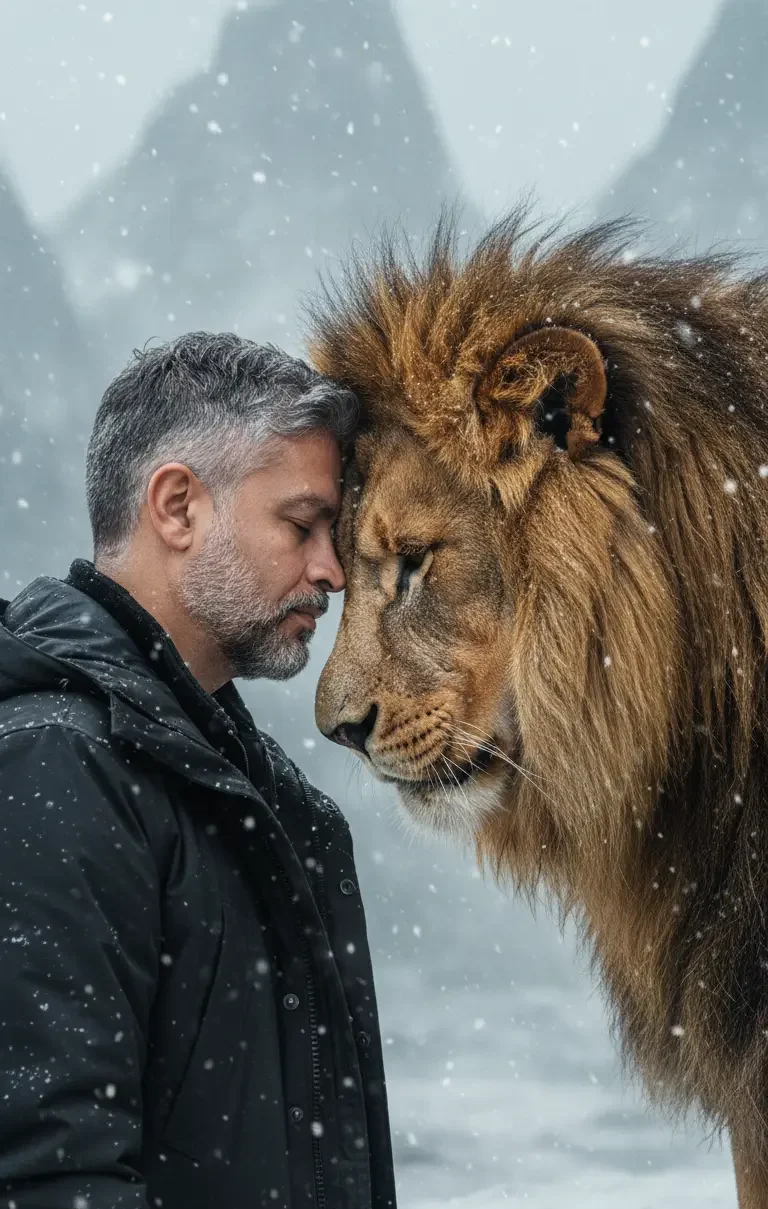
Let an Animal Portrait Breathe and Blink
Pets and animals are a favorite Digen AI subject because tiny movements read as personality: a blink, an ear flick, fur lifting in the wind. Start the Digen AI clip from a photo where the animal is sharp and well lit. A calm Digen AI prompt usually beats asking a dog or cat to run across the room.
- Eyes and fur clearly visible
- Subtle breathing and blinking
- No sudden full-body action
What a Digen AI Photo Animation Needs
The King AI workspace gives you image to video, text to video, and first and last frame modes. These habits help a still photo move well in a Digen AI clip.
A Source Photo the Model Can Read
Resolution matters less than clarity. A Digen AI animation needs a visible face or muzzle, clean edges around hair and fur, and light that comes from one direction. Crop away clutter before you upload. If you would not print the photo, it will rarely become a good Digen AI clip.
Motion Written as Behavior
Describe what the subject does, not how the video should feel. "She smiles and tucks hair behind her ear" gives the model a plan; "make it magical" does not. Treat each Digen AI prompt as stage direction for one beat of behavior, then let the Digen AI result show whether that beat works.
First and Last Frame for Controlled Change
When you need a Digen AI clip to land on a specific pose, supply a starting photo and an ending image. The model fills the motion between them. This Digen AI approach suits a pet turning toward the camera or a person shifting from neutral to smiling, with both endpoints decided by you.
Make a Digen AI Clip From One Photo
From Still to Motion
Prepare the photo, describe a single action, and review the clip before you share it.
- 1
Choose and Upload the Photo
Pick a sharp Digen AI source image of a person or pet that you own or have permission to use. Open image to video in the workspace and upload it. For a Digen AI test, a centered subject with some space around the head leaves room for natural movement.
- 2
Describe One Small Action
Write a short Digen AI prompt naming the action and its pace, such as a slow smile and a glance toward the camera. Check the allowance, duration, and aspect ratio shown before you submit. Free Digen AI style attempts are limited, and standard models may require an account or credits.
- 3
Review, Retry, and Download
Play the Digen AI clip to the final frame and watch eyes, mouths, hands, and paws. If something drifts, reduce the action instead of adding detail. Download the version that still looks like your subject and keep the Digen AI prompt with it.
What is a Digen AI photo animation?
It is a short video made from a single still image. The model studies the face, body, and background in your picture and predicts a few seconds of movement that fits it. On this page, Digen AI describes that style of result produced with the King AI image to video tools, not a separate app or a connection to another service.
Can I use the Digen AI video generator for free?
Digen AI free use starts with a first clip on the free allowance in the King AI workspace. That allowance is limited and may change, so read the counter and settings before submitting. Standard models and longer or repeated generations can require an account or credits. A shorter prompt does not lower the cost of an attempt.
Which photos work best for Digen AI image to video?
Sharp, well-lit photos with one clear subject work best. Faces should be visible and not cut off by the frame edge. Avoid heavy filters, motion blur, and busy group shots for a first Digen AI test. A simple background helps, because the model has fewer details to keep consistent while the subject moves.
How do I animate a pet photo with Digen AI?
Upload a photo where the pet is in focus and facing roughly toward the camera. Ask for small, natural behavior: a blink, a head tilt, an ear twitch, or a tail moving slowly. Large actions like jumping or running often distort legs in a Digen AI result. Review the Digen AI clip closely around eyes, whiskers, and paws before you share it.
How do I keep a face looking like the same person?
Keep the requested movement small and the Digen AI clip short. A gentle smile or a slight turn preserves identity far better than a full head rotation. Do not ask the Digen AI prompt to change age, hair, or clothing at the same time as adding motion. If the face shifts, generate again with a calmer instruction.
What should a Digen AI motion prompt include?
Name the subject, the action, and the pace in one or two sentences. For example: the woman laughs softly and looks down, while leaves move gently behind her. Mention camera movement only if you want it, and keep it slow. A focused Digen AI prompt is easier to fix than a long list of effects.
When should I use first and last frame instead?
Use first and last frame when the ending of a Digen AI clip matters. If you want a dog to finish looking straight at the lens, or a person to end with a specific smile, provide both images. The model creates the movement between them. For loose, open-ended Digen AI animation, a single source photo is simpler.
Can I animate an old or scanned family photo?
Yes, if the scan is clear enough to show the face. Crop out borders, fix obvious tilt, and avoid images where scratches cross the eyes or mouth. Be gentle with old photos: a soft blink or a small smile respects the original better than an exaggerated Digen AI performance. Only animate photos you have the right to use.
Which aspect ratio should a Digen AI clip use?
Match the Digen AI ratio to where the clip will be seen and to the shape of the photo. A tall portrait suits 9:16 for stories and reels, while a wide group or landscape image suits 16:9. Forcing a vertical photo into a wide Digen AI frame can crop heads. Pick from the ratios the workspace offers for the selected model.
Can I use Digen AI style video without a photo?
Yes. Text to video creates a clip from a written description, which is useful when you have an idea but no suitable picture. You lose control over exactly how the person or pet looks, though. Many people generate an image first in image mode, then animate that still with the Digen AI workflow.
Why did my Digen AI attempt fail or look wrong?
Check the workspace message before rewriting the Digen AI prompt: a quota limit or busy service is not a prompt problem. If the clip completed but looks off, the cause is usually the source photo or an action that is too big. Simplify the movement, try a clearer photo, and change one thing per Digen AI attempt so you can see what helped.
How do I save and share the finished clip?
When the video completes, play it once more, then use the download control to save it. Short Digen AI clips work well in messages, stories, and profile videos. Keep the source photo and prompt together in case you want a variation later, and tell viewers when a moving photo was generated rather than filmed.