
CapCut Pro AI Video Shots, Ready for Your Edit
Generate short clips from text or images, then cut them in the editor you already use. Free options are limited; standard models need an account.
Local generation history
Generate Footage, Then Cut
Fill Your CapCut Pro Timeline With Shots You Generated
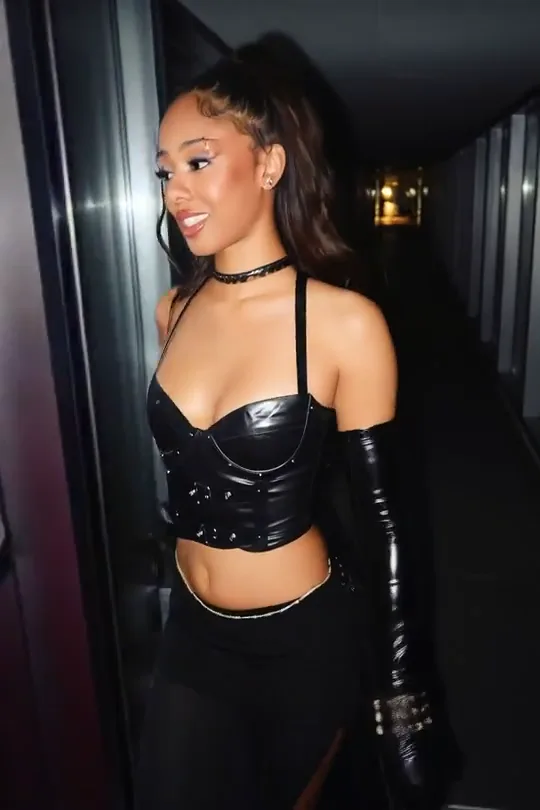
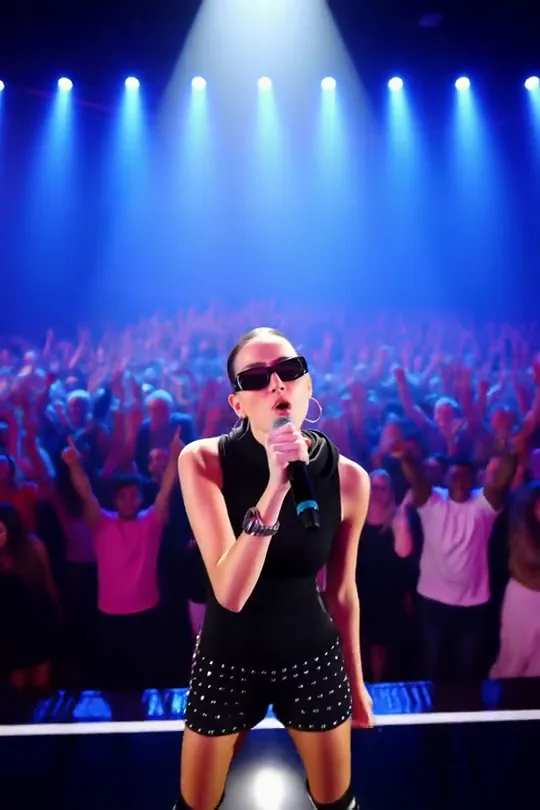
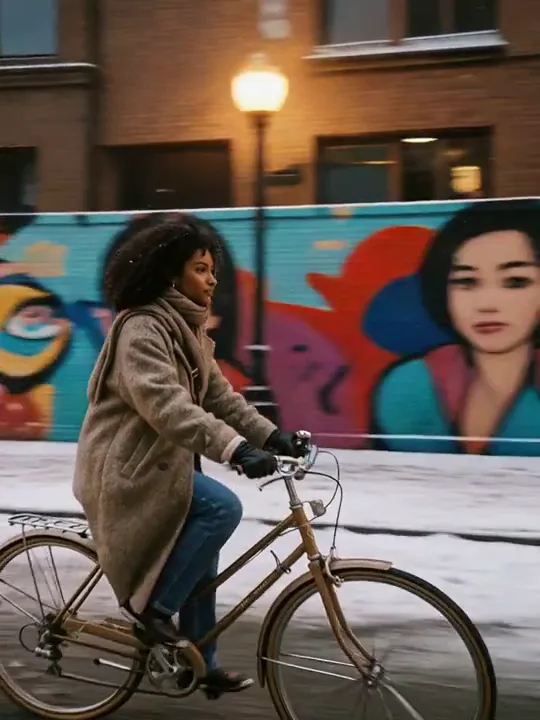
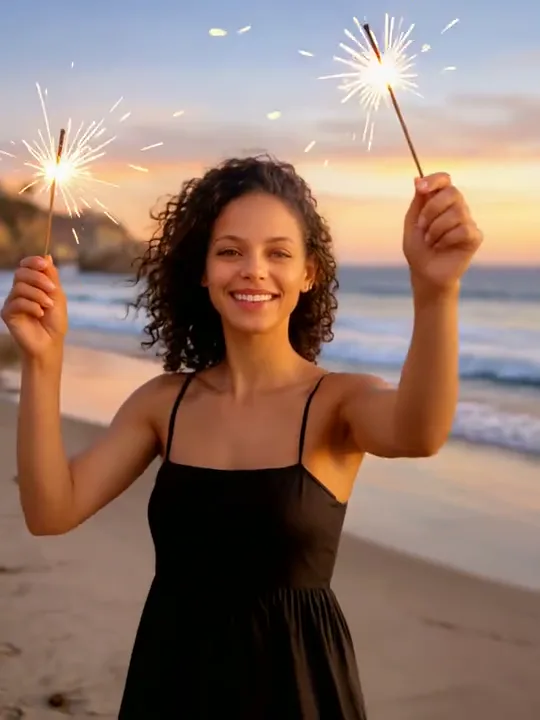
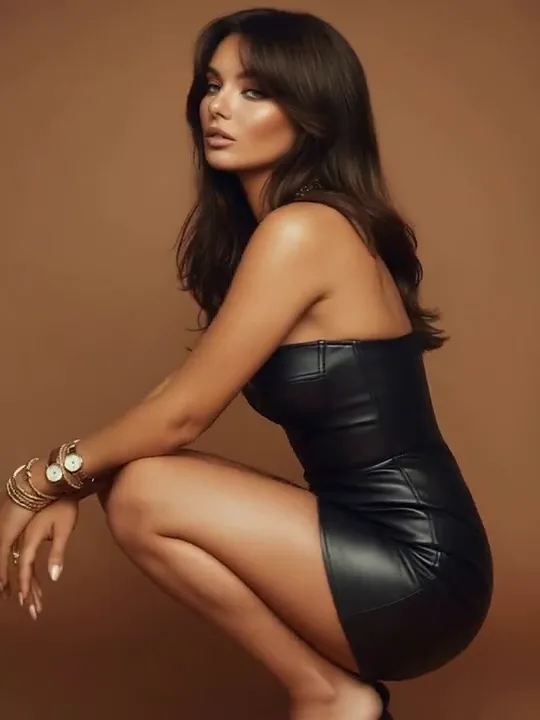
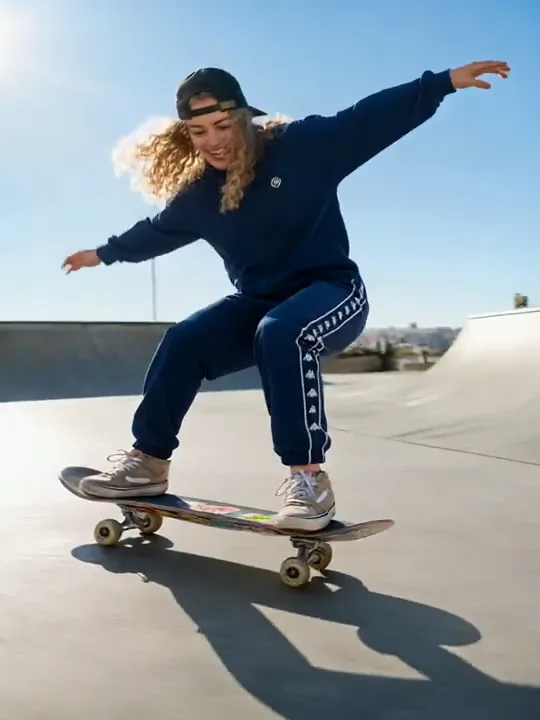
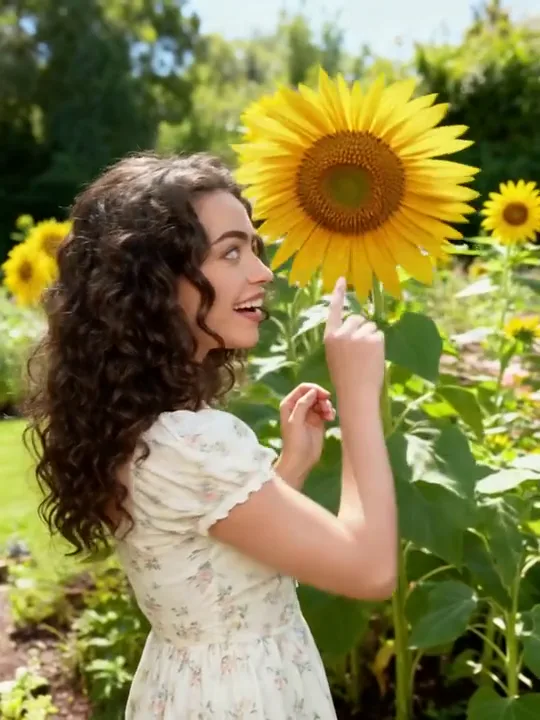
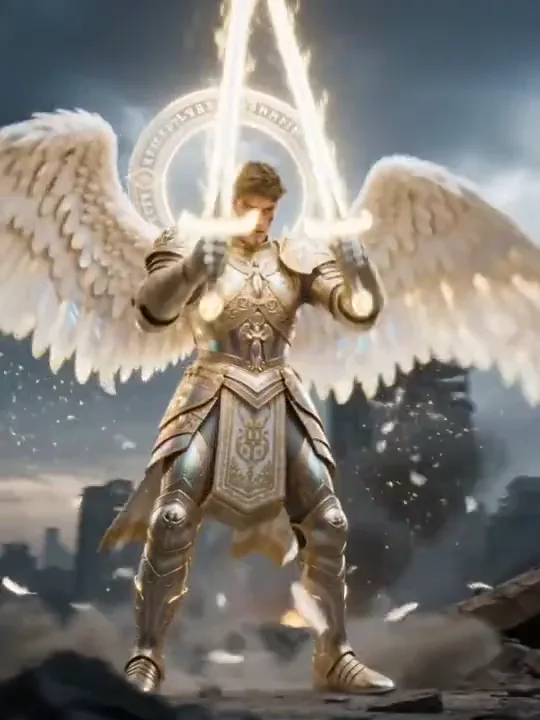
Three stages of a CapCut Pro footage workflow, from the first brief to the file you import. These images are illustrative concepts, not recorded generator results.
Write a CapCut Pro Shot List Before You Generate
A CapCut Pro edit is only as good as the footage it has to work with. Before opening any generator, list the CapCut Pro shots your story is missing: an establishing view, a close detail, a cutaway. Turn each line into a short prompt with a subject, a setting, light, and one movement, so every clip arrives with a job to do in the sequence.
- One prompt per missing shot
- Note the length you need
- Decide the ratio up front
Turn Text or a Still Into CapCut Pro Footage
Text to video helps when your CapCut Pro story is still only an idea. Image to video helps when you already own a frame, such as a product photo or a location still, and want it to move. Generate two or three CapCut Pro takes of the same shot so the edit has options, and keep the motion simple enough to cut on.
- Text to video for new ideas
- Image to video for owned frames
- First and last frame control
Download the Clip and Cut It in CapCut Pro
King AI stops where editing begins. There is no timeline, captions, or transitions here. Download the take you picked, import it into your CapCut Pro project, and trim it to the beat there. Treat generated clips like stock footage you directed yourself: material to shape, not a finished video.
- Download each chosen take
- Name files by shot number
- Edit sound and text in your app
A CapCut Pro AI Video Source Workflow, Not an Editor
King AI generates the raw CapCut Pro clips. Cutting, captions, music, and effects stay in your own editing software.
CapCut Pro Clips Built to Be Cut
Editors need clean in and out points for CapCut Pro AI video work. Ask for one steady action per clip and a calm final second, so the shot is easy to trim when it lands on your CapCut Pro timeline. A busy clip that changes direction halfway through leaves you nowhere to cut.
CapCut Pro Start and End Frames You Choose
First and last frame mode lets you set where a shot begins and where it lands. That is useful for CapCut Pro transitions you build yourself: if one clip ends on a close frame and the next starts on a matching one, the cut between them feels intentional.
A Consistent CapCut Pro Look Across a Sequence
Keep the same lighting words, lens description, and color notes in every prompt for one sequence. Generating CapCut Pro footage from a shared prompt base means the shots grade together more easily, and viewers read them as one scene instead of a montage of strangers.
How to Prepare CapCut Pro AI Video Footage in Three Steps
Generate, Review, Import
Generate each CapCut Pro shot here, check it like a camera operator would, and leave the editing to your own software.
- 1
Brief One CapCut Pro Shot at a Time
Pick text to video, image to video, or first and last frame mode. Describe one subject, one setting, and one movement, and choose the aspect ratio your CapCut Pro project uses. Short, specific prompts produce clips that are easier to cut.
- 2
Generate and Review CapCut Pro Takes
Submit the CapCut Pro prompt and watch each result from first frame to last. Check faces, hands, and edges during motion. Note the allowance shown in the workspace: free access is limited and standard models need an account or credits.
- 3
Download and Import Into Your Editor
Save the takes you want and import them into CapCut Pro or any editor you prefer. Add music, captions, and transitions there. Keep each prompt with its file so you can regenerate a matching CapCut Pro shot if the edit changes.
Is King AI a replacement for CapCut Pro?
No. King AI generates video and image material; it does not edit. There is no timeline, no captions, no transitions, and no audio mixing. Think of it as a place to create the shots your CapCut Pro project is missing, which you then download and cut in the editing app you already use.
What does a CapCut AI video generator workflow look like here?
It means generating short clips from a prompt or a still image and then editing them elsewhere. You describe a shot, review the takes, and download the best one. The cutting, pacing, and sound design all happen later in CapCut Pro or another editor, where you have full control over the final video.
Can I try generating CapCut Pro footage for free?
There is a free option in the King AI workspace with a limited allowance, useful for testing a prompt or two. Standard models require an account or credits. Check the allowance and settings shown before you submit. This page does not offer CapCut Pro itself or any access to paid editing features.
Which aspect ratio fits my CapCut Pro edit?
Use the ratio of the CapCut Pro project you are building. Vertical 9:16 suits short-form feeds, 16:9 suits YouTube and landscape edits, and square works for some feed posts. Generating at the right shape avoids cropping a subject out of frame later. Use the ratio options the workspace shows for the selected mode.
How long should each CapCut Pro clip be?
Short. Most edits cut every few seconds, so a brief clip with one clear action is more useful than a long one that wanders. Generate the durations the workspace offers and trim on your CapCut Pro timeline. If you need a longer moment, generate two matching shots and cut between them.
How do I write a prompt for CapCut Pro AI video shots?
Describe what the viewer sees, then what moves. For example: a cyclist on a wet city street at night, neon reflections, the camera tracking alongside at a steady pace. Keep scene action and camera action separate. A CapCut Pro AI video prompt written like a line from a shot list is easier to revise than a vague mood.
Can I animate my own photos for a CapCut Pro project?
Yes, if you have permission to use them. Choose image to video, upload the photo, and describe a small movement such as a slow push-in or drifting light. The opening frame stays close to your original, which helps the generated shot sit naturally next to real CapCut Pro footage you filmed yourself.
How do first and last frames help my transitions?
First and last frame mode lets you decide where a clip starts and ends. If you plan a match cut, set the last frame of one shot to resemble the first frame of the next. When you place both clips on the CapCut Pro timeline, the cut lines up because you designed it before generating.
Can I add CapCut Pro style captions or music here?
No. Captions, voice-over, music, sound effects, and text overlays are editing tasks, and this workspace does not include them. Download the clip and add those layers in CapCut Pro or another editor. Keeping generation and editing separate also means you can swap a shot without redoing your sound work.
How do I keep CapCut Pro shots consistent across a video?
Reuse one prompt base for the whole sequence: the same lighting, lens, color, and setting description. Change only the subject action or camera angle between shots. When you bring the clips into CapCut Pro, a shared look makes color correction quicker and the scene feels continuous.
What should I do if a generation fails?
Read the workspace message first. A quota notice or a busy service is not a prompt problem. Keep your prompt and reference image saved, use the recovery option shown, and avoid resubmitting the same request repeatedly. Meanwhile, keep editing the rest of your CapCut Pro sequence with the shots you already have.
How do I organize downloads for a CapCut Pro edit?
Name each file by scene and shot number, and save its prompt alongside it in a simple text note. Import the folder into your CapCut Pro project as a group. If a director or client asks for a change, you can find the exact prompt, adjust one detail, and generate a replacement shot quickly.