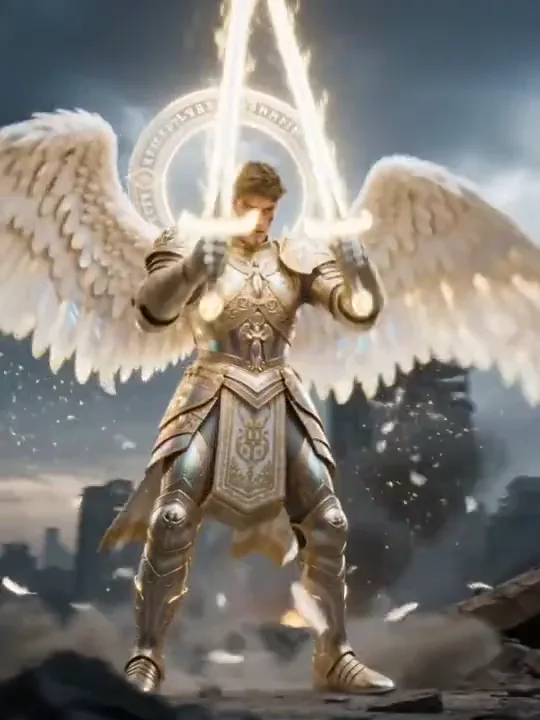
Canva AI Images and Videos for Every Layout
Generate the visuals your posters, posts, and slides need, then arrange them in your own design tool. Free options are limited; standard models need an account.
Local generation history
Assets First, Layout Second
Make Canva AI Visuals That Drop Straight Into a Layout
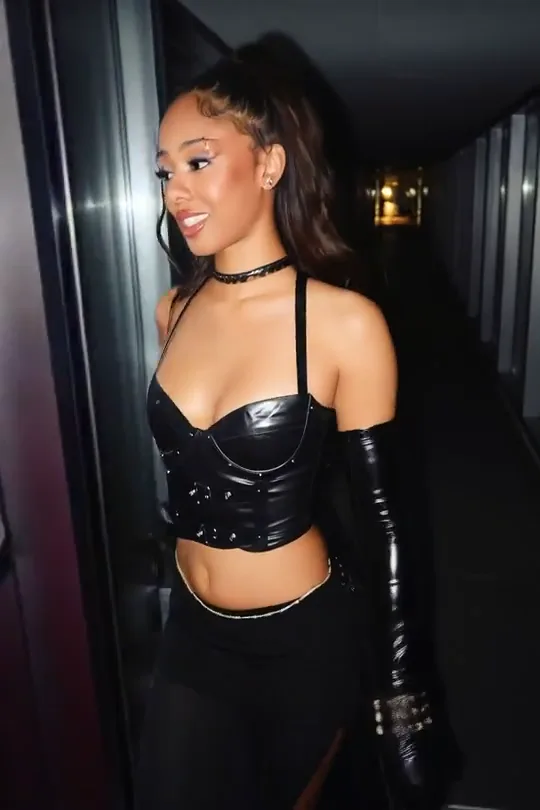
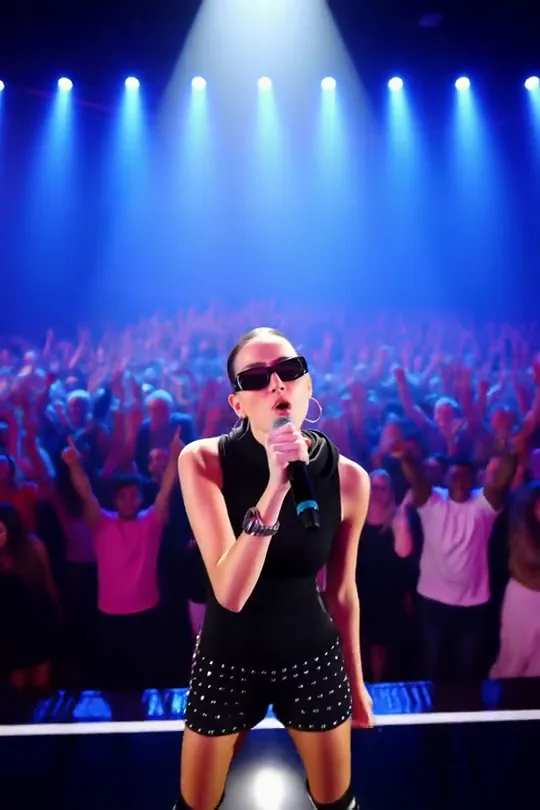
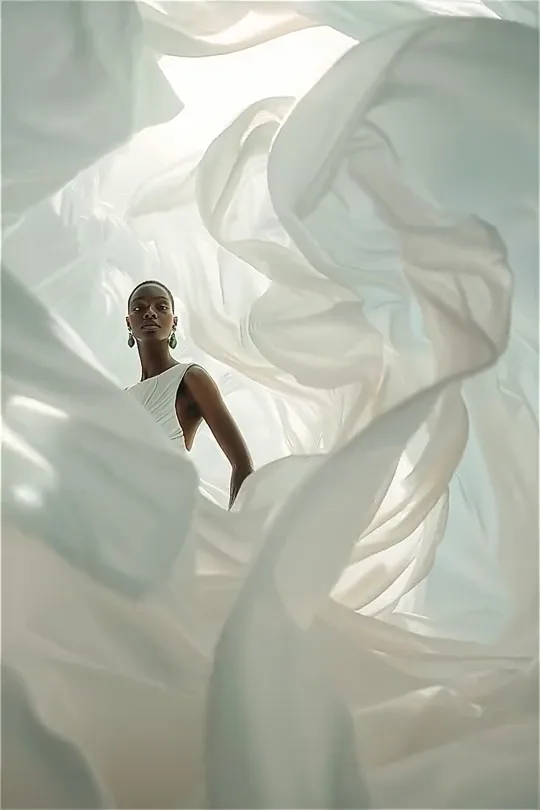
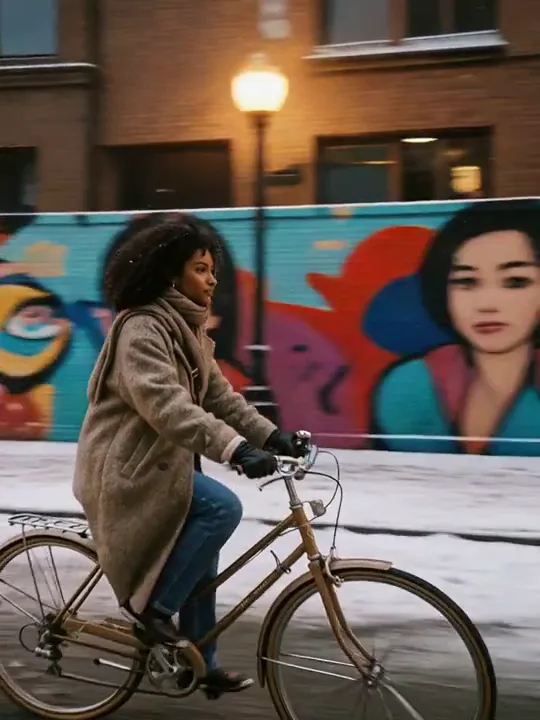
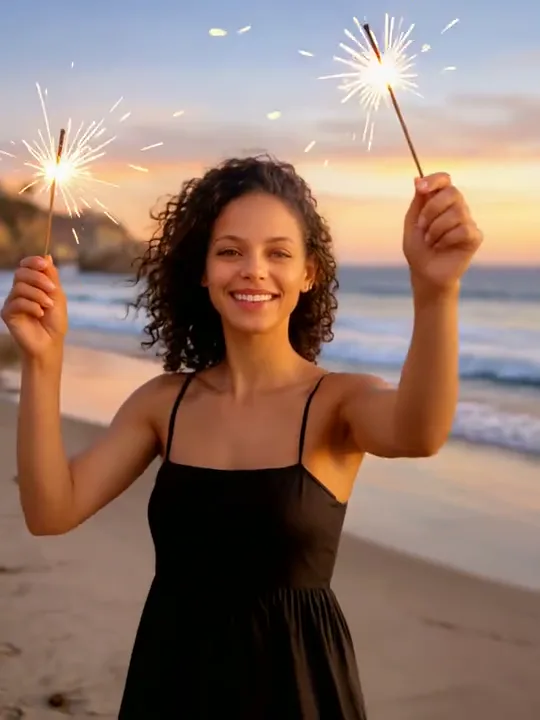
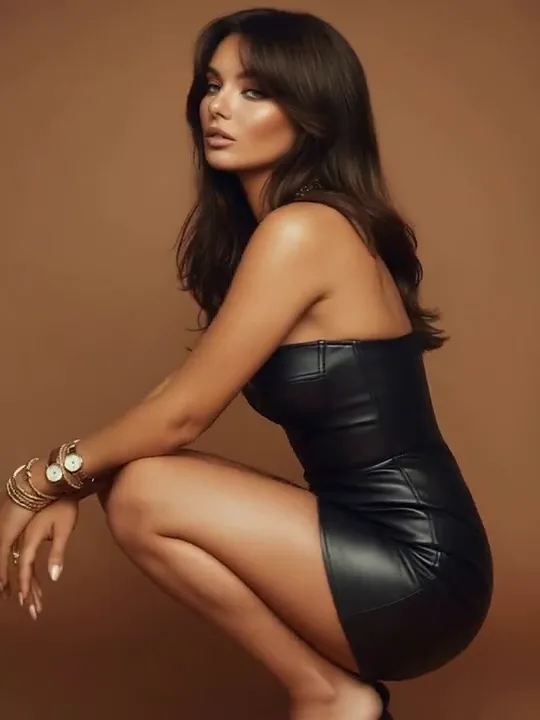
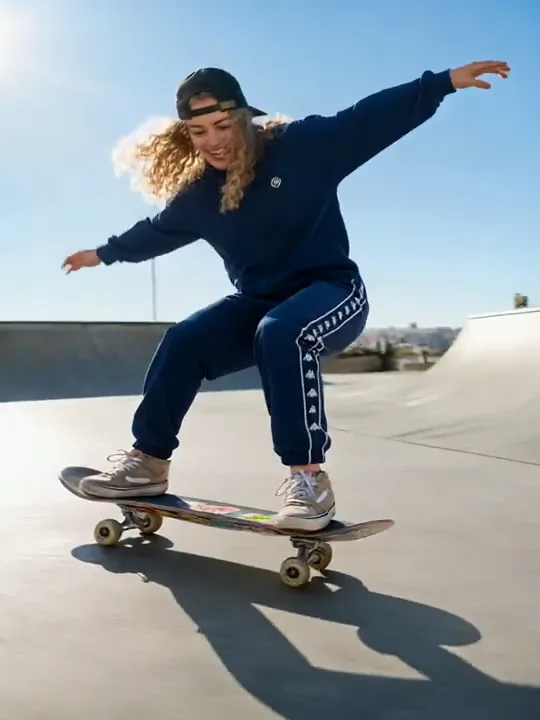
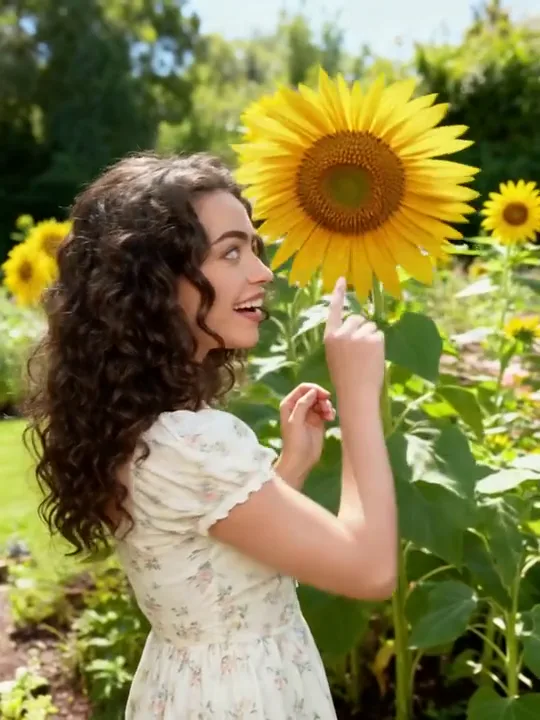
Three common Canva AI design jobs and the kind of source asset each one needs. These images are illustrative concepts, not recorded generator results.
Generate the Canva AI Hero Image Before You Set Type
A poster lives or dies on one strong image, and a Canva AI workflow should start there. Describe the subject, the mood, and where the empty space should sit, then generate a Canva AI image with room left for a headline and a date. You add the words later in your editor, so ask the model for a clean picture with no lettering baked in.
- Leave space for the headline
- Match the print orientation
- Keep text out of the image
Build a Matching Canva AI Set for a Carousel or Grid
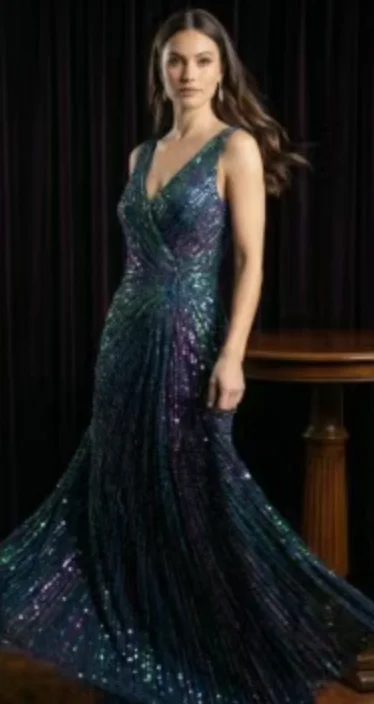
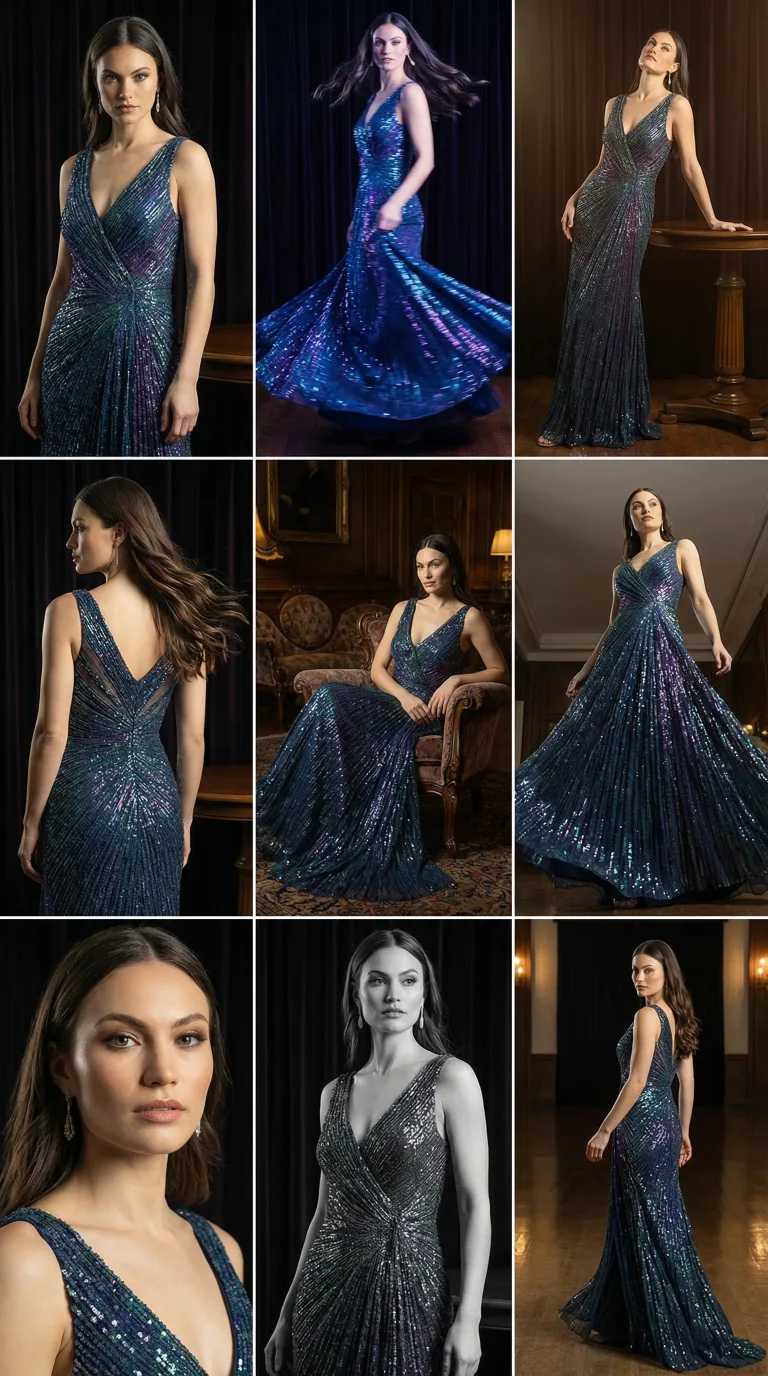
Social posts rarely travel alone, and neither should a Canva AI visual. A product drop or an event teaser often needs six or nine frames that clearly belong together. Reuse one Canva AI image prompt, change only the pose or angle, and you get a consistent set that reads as one campaign once you place the frames into your post templates.
- One style, several angles
- Square or vertical crops
- Short loops for story slots
Create Quiet Canva AI Backgrounds That Let Slides Breathe
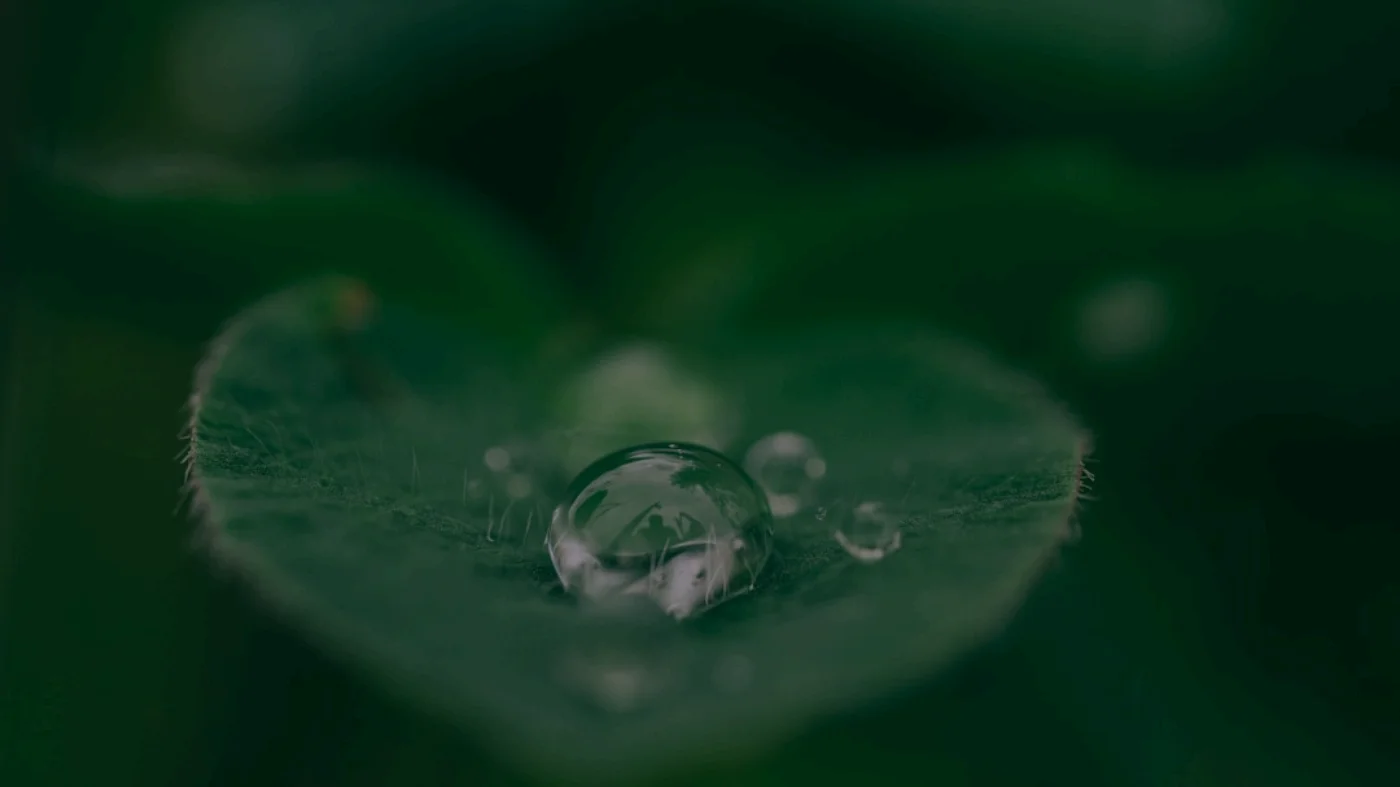
Canva AI presentation visuals have a different job: they support the speaker instead of competing with the bullet points. Ask for a Canva AI background with soft focus, low contrast, and a calm area where text will sit. A dark macro shot, like a water drop on a leaf, gives a title slide depth without stealing attention.
- Low contrast behind text
- Widescreen 16:9 framing
- Subtle motion for openers
What the Canva AI Image Generator Workflow Covers Here
King AI produces the raw Canva AI images and clips. Typography, templates, and page layout stay in the design tool you already rely on.
Canva AI Images Sized for the Destination
Pick the aspect ratio before you write the Canva AI prompt: portrait for posters and stories, square for feed posts, widescreen for slides. A Canva AI image generated at the right shape needs less cropping later, and the subject stays where you planned it instead of being trimmed off at the edge.
Short Canva AI Video From a Still You Approve
When a static visual is not enough, switch to video mode. Upload the image you already like and describe a small movement, such as drifting light or a slow push-in. That Canva AI video clip becomes an animated background or a story slide while keeping the look you signed off on.
Canva AI Prompts That Repeat Across a Campaign
Design work is rarely one asset. Save the Canva AI prompt that produced your best result and treat it like a style guide. Change one detail per run, such as the color of the backdrop or the angle of the product, so every new visual still matches the rest of the campaign.
Three Steps From a Canva AI Prompt to a Finished Layout
From Brief to Placed Asset
Generate the Canva AI source visual here, review it, and then finish the design in your own editor.
- 1
Describe the Canva AI Visual and Its Shape
Write who or what appears, the setting, the lighting, and the empty space your layout needs. Choose image mode and the aspect ratio that matches the poster, post, or slide. A short Canva AI brief with one clear subject beats a long list of competing ideas.
- 2
Generate, Compare, and Refine
Run the Canva AI prompt, then compare the results at the size they will appear in the final design. Check hands, faces, and edges. If you need motion, send the chosen still to image to video. Watch the allowance shown in the workspace; free access is limited and standard models need credits.
- 3
Download and Place It in Your Design
Save the Canva AI image or clip you chose and upload it into your design tool of choice. Add the headline, logo, and layout there. Keep the Canva AI prompt next to the file so the next asset in the series starts from the same recipe.
Can I create Canva AI style images for free?
You can start with the free option in the King AI workspace and test a Canva AI image prompt before committing to anything. Free access has a limited allowance, and standard models require an account or credits. Check the allowance and settings shown in the generator before you submit, since they can change between modes.
Does King AI design the Canva AI poster or slide for me?
No. King AI generates images and short videos, not finished layouts. There are no templates, text tools, or drag-and-drop pages here. The idea is to produce the Canva AI visual you need, download it, and then arrange the type, logo, and other elements in whichever design editor you already use.
How do I write a good Canva AI image generator prompt?
Start with the subject, then the setting, the lighting, and the mood. Add where empty space should fall, for example "subject on the right third, plain background on the left". End with the format you need. A Canva AI image generator prompt written this way gives you a visual that already fits the layout you have in mind.
Can I make Canva AI video clips from my own photo?
Yes. Choose video mode, upload an image you have permission to use, and describe a small movement. Image to video keeps the composition you started with, which matters when the clip has to sit next to static frames in a social post. For a Canva AI video clip, subtle motion usually looks more polished than dramatic action.
Should I add text inside a Canva AI image?
Usually not. Generated lettering can come out misspelled or hard to edit. Ask for a clean Canva AI image and leave a calm area where the words will go. Then set the headline, dates, and calls to action in your design tool, where you can fix a typo in seconds instead of generating the whole picture again.
Which aspect ratio suits each Canva AI design?
Match the destination. Vertical formats suit posters, stories, and short video feeds. Square works for many feed posts and profile tiles. Widescreen 16:9 fits slides and video thumbnails. Generating a Canva AI asset at the right ratio saves you from cropping the subject later. Use the ratio options the workspace shows for the selected mode.
How do I keep a series of Canva AI visuals consistent?
Reuse the same prompt structure and change one detail at a time. Keep the lighting, color palette, and camera distance fixed while you vary the pose or the product angle. Save every Canva AI prompt with its result so you can return to the version that worked when the client asks for one more frame next week.
What kind of Canva AI video works best for a presentation?
Slow, quiet motion. A drifting light, gentle steam, or a slow push-in across a landscape adds life to an opening slide without distracting the room. Keep the clip short so it loops cleanly, and avoid busy action behind text. A short Canva AI video like this can make a standard deck feel more considered.
Can I use Canva AI visuals for a product campaign?
You can generate concept and background visuals for a campaign, but review each one carefully. Check product shape, color, and any visible details against the real item, and do not rely on generated imagery for claims about the product. Treat each Canva AI image as a draft that a person approves before it goes into a published design.
Which models and settings are available for Canva AI work here?
The workspace decides which models, input types, durations, and aspect ratios are available in each mode. Check those controls when you prepare a Canva AI project, since options can differ between image and video, and between free and standard access. Style, framing, and mood are described in your prompt rather than picked from a template.
What if a Canva AI generation fails?
Read the message in the workspace first. A quota notice or a busy service is not a problem with your prompt. Keep the Canva AI prompt and any reference image saved locally, use the recovery option shown, and avoid submitting the same request again and again. Adding more words will not fix an access or capacity limit.
How do I move a finished Canva AI asset into my design?
Use the download control on the result to save the file, then upload it into the editor where your layout lives. Check it at full size once it is placed, because small flaws show up on a big poster. Keep the Canva AI prompt and source image with the export so the next variation is easy to produce.